Feedflow RSS Reader App Template
A keyboard-first RSS reader with list, card, and magazine layouts, feed discovery, highlights and notes on stories, and OPML import. The demo opens a sample library without an account.
Opens in Layerwise on your computer. New to Layerwise? Download the app first.
- Category
- Productivity
- Tags
- RSS, Reader
- Updated
- Nov 7, 2026
- Requires
- Layerwise 0.1.12+
- Source
- layerwise-app/feedflow
Build your own version of Feedflow
Follow the sites and writers you read in a three-pane reader. Add a feed by its website or feed address, pick from suggested feeds in Discover, and group subscriptions into folders. Read in list, card, or magazine layouts with adjustable type, star stories or save them for later, highlight passages and add notes, and find any of it again with search or keyboard shortcuts. Feeds are fetched on the server and refresh on demand or on a timer while the reader is open, and subscriptions move in and out with OPML. Each account syncs its own library, and the live demo includes a sample library that needs no account. Built with Layerwise, React, and TanStack Start.
Use Feedflow for a personal reader of the sites and writers you follow, or a reader built around one topic. Choose Try the demo to read a sample library without an account, then sign up to add your own feeds and sync your reading across devices.
What the template includes
- A landing page, a demo with a sample library that needs no account, and sign-up with a password plus sign-in with a one-time email code or a password.
- Server-side RSS and Atom fetching, adding a feed by website or feed address, suggested feeds in Discover, folders, refresh on demand or every 15, 30, or 60 minutes while the reader is open, and OPML import and export.
- List, card, and magazine layouts, reading settings, Starred, Read later, and Recently read views, highlights and notes on stories, search, and keyboard shortcuts, with each account’s library synced.
The template opens as a local project you can change through the conversation or the code editor. You can inspect the source for this template version before choosing how to extend it.
Copy it and make one useful change
- Install Layerwise and sign in. Choose Use this template, select a team and project name in the app, then choose Copy to Layerwise. Wait for setup and the local preview to finish.
- Decide what readers come back for, such as a morning news scan or saving long articles for the weekend, and shape the views and layouts around it. Each library is saved as one snapshot per account with size limits, so keep new fields small, and test with a few known feeds before importing a full collection.
- Ask for the change in the project conversation. This prompt is a starting point; adjust it to describe your intended result.
Starter prompt After Import OPML, show a list of every feed that could not be added, with its address and the reason, such as no feed found, timed out, or larger than 1 MB. Add Retry next to each one and a Retry all button. Keep the feeds and folders that did import, and keep the current message when nothing failed.
Check the result before publishing
- Sign up, choose Add feed, and enter a website address such as https://simonwillison.net; its stories should appear in All items. Then enter https://example.com and confirm the error says no RSS or Atom articles were found.
- Choose Mark read, then Mark all as read; the list should show All read, and Undo in the message should bring the unread count back.
- Star a story and wait for Synced at the bottom of the sidebar, then reload, sign out, and sign back in; the story should still be in Starred. Press r twice and confirm no story appears twice.
Local and published apps use separate databases, so sign up and add your feeds again after publishing. Feeds refresh only while the reader is open, story text is the plain text a feed provides, and Share only marks a story in your own Shared view. A library holds up to 500 feeds and 10,000 stories.
Use the local preview controls to test the affected path. When it works, publish a release and repeat the check at the live URL. For saved records or accounts, read about the separate Local and Online databases.
Step-by-step guide
More productivity app templates
See all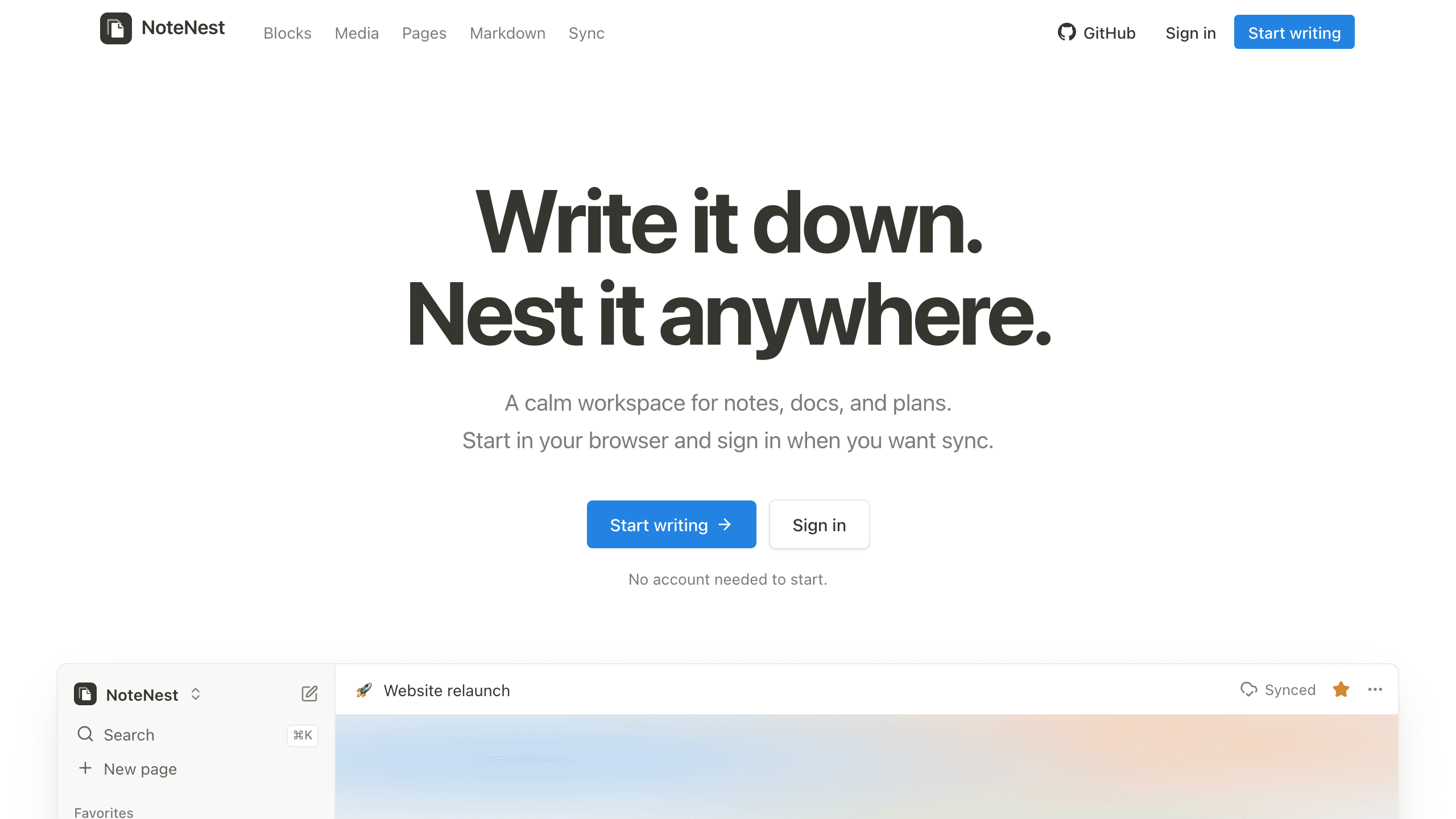
NoteNest
ProductivityA Notion-style workspace: nested pages built from blocks, a / command menu, rich text, and images, video, and embeds. It works without an account and syncs across devices when you sign in.
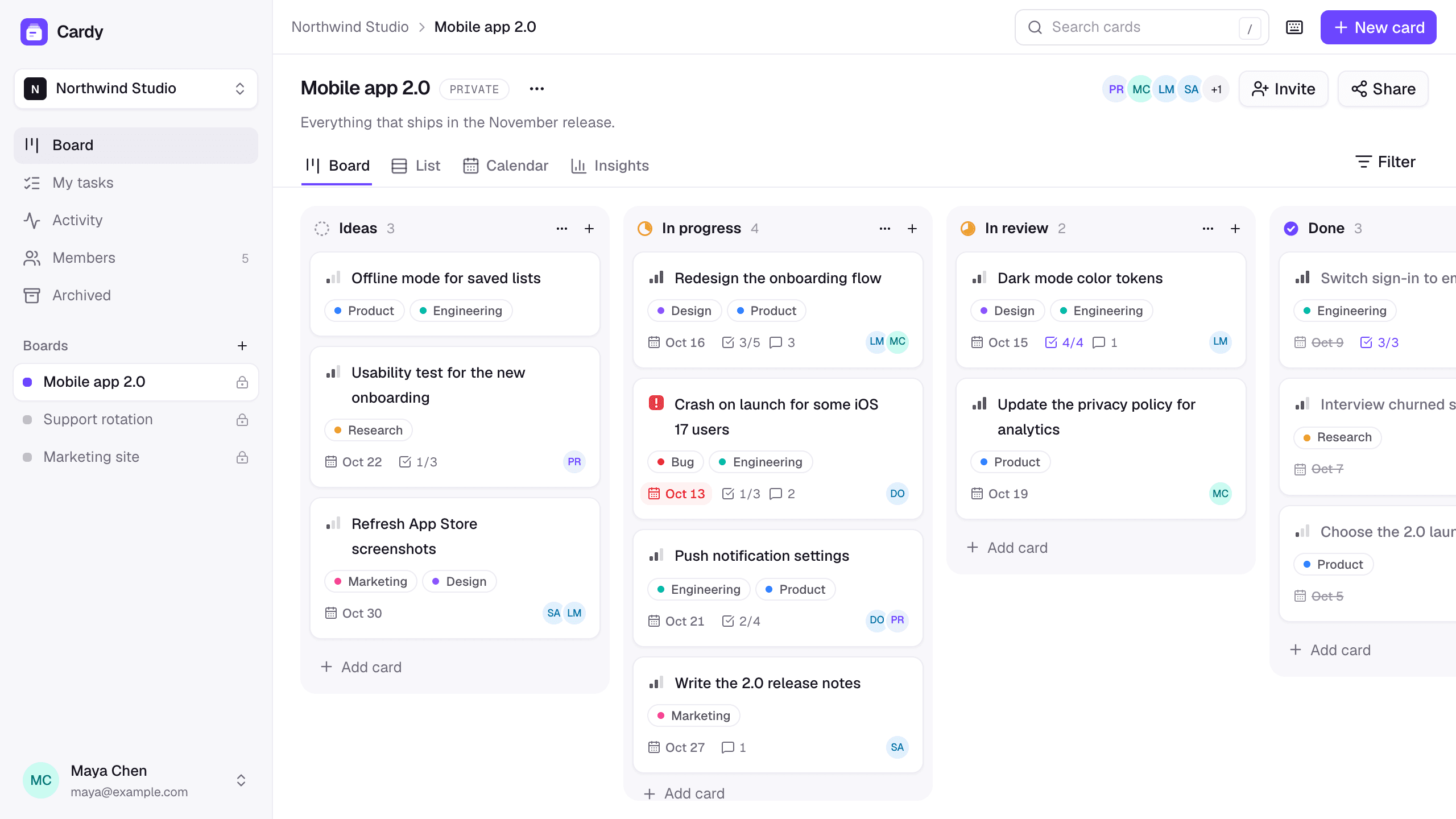
Cardy
ProductivityA team kanban board with workspaces, invitations, priorities, due dates, and checklists, plus list, calendar, and insights views of every board.