How to Build an RSS Reader App with AI
Build your own RSS reader with AI. Fetch feeds on the server, save read and starred state per account, import OPML, then test and publish it.
Table of contents
An RSS reader is a small app with real full-stack requirements. It fetches documents from servers you do not control, turns inconsistent XML into a readable list, and remembers what each person has read, starred, or saved for later. If you still miss Google Reader, building your own alternative lets you decide how subscriptions, folders, and reading views work.
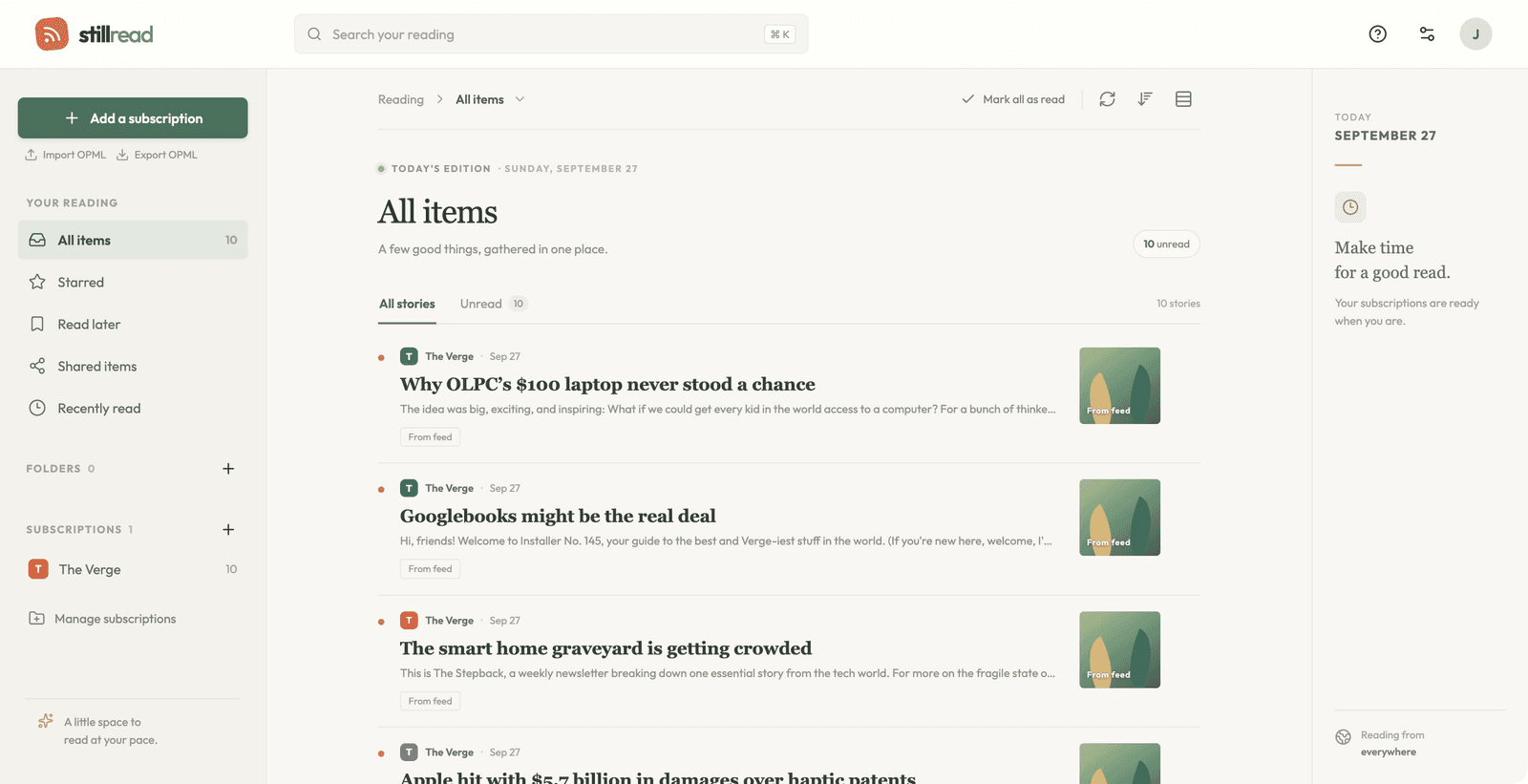
This guide shows how to build an RSS reader app with AI in Layerwise, from the data model to a published release. It uses Feedflow, an RSS reader app template, as a working example, and also shows how to start from your own prompt.
1. Define the data before you prompt
A reader stores three kinds of information: the feeds, the entries those feeds publish, and what each person did with them. Keep feed content separate from personal state: two people can subscribe to the same feed, and only one may have read a given entry.
For a reader with many accounts, this structure is a reasonable starting point:
| Table | Key fields | Purpose |
|---|---|---|
feeds | id, url (unique), title, site_url, etag, last_modified, last_fetched_at, last_error | One row per feed address, shared by every subscriber |
entries | id, feed_id, guid, url, title, summary, published_at | Unique on feed_id + guid, so a refresh adds no copies |
subscriptions | user_id, feed_id, folder, created_at | Unique on user_id + feed_id |
entry_states | user_id, entry_id, read_at, starred_at, saved_at | Created only when someone reads, stars, or saves an entry |
Feedflow takes a simpler approach. Its reader_state table holds one validated snapshot per account, containing that person's subscriptions, folders, stories, and read, starred, and read-later flags. The server rejects a snapshot with more than 500 subscriptions or 10,000 stories, or one larger than 1.5 MB. That suits a personal reader; the normalized tables fit better if many users share feeds or you plan to refresh them on the server.
2. Fetch feeds on the server
Browsers block a page from reading a response from another site unless that site allows it with CORS headers, and many feed servers do not send them. Fetch feeds in the backend and return parsed entries to the page.
Feedflow's feed function runs on the server and requires a signed-in session. Given a website address instead of a feed URL, it looks for the feed link in the page's HTML. It also:
- Refuses local and private network addresses, so users cannot point the server at internal hosts.
- Stops at 1 MB per feed, five seconds per request, and 20 seconds per lookup, retrying once after a temporary failure.
- Sends
ETagandLast-Modifiedvalues from the previous fetch, so an unchanged feed need not resend the whole document. - Parses RSS and Atom, keeps up to 40 entries per fetch, converts HTML content to plain text, and shows an error when an address has no entries.
Feedflow refreshes when the reader selects Refresh subscriptions, not on a schedule. If one feed fails, the others still update and the reader names the failed feeds. Background refresh is a separate feature; ask the assistant how it would run in the published app and how you can confirm that it ran.
3. Choose a starting point
For a working reader to adapt, open the Feedflow template, choose Use this template, and follow the steps there. It includes sign-in, subscriptions, search, starred stories, a read-later list, OPML import and export, and saved reader state. Other starting points are on the templates page.
To build from scratch, install Layerwise, sign in, and enter a description in Describe the app you want to build... on your team home page. Name the data and the fetching rules:
Build an RSS reader web app. Signed-in users add a feed by pasting a feed URL
or a website address, then read entries in a three-pane layout: subscriptions
and folders, an entry list, and the selected entry. Fetch and parse RSS and
Atom feeds on the server, not in the browser. Save feeds, entries,
subscriptions, and each user's read, starred, and read-later state in the
project database. Show a clear error when an address has no feed.
When the local preview loads, add two or three feeds you already read and confirm their entries appear. The prompting guide explains how to describe users, data, and screens.
4. Keep reading state private to each account
Every Layerwise project includes email sign-in. The reader still needs server-side rules that tie each subscription and entry state to the signed-in user:
Check reader access on the server. Every subscription, folder, and read,
starred, or read-later flag belongs to the signed-in user. Ignore any user ID
sent from the browser and use the session instead. Verify with two accounts
subscribed to the same feed.
Sign up as two people in the preview, subscribe both to one feed, and star an entry as the first. The second should not see the star. Open Authentication and select Local to see both accounts, then open Database to inspect the rows that changed. The authentication and database guides explain both views.
5. Import subscriptions with OPML
OPML is the file format readers use to move subscriptions. Each feed is an outline element with an xmlUrl attribute, and folders are outlines that contain other outlines.
In Feedflow, Import OPML accepts a file under 1 MB with up to 50 feeds, fetches them in groups of five, keeps their folders, and reports feeds that failed. Export OPML writes your subscriptions and folders back to a file. For a from-scratch reader, ask for similar behavior:
Add OPML import and export to the subscriptions sidebar. Import should read
xmlUrl from every outline, use parent outlines as folder names, skip feeds the
user already follows, and fetch new feeds a few at a time. After import, list
any feeds that failed and why. Export should produce a file this import accepts.
Test with a small file of known feeds before importing a full collection. Export it, import it into a second account, and compare the lists.
6. Test locally, then publish
Before publishing, run through the reader in the local preview:
- Add one feed by website address and another by direct feed URL.
- Add an address that has no feed and read the error.
- Refresh twice and confirm no entries are duplicated.
- Mark entries read, starred, and read later, then reload the page and sign in again.
- Check the reader at phone width.
When a fetch fails, open Logs, select Local, and filter by status or search for the feed address. Include the failing request's messages in your next prompt.
When the local path works, choose Publish in the preview header, then Publish in the menu. Local and Online use separate databases, so create an account on the live app and repeat the checks there. To limit the reader to your team, turn on Private in the Publish menu; this requires a paid plan. The publishing guide covers release status.
7. Grow it with evidence
Entries accumulate with every refresh, and each project database has a size limit based on your team's plan, shown in the Publish menu. Decide how long to keep entries:
Keep the 200 most recent entries per feed. During refresh, delete older
entries unless a user has starred or saved them. Log how many were removed.
Once the reader is live, Analytics shows which pages people visit and Logs shows which feed requests fail. Use both to choose the next change.
Start with a reader that handles a few feeds well. Open the Feedflow template to begin from a working version, or follow the Quick start to build from your own prompt.