

Database
Every project ships with a built-in production database — no third-party service to set up.
Every project includes its own database. It is provisioned automatically, bound to your app, and deployed with each release, so there is no separate database service to sign up for, configure, or connect.
How it works
- Each project gets one dedicated SQLite database (Cloudflare D1) exposed to your app as the
DBbinding. - Locally, the app runs against a local SQLite file so you can build and test offline.
- On publish, the production database is created on first release and your schema migrations are applied automatically.
Because it is standard SQLite, the generated app talks to it through an ORM and ordinary SQL — nothing Layerwise-specific to learn.
View and edit your data
Open Database from the project sidebar to browse and edit your data directly, no SQL required.
- Switch between Local and Online at the top of the page to work with your local development data or your live production data. Online becomes available once you have published the project.
- The left panel lists your tables with a search box. Single-click a table to preview it, double-click to keep it open in a pinned tab.
- Click a column header to sort, and page through large tables at the bottom.
- Add a row with Insert, edit a value by double-clicking a cell, and delete rows by selecting them and choosing Delete. True/false and date/time columns show the right control — a dropdown, a date & time picker — so you never enter raw
0/1or timestamps. - Export the current table to CSV or JSON from the menu; the file is saved and revealed in your file browser.
Local and Online are independent databases — your local file is for building and testing, and production is created on first publish. Edits made to Online change your live production data immediately.
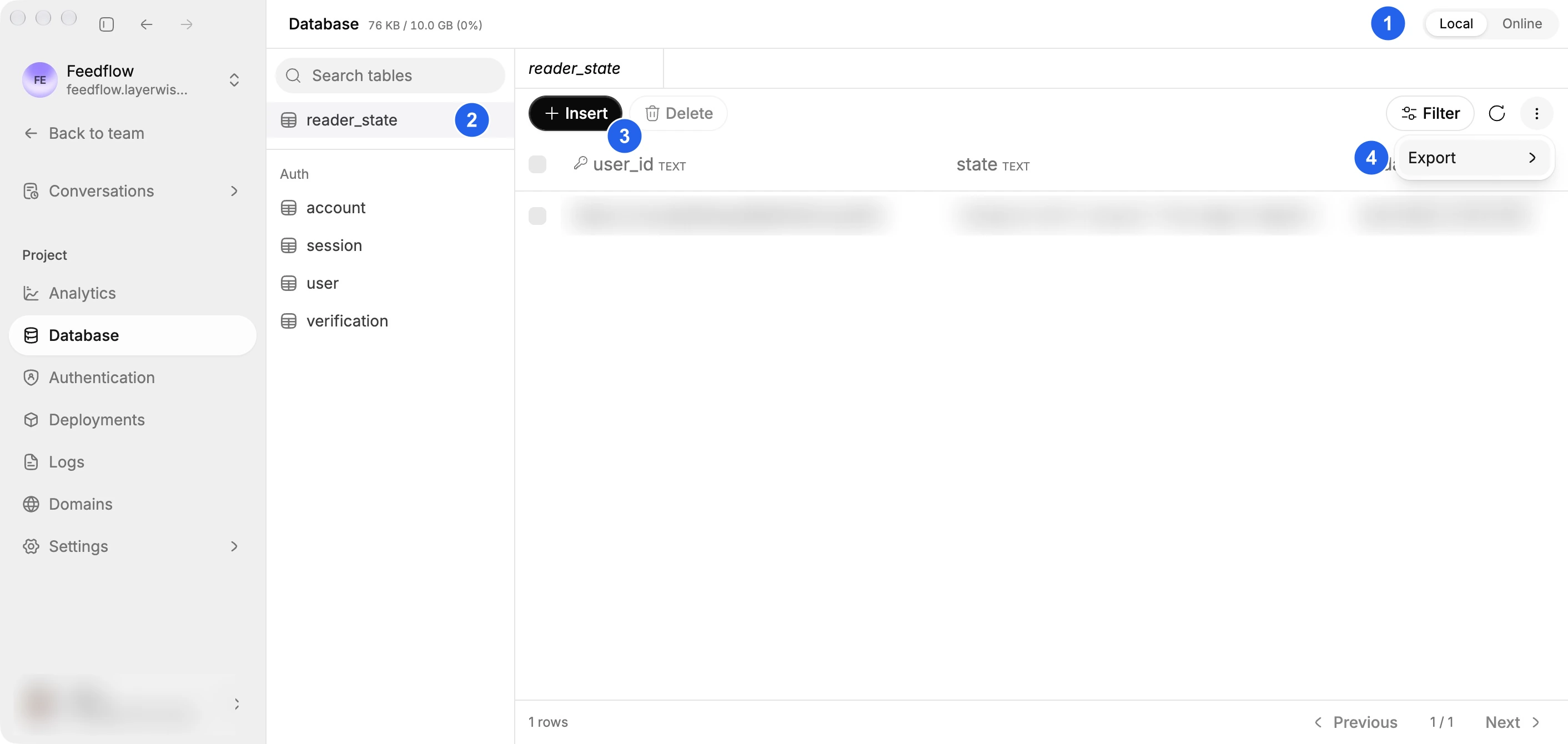
(1) Choose Local or Online, (2) select a table, then use (3) Insert or (4) Export. Record contents are blurred.
Storage limits
You get a number of databases (one per project) and a size cap per database, based on your team's plan:
| Plan | Databases | Storage per database |
|---|---|---|
| Free | 1 | 100 MB |
| Pro | 10 | 1 GB |
| Business | 100 | 10 GB |
| Enterprise | Unlimited | 10 GB |
Changing plans takes effect immediately: an upgrade raises the limits right away, and a downgrade applies the new caps at once.
Monitor usage
Open the Publish menu in the preview header to see the current size and limit of your project's database, with a color indicator as it fills up. The reading reflects the latest measurement each time you open the menu.
When a database fills up
As a database approaches its limit, Layerwise notifies everyone who has worked on the project — by email and in the app — at 50%, 75%, 85%, 95%, and 100% of the limit.
At 100%, the published app is paused and serves a temporary notice instead of your app. This protects your data from writes that would exceed the limit. To bring the app back online:
- Upgrade your plan for a higher limit — the app is restored automatically, or
- Free up space in the database.