

Build and preview a project
Make changes through the project conversation and verify them in the local preview.
The project workspace places the conversation and local preview side by side. Use the conversation to request a focused change, then use the preview to confirm the result.
Continue the conversation
Write the next task in the conversation panel. State the desired outcome and constraints that matter. Keep related work in the same conversation; use the project sidebar to switch to another conversation when you are starting a different thread of work.
Test the preview
The preview header lets you:
- Select desktop, tablet, or phone widths.
- Refresh the local preview.
- Open the preview in your default browser.
- Show or hide preview logs from Project actions.
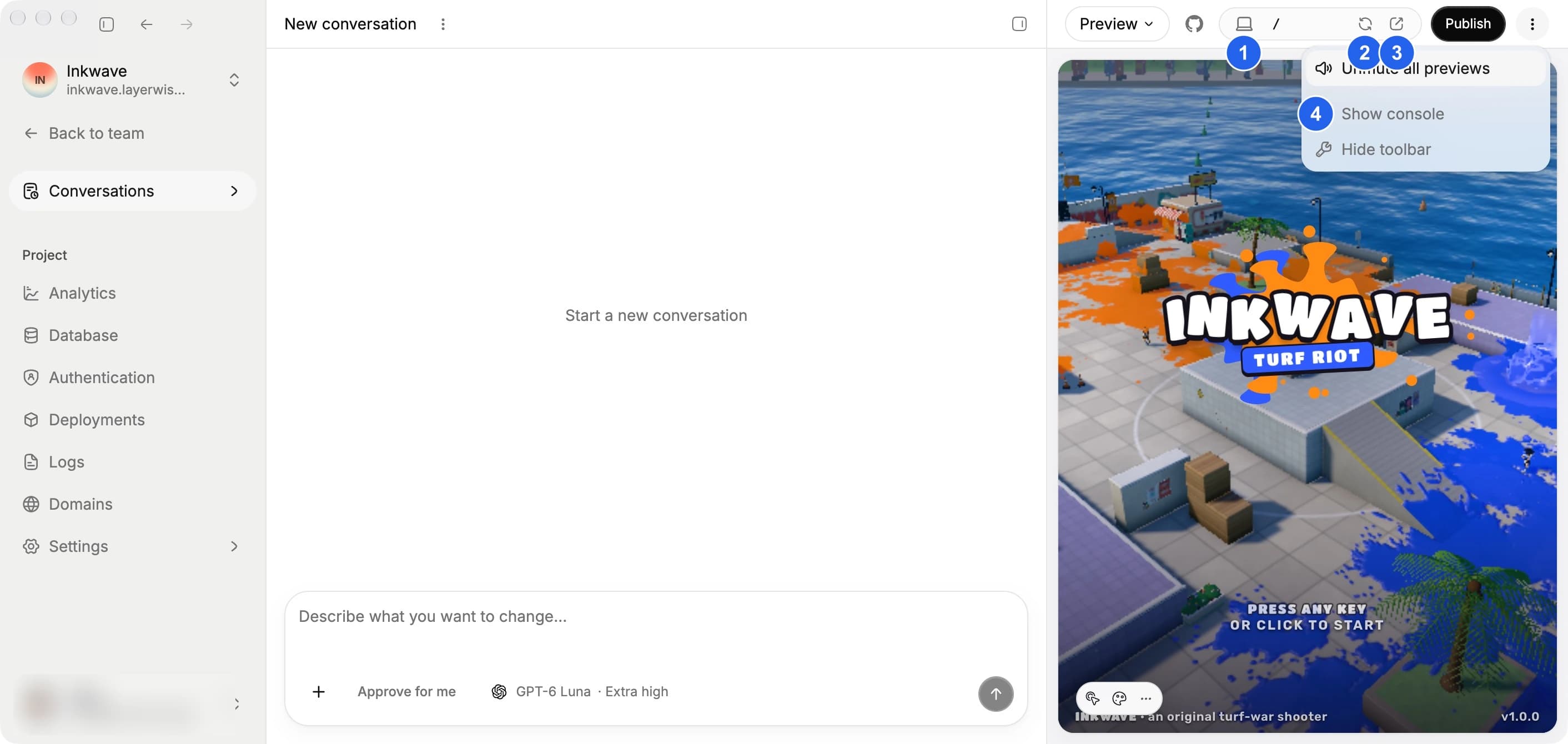
(1) Change the preview width, (2) refresh, (3) open in your browser, or (4) open Project actions to show the console.
Test the user path affected by the change, rather than only checking whether a screen rendered.
Fork an experiment
Open the three-dot menu beside the conversation title and choose Fork project to create a separate project from the current state. A fork does not copy the GitHub connection, custom domains, or release history.
Use a fork to explore an alternative direction while preserving the original project.
When the preview is not ready
Wait for workspace setup to finish, then refresh the preview. If it still fails, open the preview console and follow Preview does not load.