NoteNest Notion-Style Notes App Template
A Notion-style workspace: nested pages built from blocks, a / command menu, rich text, and images, video, and embeds. It works without an account and syncs across devices when you sign in.
Opens in Layerwise on your computer. New to Layerwise? Download the app first.
- Category
- Productivity
- Tags
- Notes, Docs, Wiki, Writing
- Updated
- Oct 28, 2026
- Requires
- Layerwise 0.6.0+
- Source
- layerwise-app/notenest
Build your own version of NoteNest
Write the way you would in Notion. Type / to add any block: headings, to-dos, lists, toggles, quotes, callouts, code with syntax highlighting, tables, columns, equations, a table of contents, or a sub-page. Markdown shortcuts work as you type, so there is no separate preview. Drag a block by its handle to move it, or open its menu to turn it into another type, color it, or duplicate it, and select text to format, link, or color it. Add images, video, audio, files, web bookmarks, and embeds from YouTube, Figma, Google Maps, and more. Pages nest in a sidebar you can rearrange by dragging, with favorites, emoji icons, covers, @ mentions, backlinks, ⌘K search, page templates, Trash, and light and dark themes. Pages save in the browser without an account; signing in syncs them across devices and turns on uploads. Built with Layerwise, React, TanStack Start, and Tiptap.
Use NoteNest for a personal wiki, project docs, meeting notes, or any writing that mixes text, to-dos, and media on nested pages. Choose Start writing to use it without an account; pages save in the browser, and signing in syncs them across devices.
What the template includes
- A landing page and a Notion-style workspace: a sidebar of nested pages you can drag to rearrange, with favorites, emoji icons, covers, breadcrumbs, and backlinks.
- A block editor with a / menu, Markdown shortcuts, a selection toolbar, drag handles, to-dos, toggles, callouts, tables, columns, code, equations, and @ mentions.
- Images, video, audio, files, bookmarks, and embeds, plus ⌘K search, page templates, Markdown import and export, Trash with Restore, dark mode, and optional account sync.
The template opens as a local project you can change through the conversation or the code editor. You can inspect the source for this template version before choosing how to extend it.
Copy it and make one useful change
- Install Layerwise and sign in. Choose Use this template, select a team and project name in the app, then choose Copy to Layerwise. Wait for setup and the local preview to finish.
- Decide what a page is for first, such as a meeting, a project, or a wiki article, and change the page templates, the Getting started page, and the / menu to match. Add new kinds of blocks as editor nodes inside the page content, so sync and Markdown export carry them without new database fields.
- Ask for the change in the project conversation. This prompt is a starting point; adjust it to describe your intended result.
Starter prompt Add Share to the page menu. It publishes a read-only copy of the page at /share/<page id> that anyone with the link can open without signing in, with a switch to stop sharing and a Copy link button. Only the signed-in owner can share a page, the server must refuse pages that are not shared, and uploaded images on a shared page should still load. Check the shared page at phone width.
Check the result before publishing
- Choose Start writing and create a page, type / to add a to-do list and a callout, then drag the callout above the to-dos by its ⋮⋮ handle; after a refresh both blocks should remain in that order.
- Type /page to add a sub-page; it should appear under its parent in the sidebar and the breadcrumb, and dragging it onto another page in the sidebar should move it there.
- Sign in with the same account in two browsers and edit a page in one; switch to the other and the edit should appear within a few seconds, with the sidebar footer reading Synced.
Local and published apps use separate databases, so pages synced in the preview do not appear in the published app. Sync keeps the most recently edited version of each page instead of merging edits from two devices, so two people cannot edit one page together, and sharing, comments, page history, and databases are not included.
Use the local preview controls to test the affected path. When it works, publish a release and repeat the check at the live URL. For saved records or accounts, read about the separate Local and Online databases.
Step-by-step guide
More productivity app templates
See all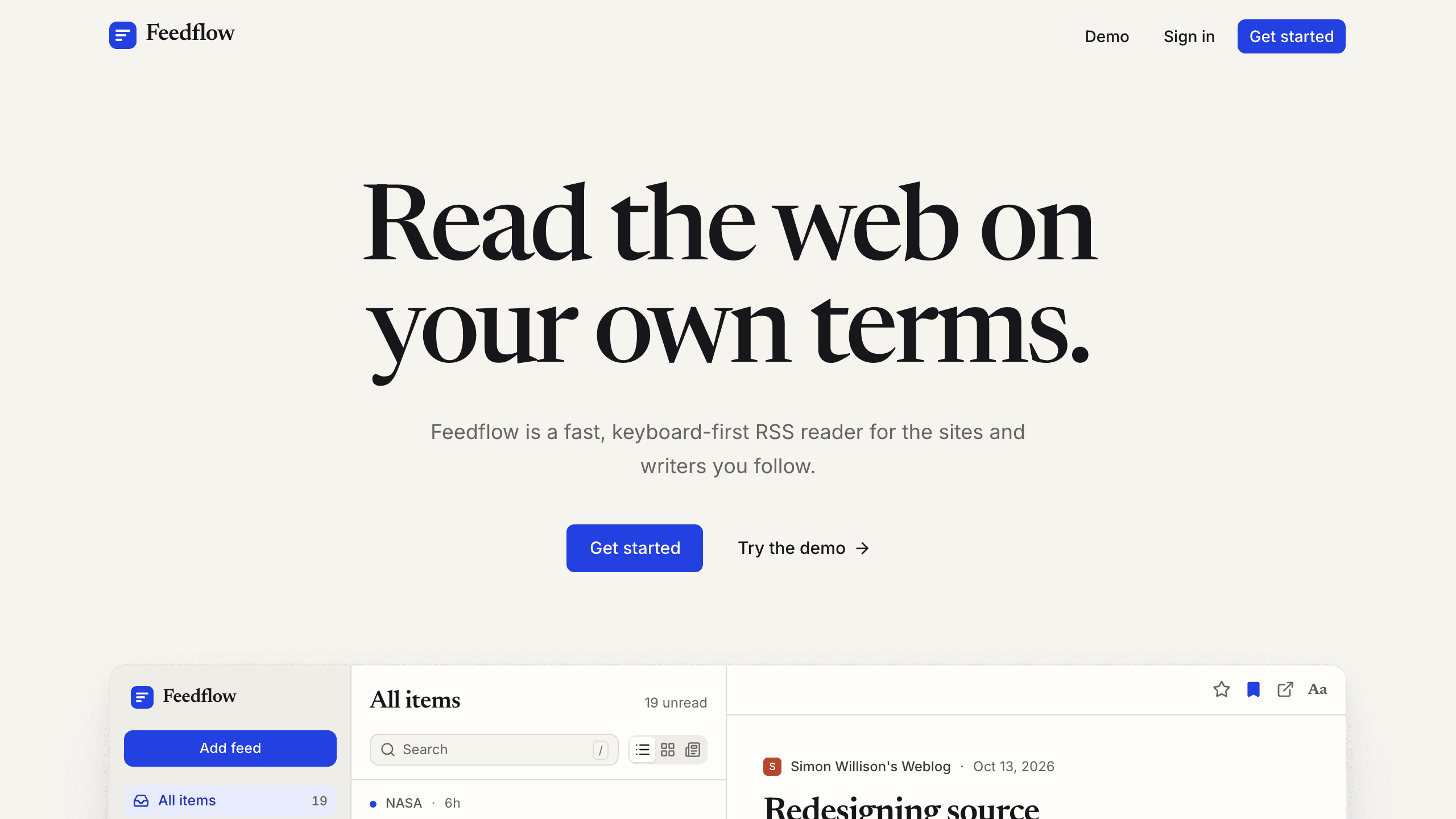
Feedflow
ProductivityA keyboard-first RSS reader with list, card, and magazine layouts, feed discovery, highlights and notes on stories, and OPML import. The demo opens a sample library without an account.
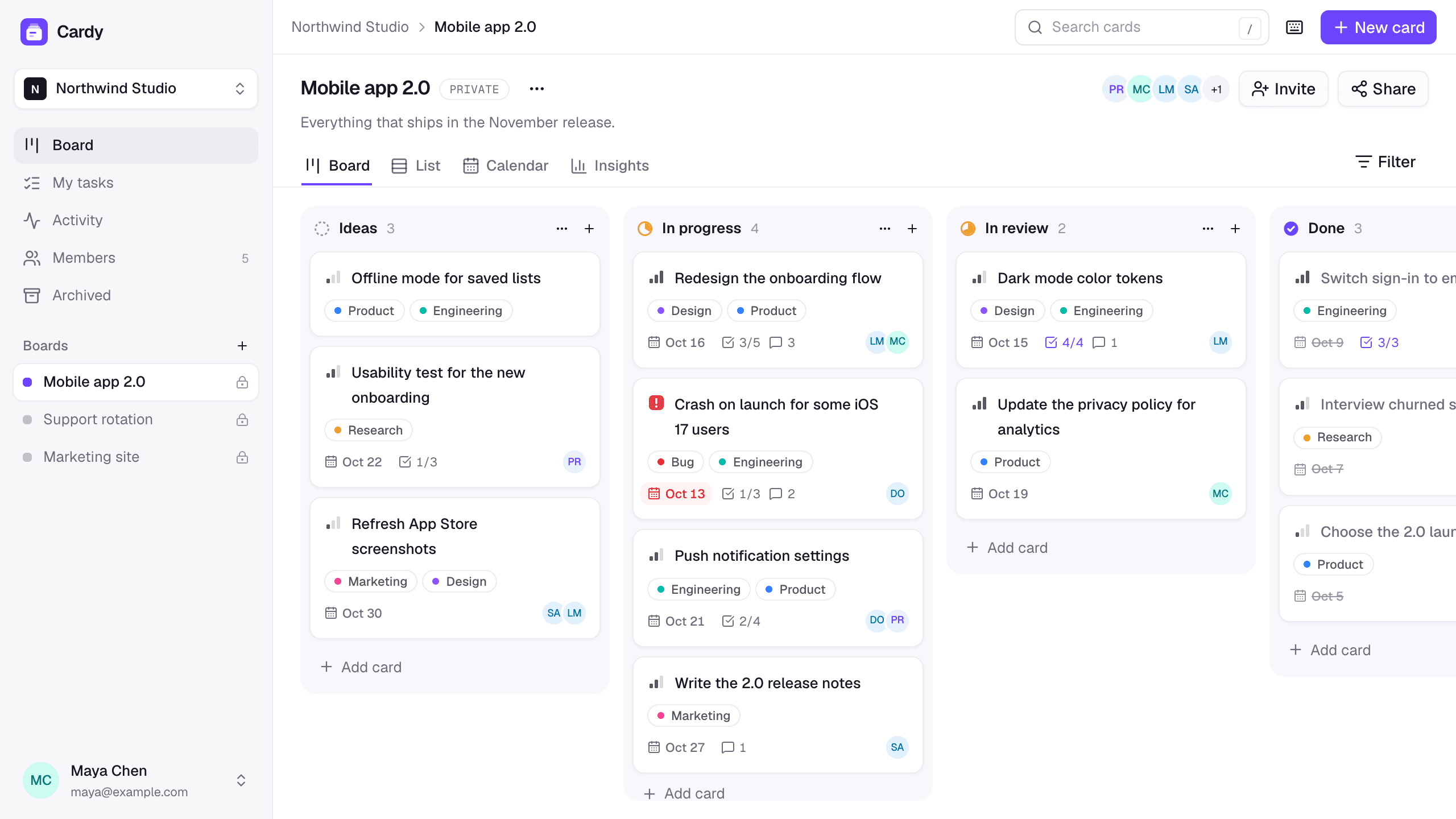
Cardy
ProductivityA team kanban board with workspaces, invitations, priorities, due dates, and checklists, plus list, calendar, and insights views of every board.