

Deploy & host
Share a private app with passwords
Let people outside your team open a private project's live URL with a password you create, and revoke it at any time.
A private project only opens for members of your team. To show it to a client, a tester, or a reviewer without adding them to the team, create a password and send it to them. Each password has its own name and expiry, so you can see who is using it and revoke it on its own.
Passwords need a paid plan, because they only work on private projects.
Turn on passwords
- Select Publish in the preview header.
- Turn on Private.
- Turn on Allow passwords. It's on by default for private projects.
With passwords allowed, the Private description reads "Team members and people with a password can open the live URL." The change applies to the live site right away, without publishing again.
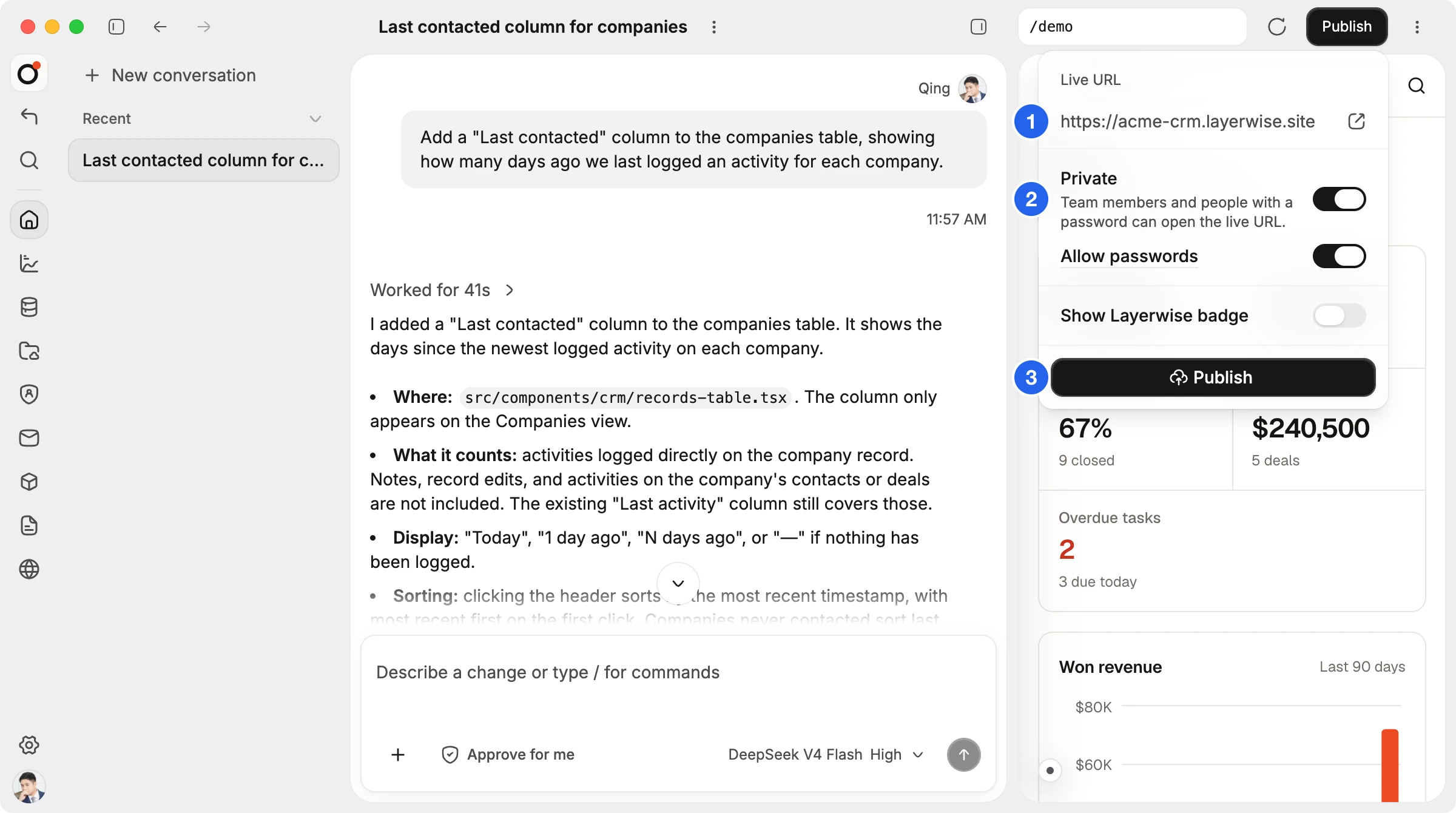
(2) With Private on, the Allow passwords switch appears below it.
Turning Allow passwords off signs out everyone who got in with a password. Your passwords are kept, and they work again when you turn it back on.
Create a password
- Open Settings in the project sidebar, then Passwords. You can also select the Allow passwords label in the Publish menu.
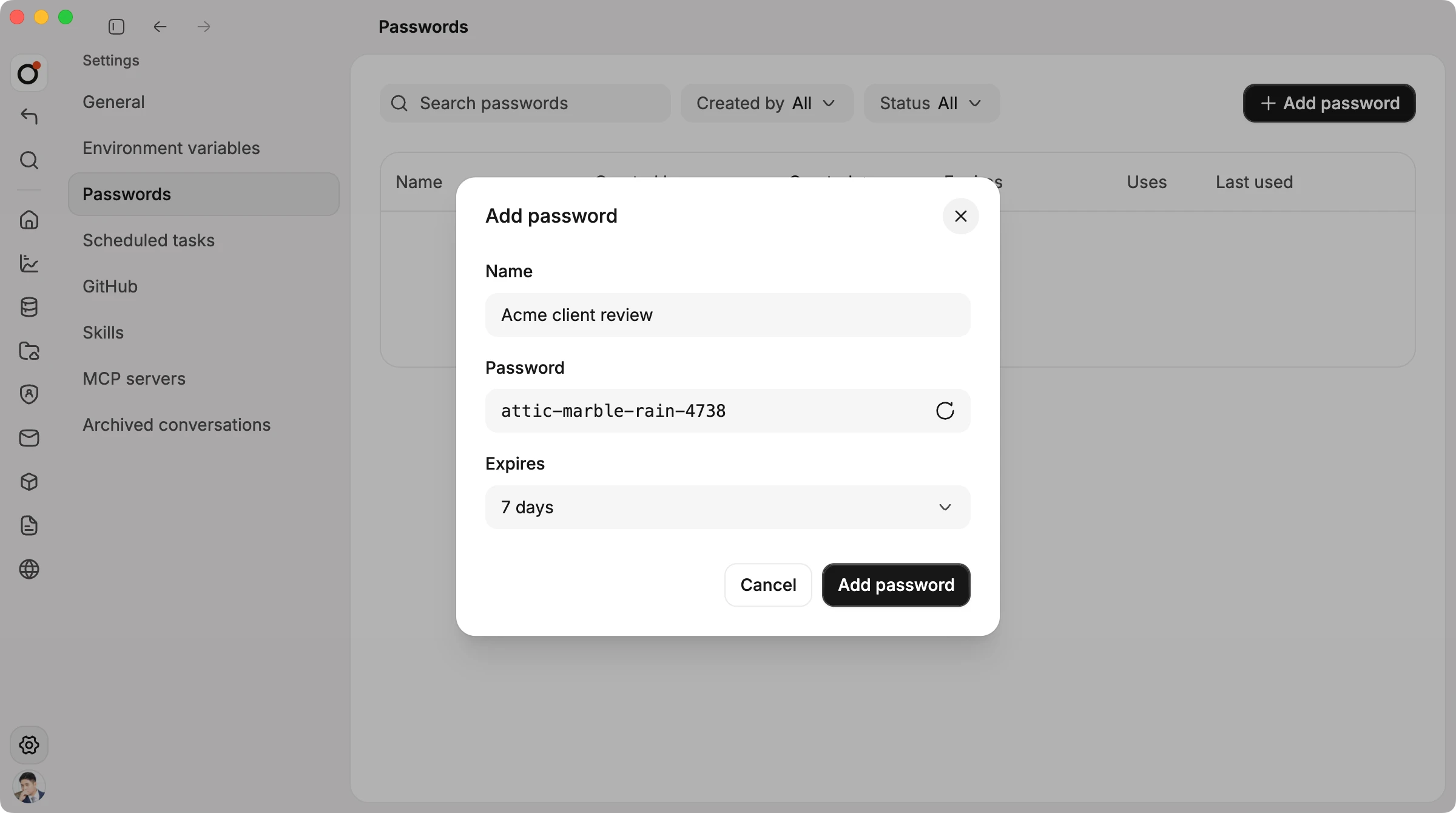
- Choose Add password.
- Enter a Name that says who the password is for, such as "Acme client review".
- Keep the generated Password, choose Generate another, or type your own of at least 8 characters.
- Choose when it Expires: 1 hour, 1 day, 7 days, 30 days, 90 days, 1 year, or Never. New passwords last 1 day unless you change it.
- Choose Add password.
Layerwise shows the password once. Copy it before you choose Done:
- Copy password copies the password itself. Send it with the live URL.
- Copy link copies a Link with password that opens the app without typing anything. The password is in the part of the link after
#, which browsers don't send to any server. The link appears once the project has been published.
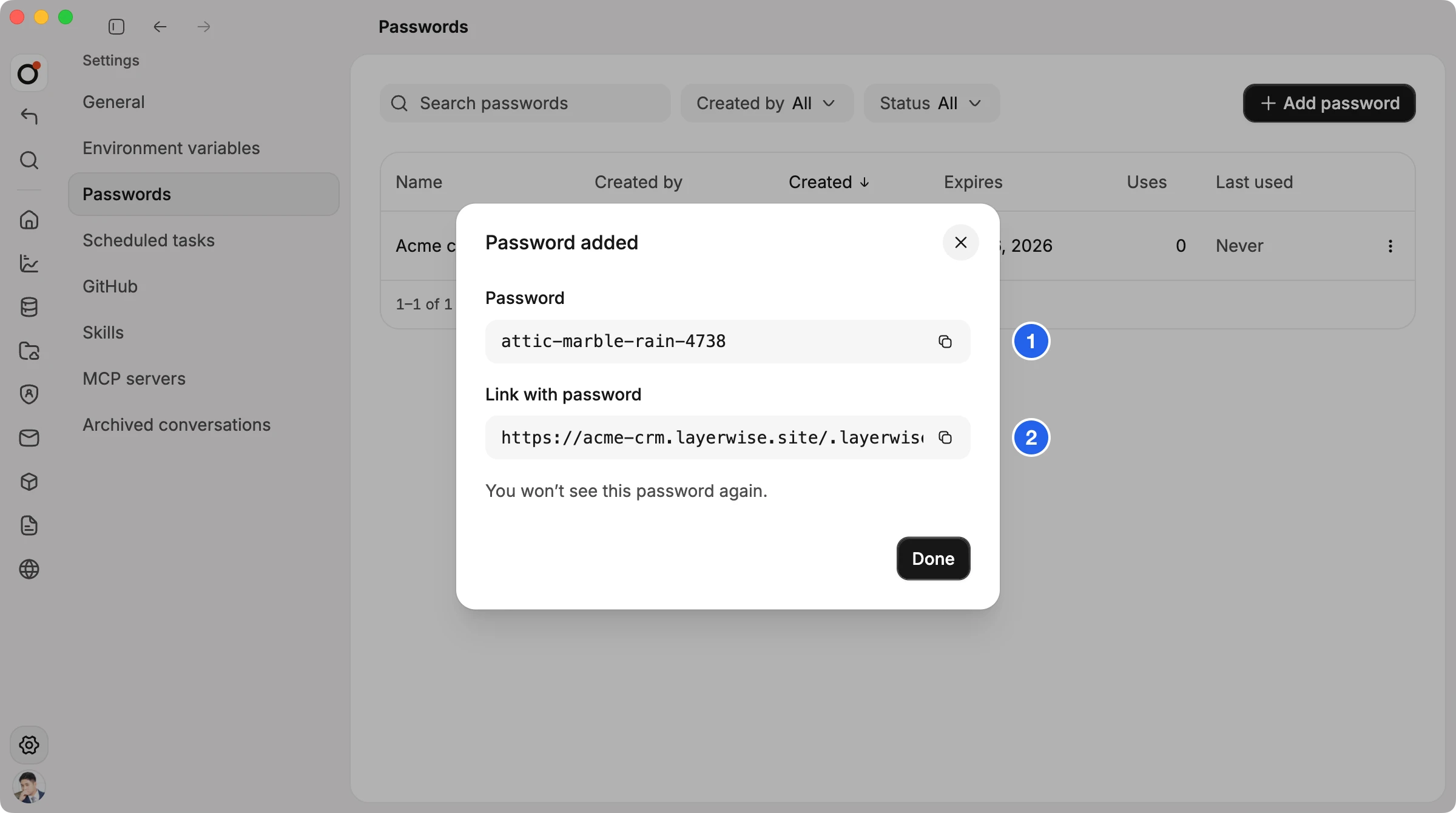
(1) Copy the password, or (2) copy a link that signs the visitor in.
Anyone with the link or the password can get in, so send them only to the people who need access.
Owners, admins, and editors can add and revoke passwords. Viewers can see the list.
What visitors see
Once the project has an active password, a visitor who isn't signed in to your team sees a page with the project's name and icon, a Password field, and Continue. Team members can choose Sign in instead.
After a correct password, the visitor stays signed in on that browser for 30 days, or until the password expires if that comes first. A wrong password shows "Incorrect password". After 5 tries in a minute, the page asks the visitor to wait a minute before trying again.
Passwords work on the layerwise.site address and on every custom domain.
Manage passwords
The Passwords page lists each password's Name, Created by, Created, Expires, Uses, and Last used. Uses counts each time someone signed in with it. Search by name, or filter by Status (Active or Expired) and Created by.
To end a password early, open its menu and choose Revoke. Anyone who used it loses access right away. You can't edit a password or see it again after it's created; add a new one instead.
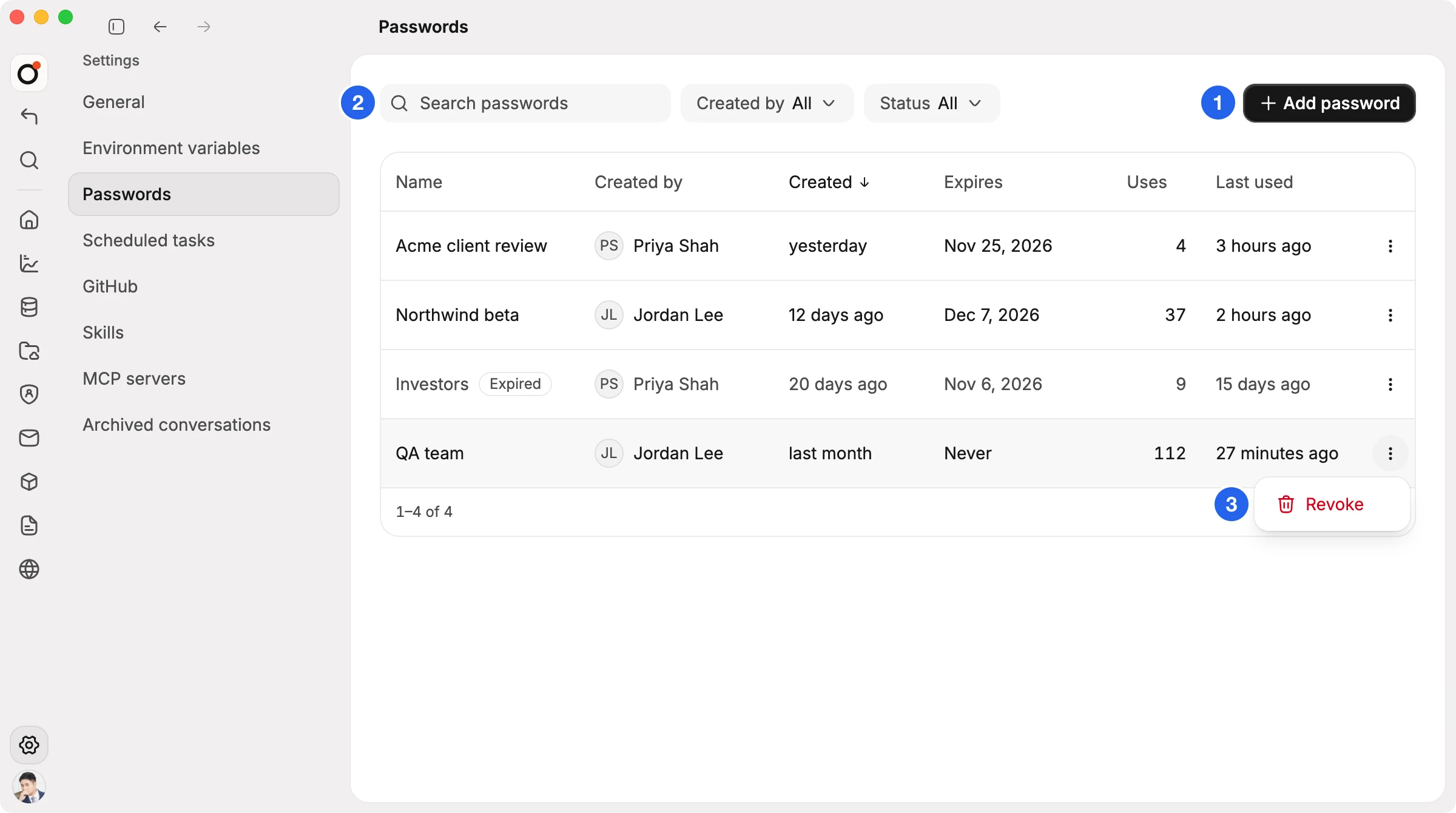
(1) Add a password. (2) Search, or filter by who created it and whether it has expired. (3) Revoke a password from its menu.