

Deploy & host
Environment variables
Give your published app API keys and settings without putting them in your code.
Open Settings in the project sidebar, then Environment variables. Your published app reads each value from env. For example, a secret named STRIPE_SECRET_KEY is env.STRIPE_SECRET_KEY in your app's server code.
Environment variables apply only to your published app. Your local preview doesn't use them.
Types
The table lists every environment variable with its type, who last changed it, and when.
- Variable holds a plain-text setting, such as a public ID or a feature flag. Everyone on the project can see and copy its value. To copy it as a line for a
.envfile, open the row's actions and select Copy as .env. - Secret holds an API key, token, or other sensitive value. Layerwise encrypts it, and after you save it, no one can see its value again, including you.
- Managed values are the ones Layerwise sets on every publish, such as your project database and the settings sign-in needs. You can't change them, and their names are reserved.
Search by name or value, or filter the table by type, by who last changed a value, or by when. Select a column header to sort by it.
To save your variables as a .env file, open the menu next to Add variables and select Export .env. Secrets are listed without their values.
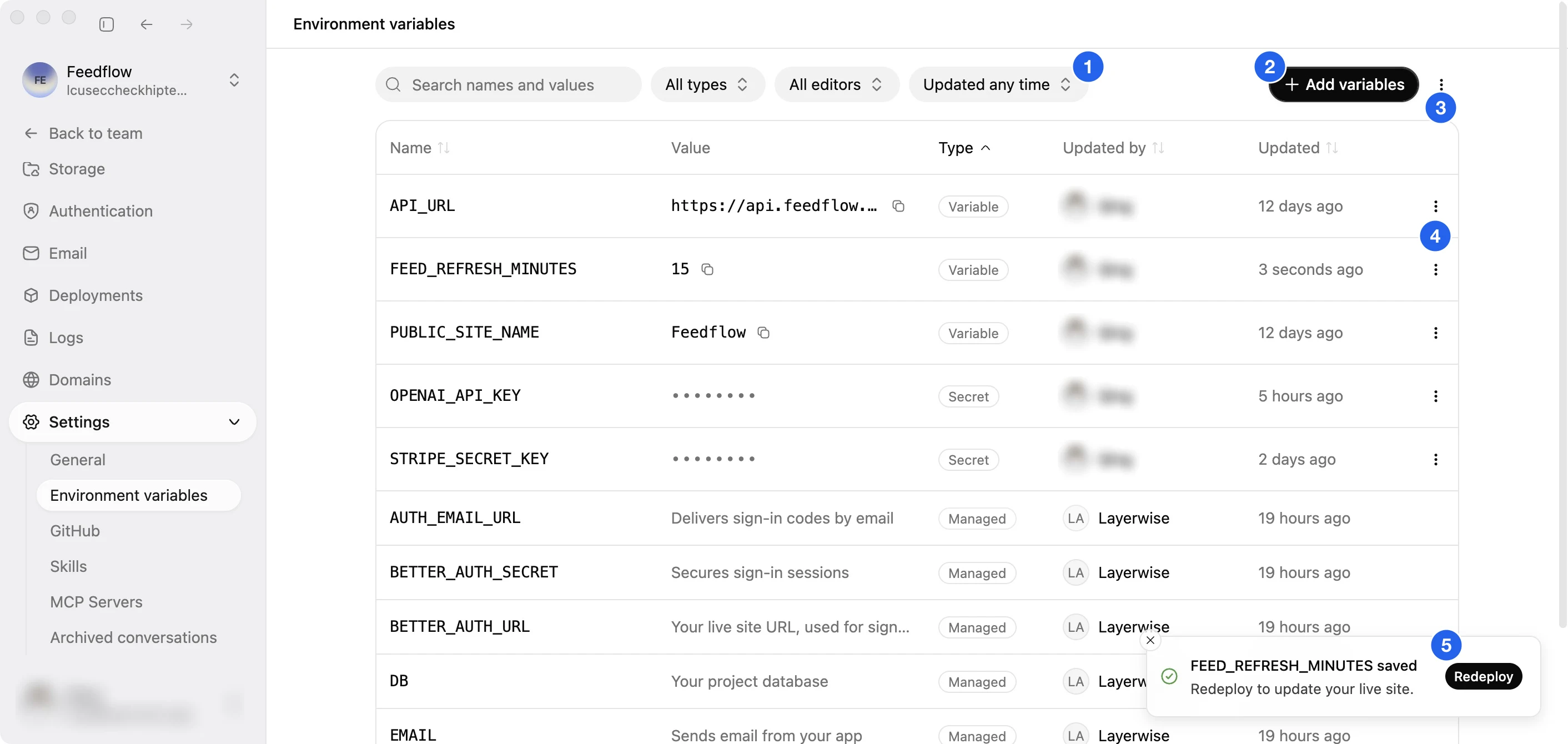
(1) Search, or filter by type, editor, and date. (2) Add variables. (3) Export a .env file. (4) Copy a variable as a .env line, edit it, or delete it. (5) After you save, redeploy to apply the change to your live site.
Add and edit
Select Add variables to add one or more at a time. Each row has a name, a value, and a type. To bring in an existing .env file, select Import .env and choose the file, or paste its contents into any field. Each line becomes its own row. Names that look like credentials, such as STRIPE_SECRET_KEY, start as secrets, and you can change the type of any row before you save.
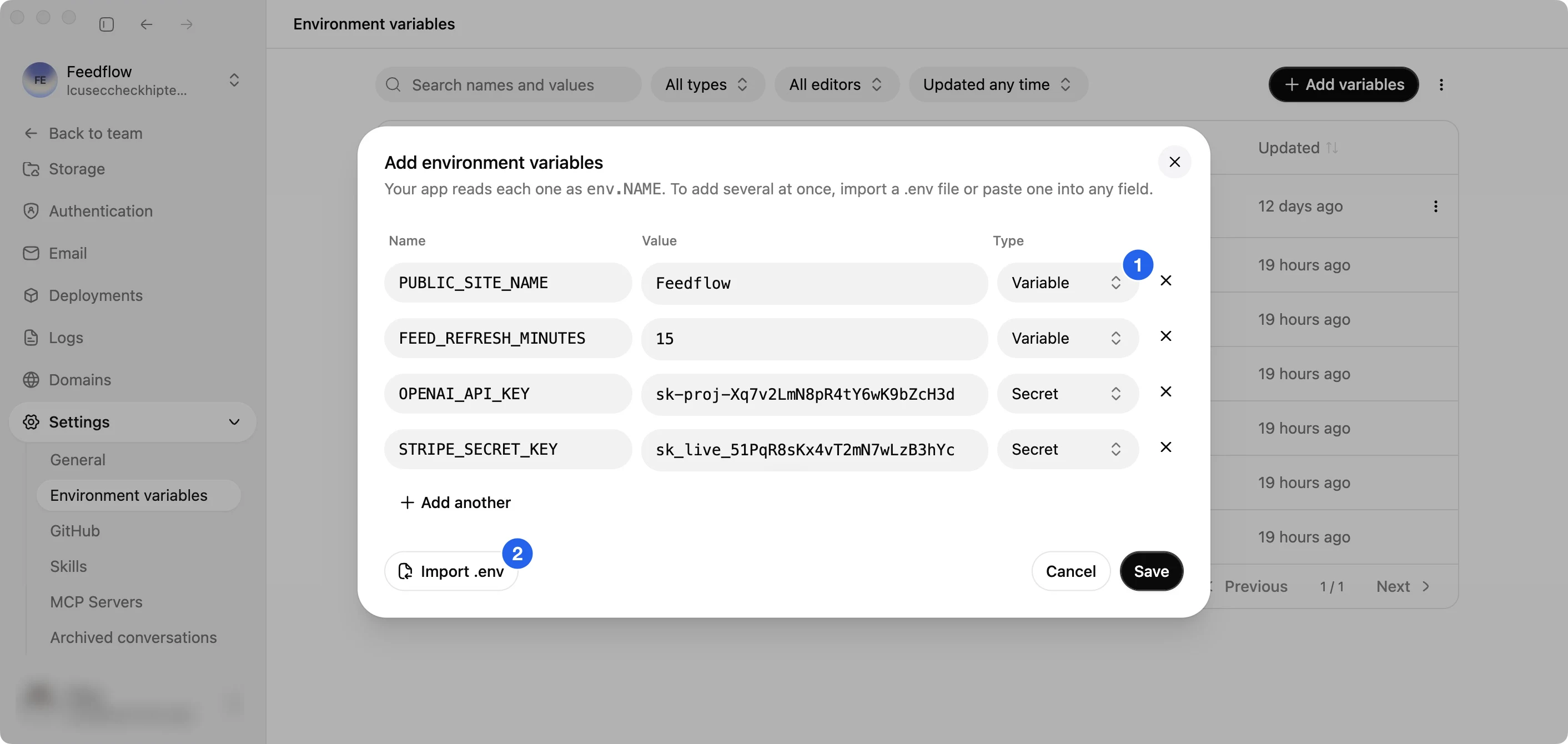
(1) Choose each row's type. (2) Import a whole .env file.
To change a value or its type, open the row's actions and select Edit. A secret's current value stays hidden, so changing a secret, including turning it into a variable, takes a new value.
Names use letters, numbers, and underscores, and can't start with a number. A project can have up to 100 environment variables, and each value can be up to 5 KB.
Apply your changes
Saving a change doesn't restart your live site.
- If the project is published, select Redeploy in the confirmation that appears after you save. Your live release picks up the new values in a few seconds, without a rebuild.
- If you haven't published yet, your values apply on the first publish.
Every publish also uses your latest values. When you roll back, the release keeps the values it was published with until you publish or redeploy again.