

Work with project code
Edit the local workspace, export it, or create a connected GitHub repository.
Layerwise keeps each project's source in a local workspace. Assistant changes and changes you make yourself use those same files.
Use the built-in editor
- Open the mode menu in the preview header.
- Choose Open in → Built-in editor.
- Select a file, make the edit, and save it.
- Return to Preview and refresh the app.
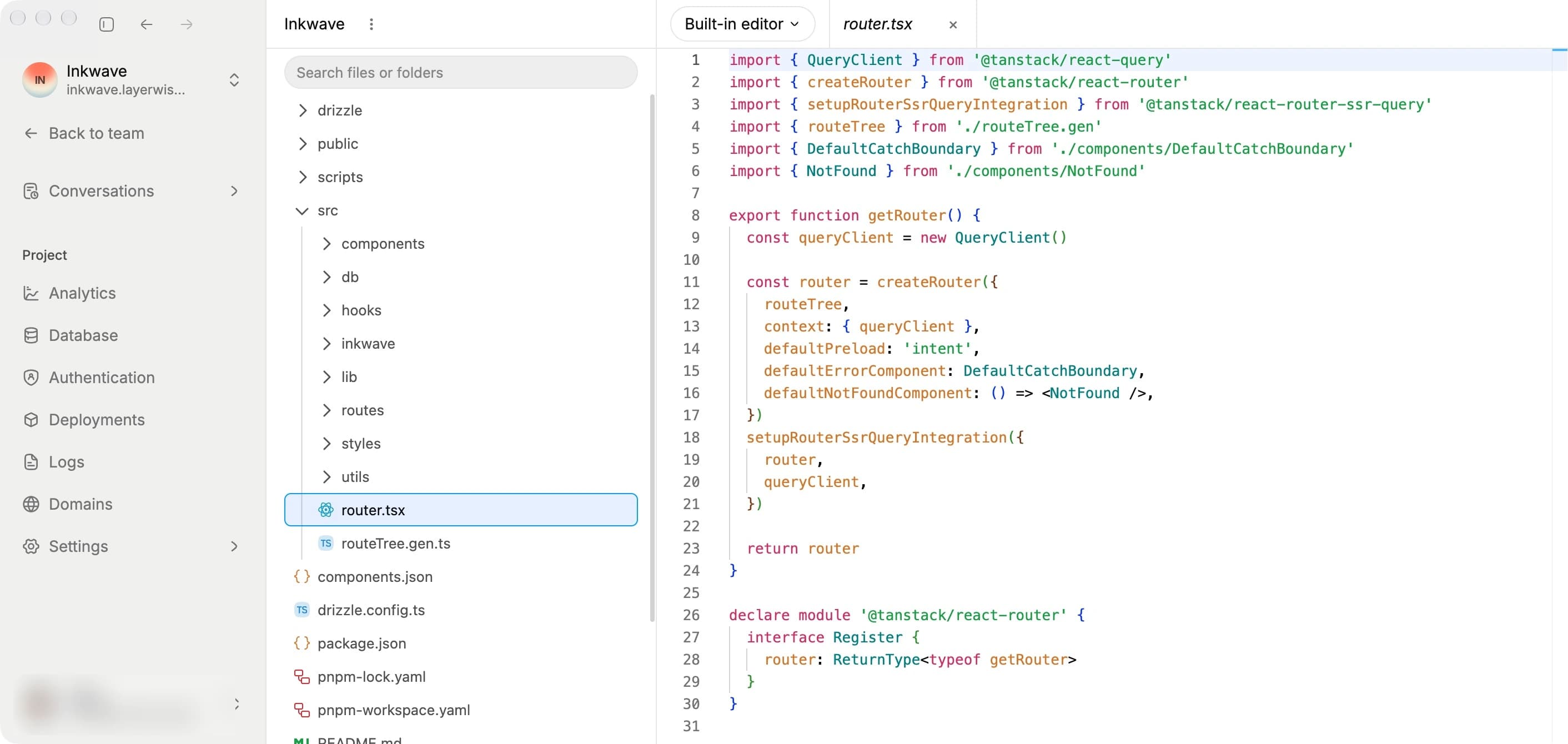
Select a file in the tree to edit the same source used by the local preview.
The file tree supports creating, renaming, and deleting files or folders. Markdown files can be previewed. Binary files and files larger than 10 MB cannot be edited inline.
Open the workspace elsewhere
The Open in menu lists supported installed editors, terminals, and file managers. Select one to open the same local workspace in that app.
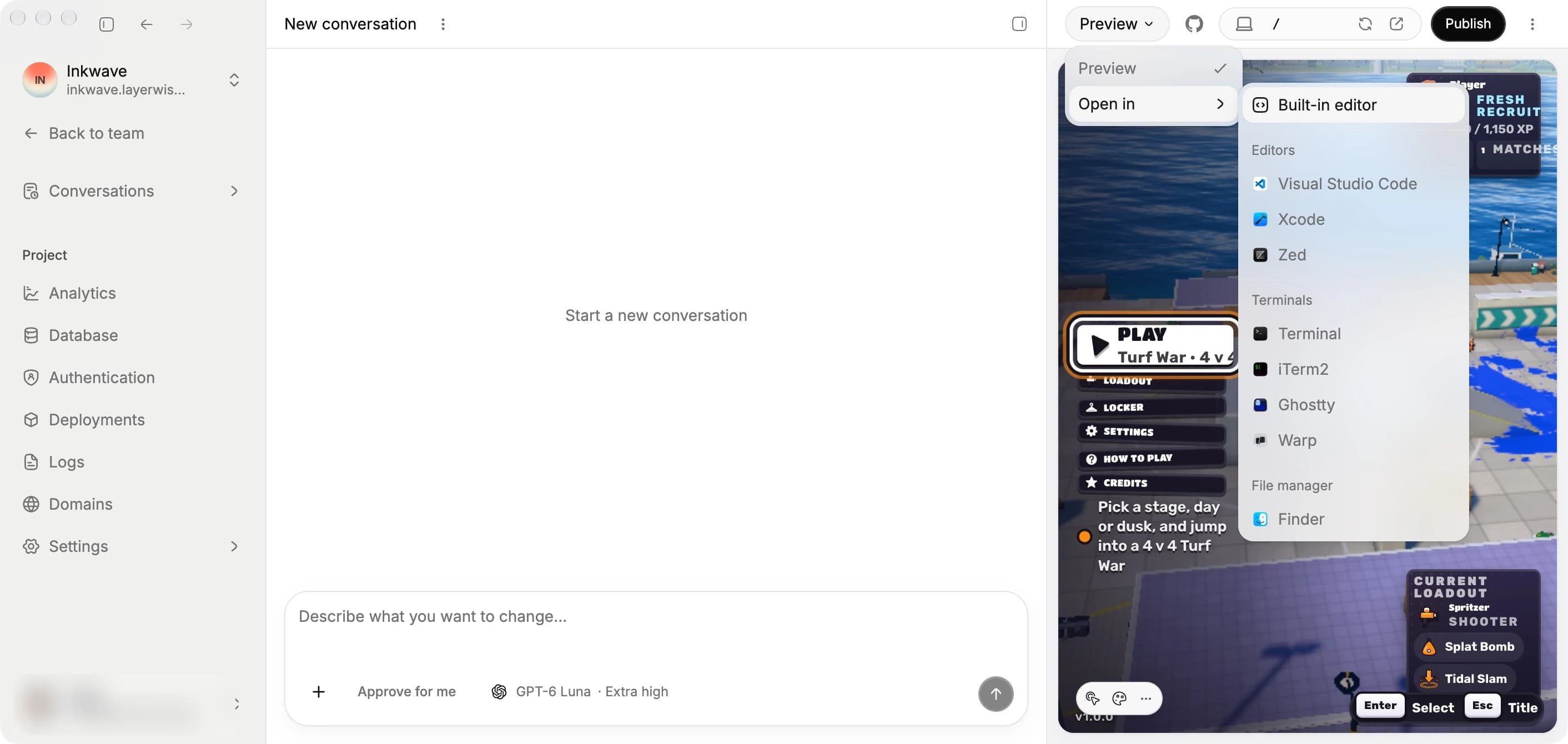
Open in lets you choose the built-in editor or an installed app for the project workspace.
If an app is not listed, use a listed file manager to open the workspace folder.
Export a project
Open the three-dot menu beside the conversation title and choose Export ZIP to save a ZIP archive of the current local workspace.
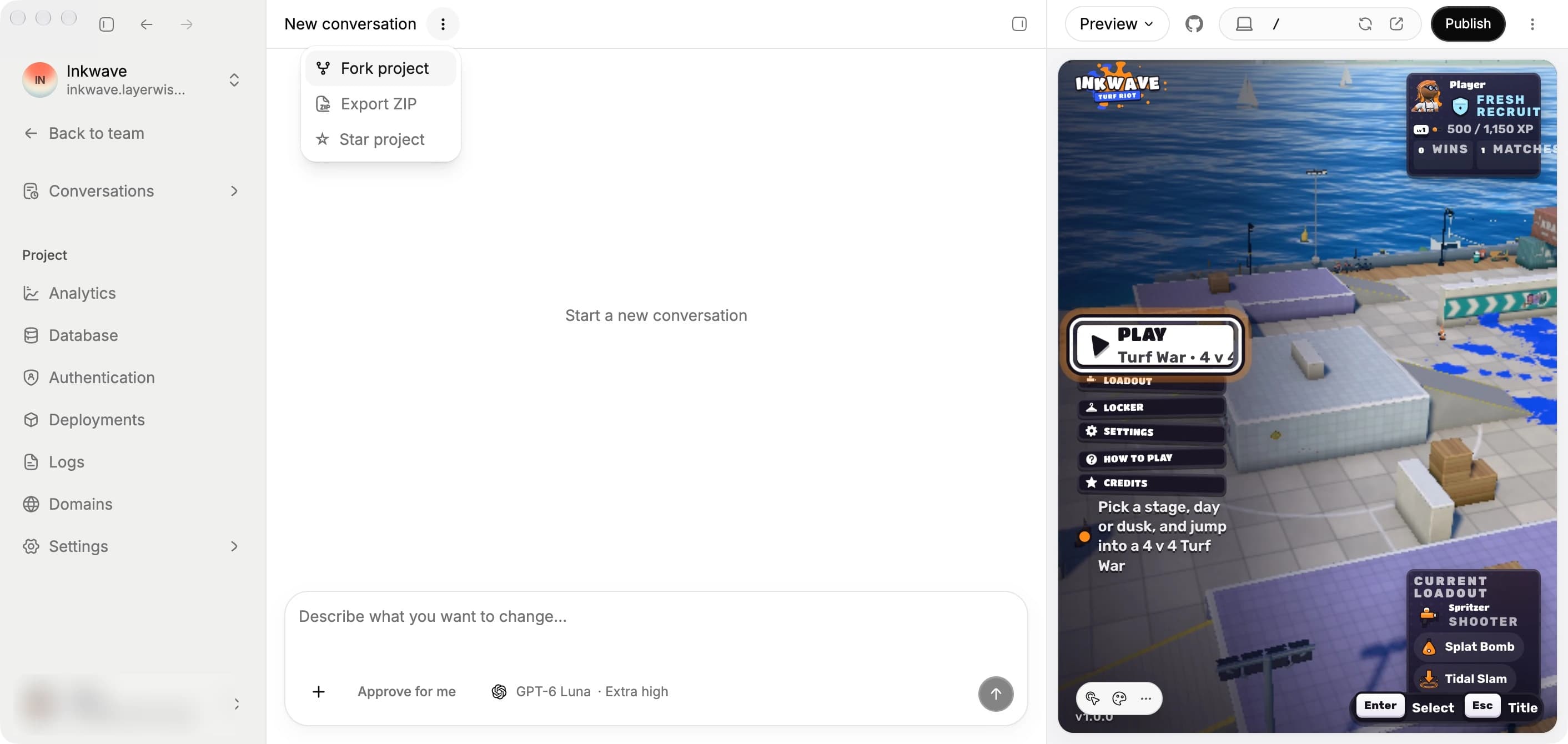
The menu beside the conversation title contains project copying and export actions.
Connect GitHub
- In Account, select Connect GitHub if you have not connected it yet.
- In the project preview header, select the GitHub icon.
- Choose the owner, repository name, description, homepage, and visibility.
- Select Create repo.
Layerwise creates and connects the repository. The GitHub control then lets you open the repository or disconnect it. Disconnecting removes the project link; it does not delete the GitHub repository.