How to Build a Scheduling App with AI
Build a Calendly-style booking app in Layerwise. Model availability and bookings, handle time zones, prevent double booking, then test and publish it.
Table of contents
A scheduling app looks small: a calendar, a list of times, and a form. The decisions that shape it are less visible. Is 9:00 in the host's time zone or the guest's? Which times are open once buffers and days off are counted? What happens when two guests pick the same slot at once? Answer those before asking an AI to write code, and the first version is much easier to test.
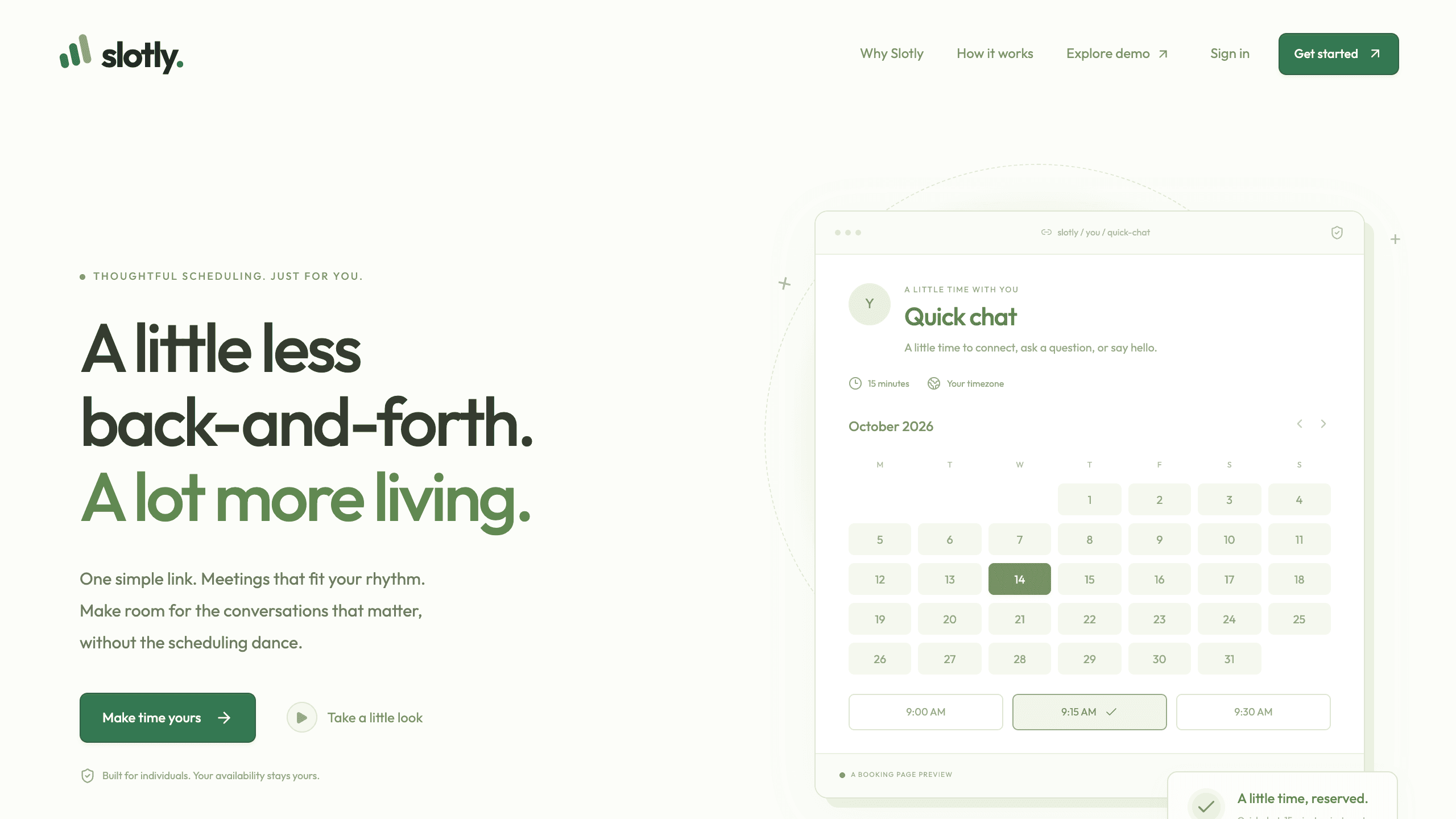
This guide builds an appointment booking web app with Layerwise. You will define the records, decide how times are stored, prevent double booking, decide what the public page shows, start from the Slotly template or a prompt, test, and publish.
1. Define the records
A booking app has three records. An event type is something a guest can book, with a title, URL slug, and duration. The host's profile holds a username, time zone, weekly hours, date overrides, and buffers. A booking ties one guest to one event type at one time:
type Booking = {
  id: string;
  token: string; // random UUID in the guest's private link
  ownerId: string; // the host
  eventId: string;
  title: string;
  start: number; // UTC milliseconds
  end: number;
  busyStart: number; // start minus the buffer before
  busyEnd: number; // end plus the buffer after
  guestName: string;
  guestEmail: string;
  guestTimezone: string; // IANA name, such as Europe/Paris
  notes: string;
  status: 'confirmed' | 'cancelled';
  createdAt: number;
};
Two fields matter more than they look. busyStart and busyEnd save the blocked interval with the booking, so lowering a buffer later never shrinks time already protected. status makes cancellation a change of state, which keeps history. For the same reason, Slotly will not delete an event type with bookings; you turn it off instead.
2. Store instants, compute slots in the host's time zone
Store booking times as UTC instants, and availability the way the host thinks about it: wall-clock hours in a named time zone. In Slotly, each weekday has one window such as 09:00 to 17:00, the profile has a time zone such as America/New_York, and a date override either blocks a date or replaces its hours.
For a date in the guest's time zone, the server steps through instants 15 minutes apart and keeps a start time that:
- falls on a quarter hour on the host's clock;
- is at least 30 minutes away and within 180 days;
- lets the whole meeting fit one day's window in the host's time zone;
- overlaps no confirmed booking for the host, across event types, buffers included.
Stepping through instants, rather than adding hours to a local time, keeps daylight saving changes correct. The booking page starts in the guest's browser time zone, lets the guest pick another, and saves the chosen zone with the booking. The 30-minute notice, 15-minute steps, and 180-day horizon are fixed in code; to change them, ask for event type settings applied both when listing and when saving.
3. Prevent double booking when saving
A list of open times is a snapshot. If code reads bookings and then inserts, two guests submitting seconds apart can both get through. Slotly puts the check inside the write: one INSERT ... SELECT ... WHERE NOT EXISTS statement adds the booking only if the event type is active and no confirmed booking for the host overlaps it, buffers included. Otherwise the guest sees "That slot was just booked. Please choose another time." The server also re-checks availability, so a crafted request cannot book outside the host's hours.
Rescheduling uses the same check in one UPDATE, ignoring the booking being moved. If the new time is taken, the booking keeps its old one. Cancellation sets status and works only for future bookings.
Keep this property when you add limits. Turn on Plan mode, described in Direct the agent, to review the approach before code changes:
Add a Daily limit setting to each event type, counted in the host's time
zone. Enforce it in the same statement that checks for overlaps, not in a
separate query, and apply it to reschedules.
4. Decide what the public booking page shows
Guests book at /book/{username}/{event-slug} without an account. The page shows the host's name, photo, bio, and time zone with the event details. The time query returns start times only, so nothing about other guests reaches the browser.
Each confirmation lives at a private link containing the booking's token. Anyone with that link can view, reschedule, or cancel, so the page is marked noindex and sends no referrer. Slotly sends no booking emails; the guest uses Copy confirmation link and Add to your calendar, which downloads an .ics file. Decide early whether a saved link is enough.
Host actions check the signed-in user and touch only that user's records. Sign-in uses the project's authentication, and records live in its built-in database.
5. Choose a starting point
Download Layerwise, sign in, and select a team.
Slotly is a scheduling app template with event types, weekly availability, a public booking page, and bookings in list and calendar views. To start from it, open Slotly, choose Use this template, pick a team and project name in Layerwise, then choose Copy to Layerwise. Slot computation, time zones, and the double-booking check are already implemented and tested, so your work is adapting them. Other workflows are in the template gallery.
To start from scratch, enter a description in Describe the app you want to build... on the team home page, including the decisions above:
Build a scheduling app like Calendly. A signed-in host creates event types and
sets weekly hours, date overrides, buffers, and a time zone. Guests book without
an account and see times in their own time zone. Store times in UTC. Save each
booking in one statement that fails if it overlaps another of the host's
bookings. Give guests a private link to reschedule or cancel.
A blank start lets you choose each behavior, but you must verify each one yourself. The prompting guide explains how to describe users, data, and screens.
6. Test with two time zones and two guests
Once the local preview loads, sign up as the host and choose a Username in Settings. In Availability, set your time zone, use Add a date override to block tomorrow, set a 10-minute buffer after meetings, and choose Save availability. Create a 30-minute event with New event type, then use Copy link.
Open the preview in your default browser from the preview header. That browser doesn't share your session, so paste the link there as a guest. Tomorrow should have no times. Switch the time zone menu to a distant zone such as Asia/Tokyo; the same openings should appear at different local times. Book one, and it should appear under Upcoming in Bookings. A time starting when that meeting ends should no longer be offered, because the buffer blocks it.
Next, open the booking page in two tabs, pick the same time, and submit both. One should succeed and the other should show "That slot was just booked." Slotly's tests book one slot from 12 concurrent connections; ask the agent to run them after changing booking rules.
From the confirmation page, Reschedule, then Cancel booking, and confirm the time is offered again. In Database, select Local and check that guest_timezone holds the guest's zone. Finally, sign up as a second host and confirm none of the first host's records appear.
If a check fails, open the preview console from Project actions, or find the failed request in Logs.
7. Publish and improve it
Choose Publish in the preview header, then Publish in the menu, and open the live URL when the release finishes. Local and Online use separate databases, so test hosts and bookings are not copied. Set up availability again, then book from your phone as a guest would. The publishing guide covers release status.
Choose the next change from what you observe. Analytics breaks pageviews down by path, showing which booking links get opened. Slotly does not send email or sync external calendars, so email is the usual first addition:
When a booking is created, rescheduled, or cancelled, email the guest and the
host the time in each person's time zone and the guest's private link. Ask me
which email service to use first, and do not fail a booking if email fails.
Start from Slotly if one host with weekly hours fits your business, or from a prompt if you need team scheduling or payments. Either way, settle time storage and the double-booking check before adding features. For the full project workflow, follow the Quick start.