How to Build a Form Builder App with AI
Build a conversational form builder in Layerwise. Define forms and responses, validate answers on the server, version published forms, test, and publish.
Table of contents
A form builder looks small: a list of questions and a submit button. The decisions that shape it are less visible. Which checks run on the server, where a respondent can't skip them? What happens to last week's responses when you rename a question? Who can read the answers, and what stops a public link from collecting junk? Answer those before asking an AI to write code, and the first version is much easier to test.
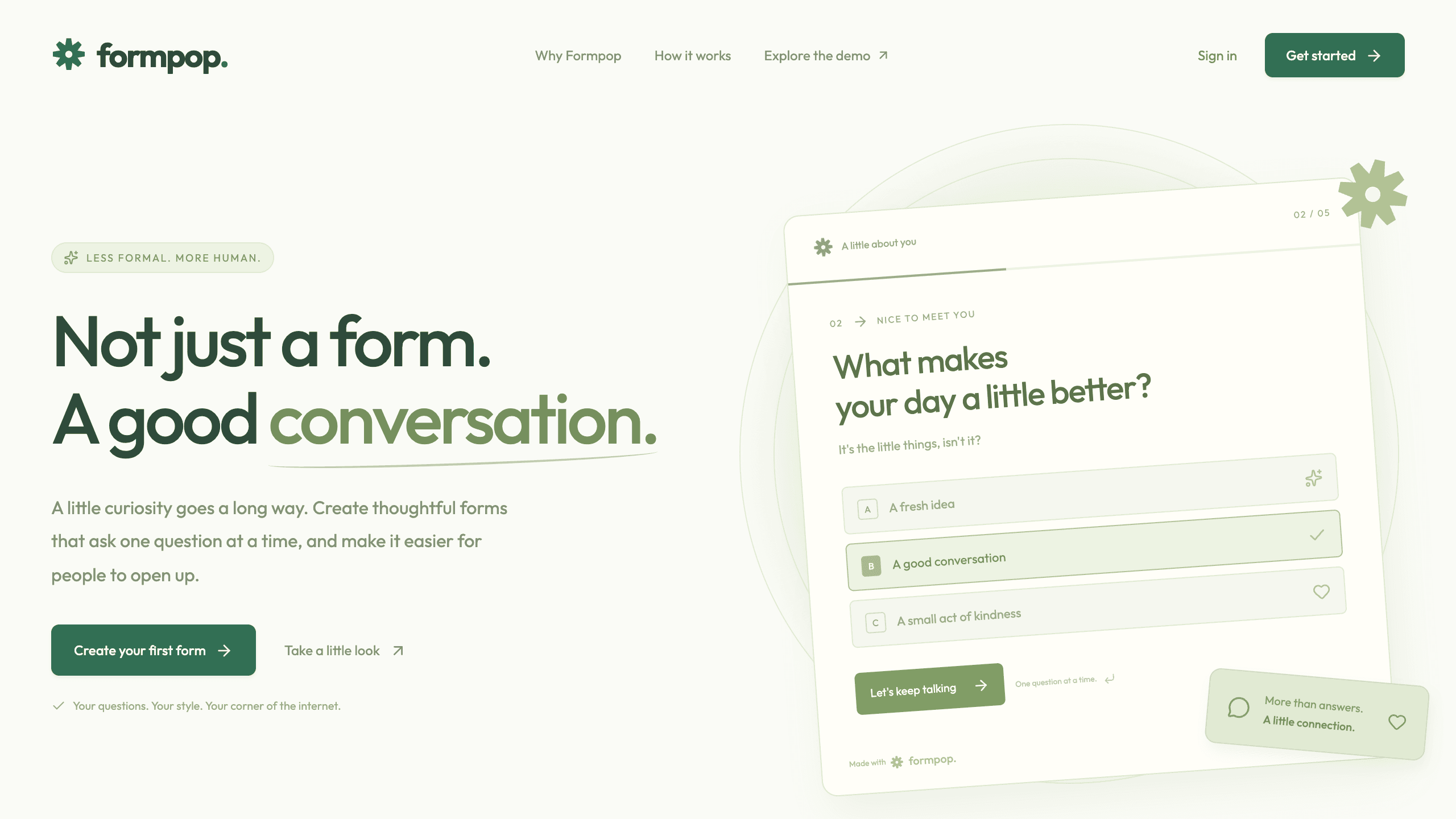
This guide builds a conversational form builder, the kind that asks one question at a time, with Layerwise. You will define the form and response records, plan validation and versioning, set access rules, start from the Formpop template or a prompt, test, and publish.
1. Define the question and response records
Owners edit forms, respondents answer them, and both depend on two records. These are Formpop's question and response types, slightly simplified:
type FormField = {
  id: string; // created with crypto.randomUUID(); answers are keyed by it
  type:
    | 'short_text'
    | 'long_text'
    | 'email'
    | 'number'
    | 'single_choice'
    | 'multiple_choice'
    | 'date';
  label: string;
  description: string;
  required: boolean;
  options: string[]; // used by the two choice types
  condition: { fieldId: string; value: string } | null; // show after a matching answer
};

type Submission = {
  id: string; // created in the respondent's browser
  formId: string;
  publicationId: string; // the published version that was answered
  answers: Record<string, string | string[]>; // keyed by field id
  createdAt: number;
};
A form stores its questions, colors, and welcome and thank-you screens as one JSON document. Three fields matter more than they look. Answers are keyed by question id, not label, so renaming a question doesn't orphan old answers. publicationId ties each response to the version it answered. The submission id is created once in the browser and reused on retry, so a flaky connection can't create two responses.
2. Validate questions and answers on the server
Formpop keeps validation in one shared module. The browser uses it to show an error before someone moves on; the server runs it again before saving, because a public link accepts requests from anyone, not only from your form.
A saved form needs 1 to 50 questions, and choice questions can have up to 30 unique options. A submission is rejected if it answers unknown questions, skips required ones, has a malformed email, number, or date, picks an unlisted choice, or exceeds 1,000 characters, or 10,000 for long text.
Conditional questions can only refer to an earlier question and use an exact match; for multiple choice, any selected option matches. The server works out which questions were visible, validates only those, and drops answers to hidden ones. If you add a question type, such as a rating, give it a rule in the same module.
3. Decide what happens when a published form changes
If the live form reads the same record you edit, every typo fix reaches people mid-answer, and old responses show labels their respondents never saw.
Formpop keeps them apart. Save draft updates only the draft, and the live form is unchanged. Publish saves an immutable snapshot of the draft and points the public link at it in one atomic database batch. Each response keeps its snapshot, so its details show the labels the respondent answered, even after later edits. CSV export combines the questions from every answered version.
Each draft also has a revision number, so a save from a stale tab is rejected instead of overwriting newer work. If someone has the form open while you publish again, their submission is rejected with a message to refresh. Responses stay consistent, but those respondents start over. Turn on Plan mode, described in Direct the agent, to review a different trade-off before code changes:
Explain how submissions are handled when a form is republished while someone is
answering it. Then propose a change: accept a submission for the previous
published version for 30 minutes after a new publish, and store it against that
version so its labels stay correct.
4. Decide who sees forms and responses
Forms belong to one owner. Every management function reads the owner from the signed-in session, never from the browser, and filters by it. Sign-in uses the project's authentication, and forms, published versions, and responses are stored in the project's built-in database. Formpop has no teams, so sharing responses with a coworker is a change you would ask for.
Respondents don't need an account. A published form lives at /f/<slug>, where the slug is 16 random characters rather than the form title. Only published forms load there, and Archive form closes the link while keeping its responses. A response stores answers and a timestamp, not a user or IP address, so add an email question if you need to follow up.
Formpop validates every answer, caps submission size, and escapes answers that start with a formula character in CSV export. It has no rate limit, CAPTCHA, or response cap. That may be fine for an internal survey; for a form linked from a public page, add limits before sharing it.
5. Choose a starting point
Download Layerwise, sign in, and select a team.
Formpop is a conversational form builder template with six starter forms, such as customer feedback and event registration. It also has drag-and-drop ordering, custom colors, and CSV export. To start from it, open Formpop, choose Use this template, pick a team and project name in Layerwise, then choose Copy to Layerwise. The records, validation, and snapshot publishing are already implemented, so your work is adapting them. Other workflows are in the template gallery.
To start from scratch, enter a description in Describe the app you want to build... on the team home page, including the decisions above:
Build a form builder that shows one question at a time. Signed-in users create
forms with short text, long text, email, number, single choice, multiple
choice, and date questions, each with a required flag. Saving edits a draft;
publishing saves a snapshot that a public link serves to anyone without an
account. Store each response with the snapshot it answered and validate every
answer on the server. Owners see only their own forms and responses.
A blank start lets you choose each behavior, but you must verify each one yourself. The prompting guide explains how to describe users, data, and screens.
6. Test with two accounts and an anonymous respondent
Once the local preview loads, sign up, create a form from a starter template, and add a conditional question. Walk through it with the editor's Preview, which doesn't save answers. Then choose Formpop's Publish button and copy the link from the dialog.
Next, open the preview in your default browser from the preview header. That browser doesn't share your session, so open the public link there as an anonymous respondent. Skip a required question, enter an invalid email, take both branches of the conditional question, and submit. The response should appear in the editor's Responses tab.
Then rename a question and choose Save draft. The public link should still show the old label. Publish again, and confirm the earlier response's details keep the original label. Submit from a public-link tab opened before that publish to see the refresh message. Archive the form and confirm the link stops accepting responses.
Finally, sign up as a second user and confirm none of the first user's forms appear. You can also create test accounts with Add user in Authentication. Open Database, select Local, and confirm each submission references a publication.
If a check fails, open the preview console from Project actions, or find the failed request in Logs.
7. Publish and improve it
Choose Publish in the Layerwise preview header, then Publish in the menu, and open the live URL when the release finishes. Local and Online use separate databases, so test forms and responses are not copied. Create your real form on the live app and answer it from a phone. The publishing guide covers release status.
Choose the next change from what you observe. Analytics shows pageviews and visitors, not answers. If submissions fail, select Online in Logs and find the failing request. Because Formpop has no response limits, closing rules are a useful addition:
Add a closing date and an optional maximum number of responses to each form's
settings. Once either is reached, the public link shows a closed message and the
server rejects new submissions. Show the remaining response count in the editor.
Start from Formpop if a one-question-at-a-time form fits your respondents, or from a prompt if you need a different model. Either way, settle validation, versioning, and access before adding question types. For the full project workflow, follow the Quick start.