How to Build a Kanban Board App with AI
Build a Trello-style kanban board in Layerwise. Define boards, lists, and cards, plan drag-and-drop order and board access, test with two accounts, and publish.
Table of contents
A kanban board looks simple: a few columns and cards you drag between them. The decisions that shape it are less visible. Where is a card's order saved when someone drops it? Who can open a board, and who can change it? What happens to a finished card nobody wants to delete? Answer those before asking an AI to write code, and the first version is much easier to test.
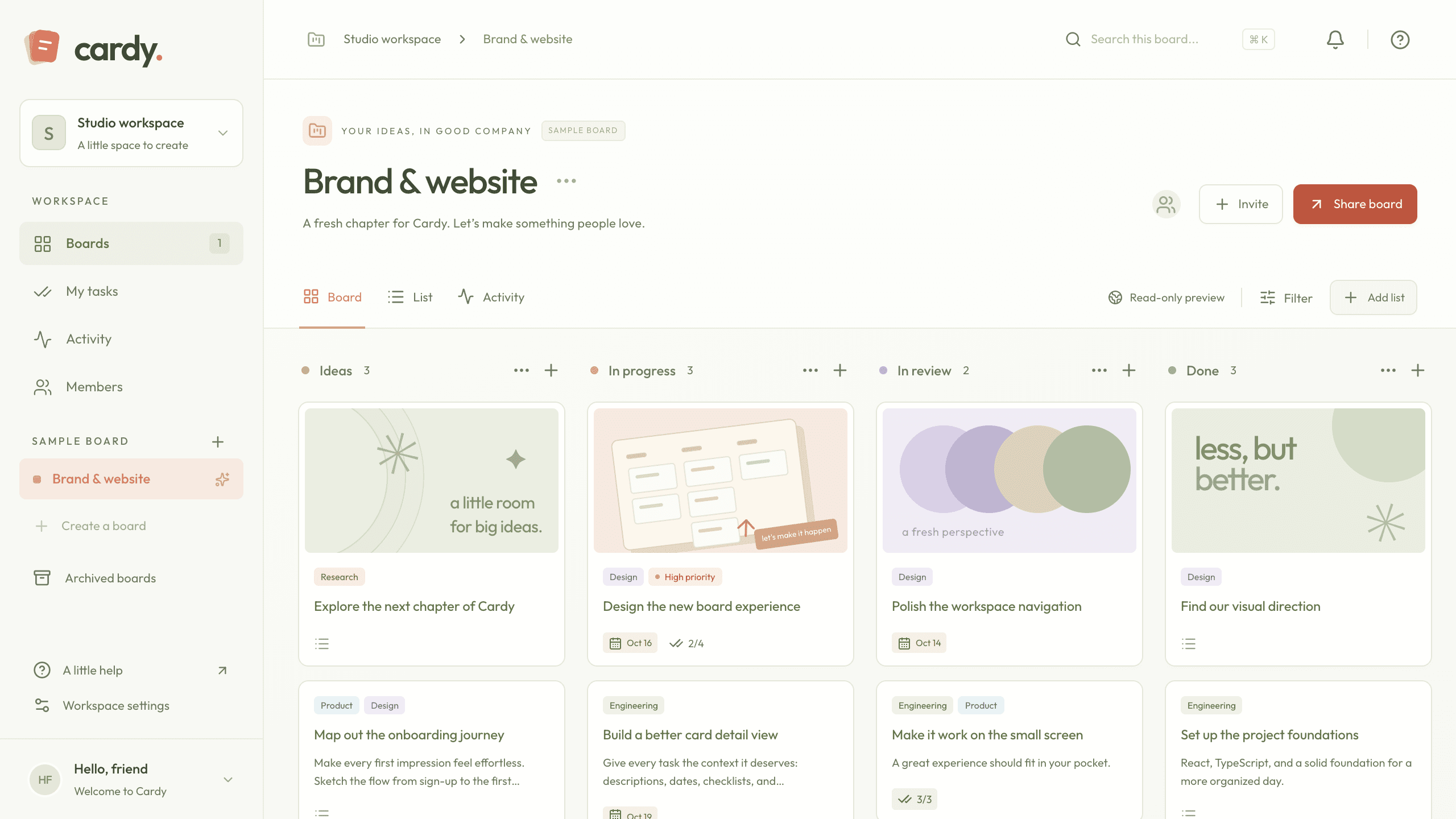
This guide builds a Trello-style team task board with Layerwise. You will define the board records, plan card ordering, decide who can see and edit each board, start from the Cardy template or a prompt, test with two accounts, and publish.
1. Define the board records
A board app nests four records: workspaces hold boards, boards hold lists, and lists hold cards. Every screen and permission check reads them, so write them down first. This is a simplified card type from Cardy:
type Card = {
  id: string;
  boardId: string;
  listId: string; // the column the card is in
  title: string;
  description: string;
  position: number; // order within its list, starting at 0
  labels: string[]; // names from a fixed set of six
  assignees: string[]; // user IDs of workspace members
  dueDate: string | null; // YYYY-MM-DD
  checklist: { id: string; title: string; done: boolean }[];
  archived: boolean;
};
Lists have their own position, and boards have a visibility of private or public. Access comes from the workspace: a membership record gives a user the role owner or member. The checklist lives on the card because it is only edited with the card; comments and activity are separate tables.
archived, on boards and cards, makes removal a change of state that can be undone. Cardy cannot delete boards, lists, or cards, and a restored card returns to the end of its list.
2. Decide how cards keep their order
There are three common ways to store order:
- Whole-number positions, renumbered on each move. A move rewrites every card in the two lists.
- Fractional positions. A moved card gets a value between its neighbors, so one row changes, but values need occasional rebalancing.
- An ordered array of card IDs on each list. Easy to read, but cards and lists can disagree.
Cardy uses the first. The browser sends only the card, the destination list, and an index. The server checks that both belong to the board, then saves the new positions and an activity entry in one database batch, so a failure never leaves half a move. Lists are reordered the same way, and new cards go to the end.
Dragging only works with a mouse. On touch screens and keyboards, each card has a menu with Move up, Move down, and the other lists, and the card details include Move to list. Plan that from the start.
The harder question is two people moving cards at once. Cardy has no real-time updates: it reloads the board after each change and when the window regains focus, so the last saved move wins. If your team shares boards, decide now. Turn on Plan mode, described in Direct the agent, to review the approach before code changes:
Explain how card and list moves are saved today and what happens when two
members move cards on the same board at the same time. Then propose a way to
show other members' changes within a few seconds without a page reload. Keep
the server as the only place that assigns positions.
3. Decide who can see and edit a board
Cardy has two roles. Owners rename the workspace, invite and remove members, change Board settings, and archive boards. Members create and duplicate boards, organize lists and cards, edit card details, and comment. Owners cannot be removed.
New boards are private. An owner can choose Public · Anyone can view, members can edit, so anyone with the link can read the board signed out. Public viewers see descriptions, comments, and member display names, but not email addresses. Archived boards and cards are never shown to non-members.
Invitations are links, not emails. An owner chooses Invite, enters an address, and chooses Create invitation link. The link expires after seven days and only its hash is stored. Accepting requires signing in with that address, verified with an email code. Owners can Revoke a pending link.
Signed-out visitors land on a read-only board labeled SAMPLE BOARD. It is created in the app's database on first load, including in the published app, and its workspace has no members, so no account can edit it. Signed-in users see it until they choose Create workspace, which adds a private board with Ideas, In progress, In review, and Done lists.
For a third role, say where it is enforced:
Add a Viewer role to workspaces. Viewers can open every board in the workspace,
including private ones, but cannot move cards, edit card details, or comment.
Enforce this in the server functions, not only by hiding buttons, and let
owners choose the role when creating an invitation link.
4. Choose a starting point
Download Layerwise, sign in, and select a team.
Cardy includes everything above, plus comments, board search and filters, and a My tasks view of your cards on the current board. It has no attachments or real-time collaboration. To start from it, open Cardy, choose Use this template, pick a team and project name in Layerwise, then choose Copy to Layerwise. Other workflows are in the template gallery.
To start from scratch, enter a description in Describe the app you want to build... on the team home page, including the decisions above:
Build a team kanban board. Users sign in with an email code and create
workspaces; the creator is the owner and invites members by link. Boards have
ordered lists, and lists have ordered cards with a title, description, labels,
assignees, due date, and checklist. Save everything in the project database.
Members drag cards between lists, with a move menu for touch and keyboard.
Boards are private unless an owner makes one public and read-only. Archive
boards and cards instead of deleting them.
A blank start lets you choose each behavior, but you must verify each one yourself. The prompting guide explains how to describe users, data, and screens.
5. Test with two accounts
Once the local preview loads, test while signed out. The SAMPLE BOARD should open, and its cards should be marked READ ONLY.
Create two test accounts with Add user in Authentication. Sign in as the first, choose Create workspace, and add cards. Drag a card to another list, reorder two cards, and refresh; the order should hold. At phone width, move a card with its menu.
Next, invite the second account and copy the link. Open the preview in your default browser from the preview header, sign in as the second user, and accept. That user should be able to edit cards but not open Board settings. A revoked or used link, or one opened with another email address, should show an error.
Finally, make a board public, copy its link from Share board, and open it signed out: it should be read-only. Choose Archive board and reload; the link should now say the board is private. Open Database, select Local, and confirm the card positions match the order on screen.
If a check fails, open the preview console from Project actions, or find the failed request in Logs.
6. Publish and improve it
Choose Publish in the preview header, then Publish in the menu, and open the live URL when the release finishes. Local and Online use separate databases, so test workspaces and accounts are not copied, but the sample board appears on the first visit. Repeat the invitation check with a real teammate. The publishing guide covers release status.
Choose the next change from what you observe. Analytics shows pageviews and visitors, not what anyone does on a board. If a card will not save, select Online in Logs and find the failing request. A common next request is one list of work across boards:
Change My tasks to show cards assigned to me on every board in every workspace
I belong to, grouped into Overdue, Due this week, Later, and No due date. Skip
archived boards and cards. Selecting a card opens it on its board.
Start from Cardy if workspaces, lists, and cards fit how your team plans work, or from a prompt if you need a different model. Either way, settle ordering, access, and archiving before adding features. For the full project workflow, follow the Quick start.