How to Build a Customer Feedback Board with AI
Build a feature request board with voting and a public roadmap in Layerwise. Define ideas and votes, plan moderation and an admin role, test, and publish.
Table of contents
A feedback board lets customers post feature requests, vote on them, and see what you plan to build. The screens are simple. The rules behind them are not. Who can vote, and how many times? How does a customer learn that their request moved? What happens to the third copy of the same idea, or to a rude comment? Answer those before asking an AI to write code, and the first version is much easier to test.
This guide builds a customer feedback board with a public roadmap in Layerwise. You will define the idea record, set voting rules, plan statuses and moderation, start from the Wishbox template or a prompt, test with several accounts, and publish.
1. Define the idea record
The board, the roadmap, the idea page, and the admin workspace all read the same record, so write it down first. This is a simplified version of the idea record in Wishbox:
type Idea = {
  id: string;
  title: string; // 5 to 160 characters
  description: string; // 15 to 5,000 characters
  authorId: string; // the account that posted it
  status: 'open' | 'planned' | 'in_progress' | 'completed' | 'closed';
  hidden: boolean; // visible only to administrators
  mergedIntoId: string | null; // set when merged into another idea
  createdAt: number; // milliseconds since 1970
  updatedAt: number;
};
Votes are not a counter on the idea. Each vote is its own row holding an idea ID and a user ID, and that pair is the table's primary key, so the database itself refuses a second vote from the same account. Comments, tags, and status updates are separate tables that point back to the idea.
hidden and mergedIntoId let moderation change what the public sees without deleting anything, so votes and old links survive.
2. Decide who can vote and how ideas rank
There are three common voting models:
- Anonymous votes. No sign-in, so more people vote, but nothing stops one person from voting many times.
- One vote per account per idea. Voters must sign in, and each vote counts once.
- A vote budget. Each account spreads a fixed number of votes across ideas, which forces priorities.
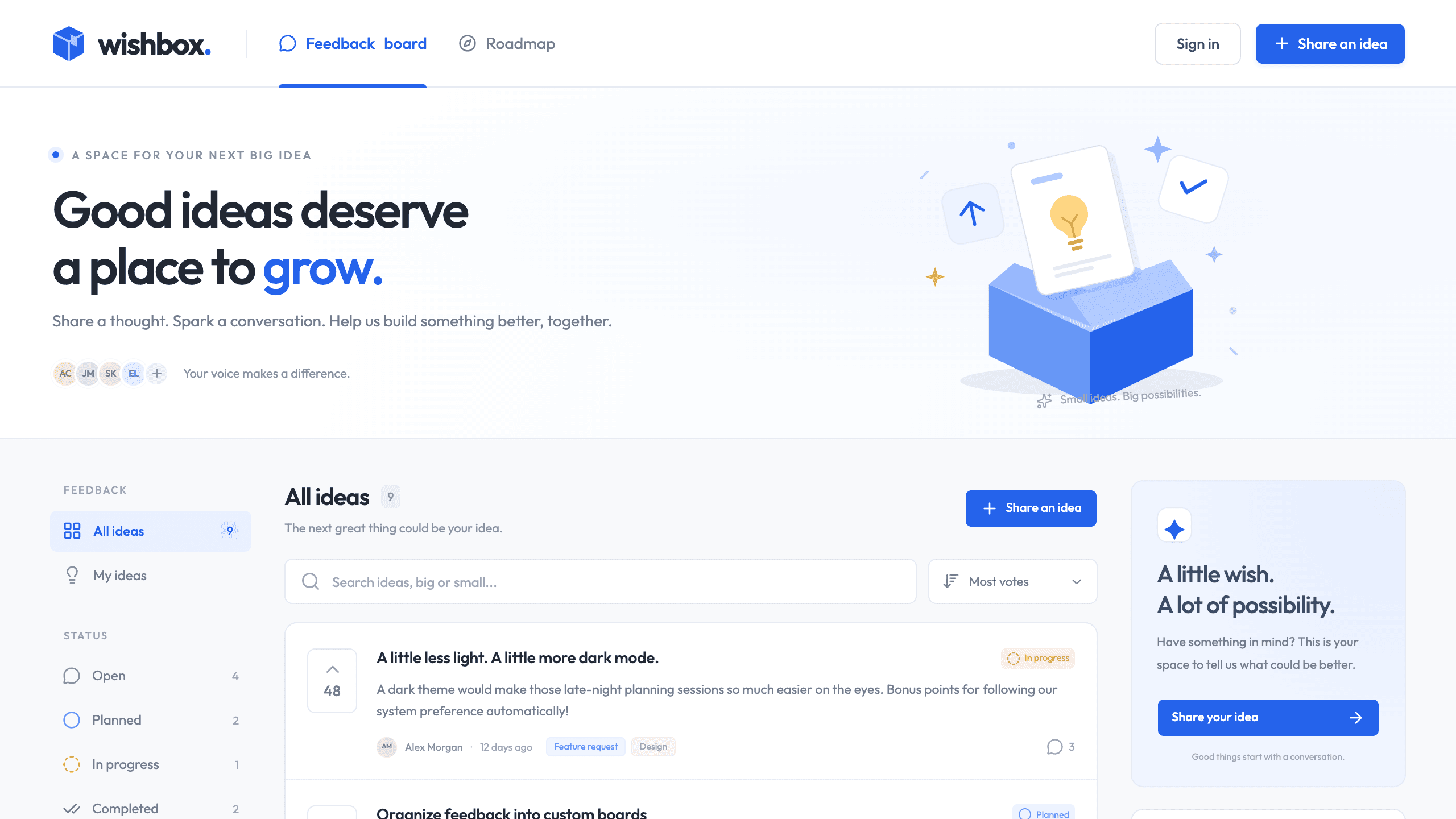
Wishbox uses the second model. Anyone can browse, search, and read, but posting, voting, and commenting require an account, and every Layerwise project includes email authentication. Posting an idea counts as the author's first vote, and selecting the vote button again removes a vote.
Ranking decides what people see first. Wishbox sorts by Most votes by default and also offers Newest first and Trending. Trending counts votes from the last seven days three times and discounts total votes as an idea ages, so a new idea with momentum can pass an old one with more votes.
3. Plan statuses, the roadmap, and moderation
Statuses are how customers learn that someone read their request. Wishbox has five: Open, Planned, In progress, Completed, and Closed. The Roadmap page shows the middle three as columns. Each status change is saved as an update with an optional public message, and the idea page lists that history. A closed idea stays readable but accepts no new votes or comments.
Moderation needs a role. In Wishbox, an account whose role is admin sees an Admin link in the header. Administrators can:
- Edit any idea, change its status, add tags, and hide it from the community.
- Remove any comment. Removal hides the comment rather than deleting it.
- Create tags, the categories people choose when posting.
- Merge a duplicate into another idea. Comments, status updates, and unique votes move to the destination, and the original page links there. Merging cannot be undone.
The server enforces these rules, not only the interface. Other accounts can edit the title and description of their own ideas, but a request to change status, visibility, or tags is rejected. Accounts you ban in Authentication cannot post, vote, or comment.
If you want different rules, such as a review step before ideas go public, turn on Plan mode, described in Direct the agent, and review the approach before code changes:
Explain how new ideas become visible today. Then propose a change: ideas from
non-admin accounts start hidden with a "Pending review" label that only the
author and administrators can see. Add an Approve action to the admin
workspace. Keep server-side checks for every change.
4. Choose a starting point
Download Layerwise, sign in, and select a team.
Wishbox is a feedback board template with voting, comments, a public roadmap, and an admin workspace. To start from it, open Wishbox, choose Use this template, pick a team and project name in Layerwise, then choose Copy to Layerwise. Accounts, voting rules, statuses, and merging are already implemented, so your work is adapting them. Other workflows are in the template gallery.
To start from scratch, enter a description in Describe the app you want to build... on the team home page, including the decisions above:
Build a public feedback board for my product. Anyone can browse and search
ideas. Signed-in users post ideas with a title, description, and optional tag,
vote once per idea, and comment. Store each vote as one row per user and idea.
Ideas have the statuses Open, Planned, In progress, Completed, and Closed, and
a Roadmap page shows Planned, In progress, and Completed. Accounts with the
admin role can change status with a public update message, hide ideas, remove
comments, create tags, and merge duplicates. Enforce every rule on the server.
A blank start lets you choose each behavior, but you must verify each one yourself. The prompting guide explains how to describe users, data, and screens.
5. Test with two accounts and an admin
In the local preview, Wishbox fills the board with sample ideas, votes, and comments from example accounts, labeled Sample community, so you can judge layout and ranking right away. This sample data appears only in the local preview and on the official demo.
Sign up as a first user and post an idea. As you type the title, existing ideas with matching words appear under it, which is the board's first defense against duplicates. Vote on another idea, refresh, and confirm the vote stayed. Then open the preview in your default browser from the preview header, sign up as a second user, and vote on the first user's idea. The count should rise by one, and selecting the button again should lower it. You can also create test accounts with Add user in Authentication.
Next, make the first account an administrator. Open Database, select Local, and open the user table under Auth. Find the account by email, double-click its role cell, enter admin, and press Enter. Reload the preview, and an Admin link appears in the header. Then:
- Move an idea to Planned with a short message, and check the Roadmap and the idea page.
- Hide an idea and confirm the second user can no longer find it on the board or open its link.
- Merge two similar ideas and confirm the destination keeps both sets of votes, counting a shared voter once.
- As the second user, confirm there is no Admin link and that
/adminreturns you to the board.
Check phone width last. If a check fails, open the preview console from Project actions, or find the failed request in Logs.
6. Publish and improve it
Choose Publish in the preview header, then Publish in the menu, and open the live URL when the release finishes. Local and Online use separate databases, so test ideas, accounts, and your admin role are not copied, and the published board starts empty. Sign up on the live app, then repeat the role change in Database with Online selected. Online edits change live data immediately. Create your first tags in the admin workspace before sharing the link. The publishing guide covers release status.
Choose the next change from what you observe. Analytics shows pageviews and visitors. Wishbox does not notify anyone when an idea changes status, which is often the first thing customers ask for. Layerwise delivers authentication emails, not product notifications, so start in the app:
Add a notifications menu to the header for signed-in users. List status
changes on ideas they posted or voted for, with the new status and the public
update message, newest first. Show an unread count and mark items read when
the menu opens.
Start from Wishbox if its board and roadmap match how you collect feedback, or from a prompt if you need different voting or review rules. Either way, settle voting, statuses, and moderation before adding features. For the full project workflow, follow the Quick start.