How to Build a Link in Bio App with AI
Build a link-in-bio app in Layerwise with claimed usernames, server-rendered pages, safe links, readable themes, and analytics that store no IPs.
Table of contents
A link-in-bio page looks like a short stack of buttons. The decisions behind it show up once the link sits in a real Instagram bio. Who gets which address? Does the page load inside an in-app browser? What stops a saved link from running a script? Can owners see what people tap without you storing who those people are? Answer those before asking an AI to write code, and the first version is much easier to test.
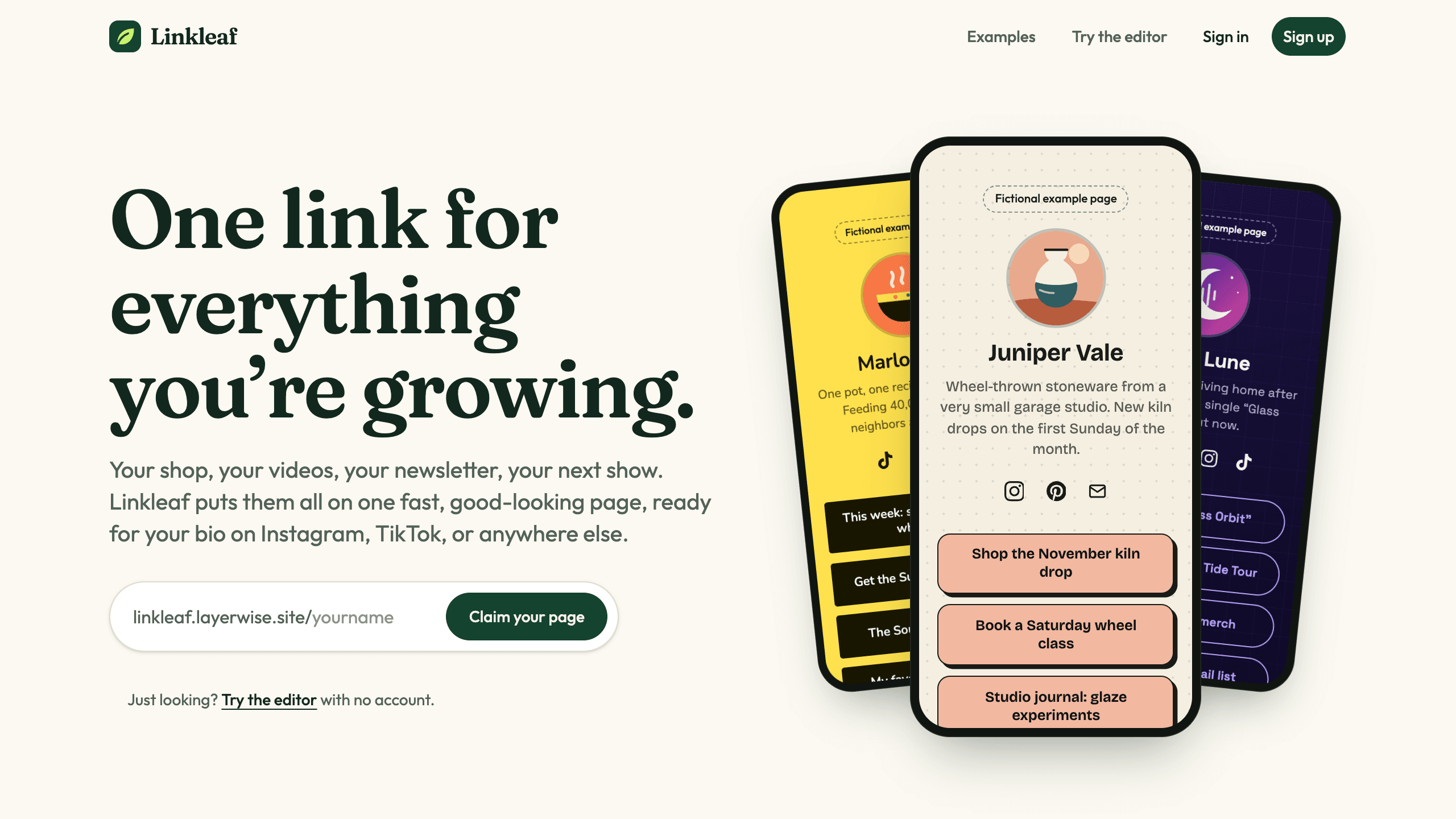
This guide builds a link-in-bio app with Layerwise, where each person gets one page at /<username>. You will settle usernames, make public pages work in in-app browsers, keep themes readable, count views and clicks, plan try mode and abuse limits, start from the Linkleaf template or a prompt, test, and publish. To see the result first, open the editor with sample data, which needs no account, or an example page.
1. Settle usernames and the page record
Each account owns one page, and its username is its address. Write the record down first, because the editor, the public page, and the share image all read from it. This is Linkleaf's:
type Page = {
  username: string; // unique; the page lives at /<username>
  displayName: string; // up to 60 characters
  bio: string; // up to 160 characters
  avatar: string | null; // a Storage key
  socials: { network: SocialNetwork; url: string }[]; // up to 8 icons
  theme: ThemeSettings; // a preset plus optional overrides
  published: boolean; // off: the page shows "not found"
  links: {
    id: string; // public; appears in /go/<id>
    title: string; // up to 80 characters
    url: string; // up to 2,048 characters
    enabled: boolean; // off: Hidden
    startsAt: number | null; // Show from
    endsAt: number | null; // Hide after
  }[]; // up to 50, in their own table
};
A username is 3 to 30 lowercase letters, numbers, hyphens, and underscores, and starts and ends with a letter or number. Pages sit at the top level of the site, so a username can collide with the app: someone named dashboard or go would take over a route. Linkleaf reserves 66 names, including its routes, its static folders, addresses such as admin and support, and the brand. A test fails if a new route's first path segment is missing from the list.
Decide what a rename does. In Linkleaf the page moves right away, the old address returns not found, and anyone can claim the old name. Settings warns that links already shared stop working. If your users print their address on packaging, plan a change. Turn on Plan mode, described in Direct the agent, to review it before code is written:
Changing a username breaks every link already shared, and the old name can be
claimed right away. Propose a change: keep a history of old usernames, redirect
an old address to the current one for 90 days, and refuse that name to anyone
else during that time. Explain the data change first, and update the warning
under Username in Settings to match.
2. Make public pages work in in-app browsers
Many visitors arrive through the browser inside Instagram or TikTok, so the page should need little from JavaScript. Linkleaf renders it on the server with plain links that work before scripts load. Each link button is at least 56 pixels tall, nothing opens a pop-up or a new tab, and the app serves its own fonts. The title and link preview tags are in the first response, which link previews and search engines read.
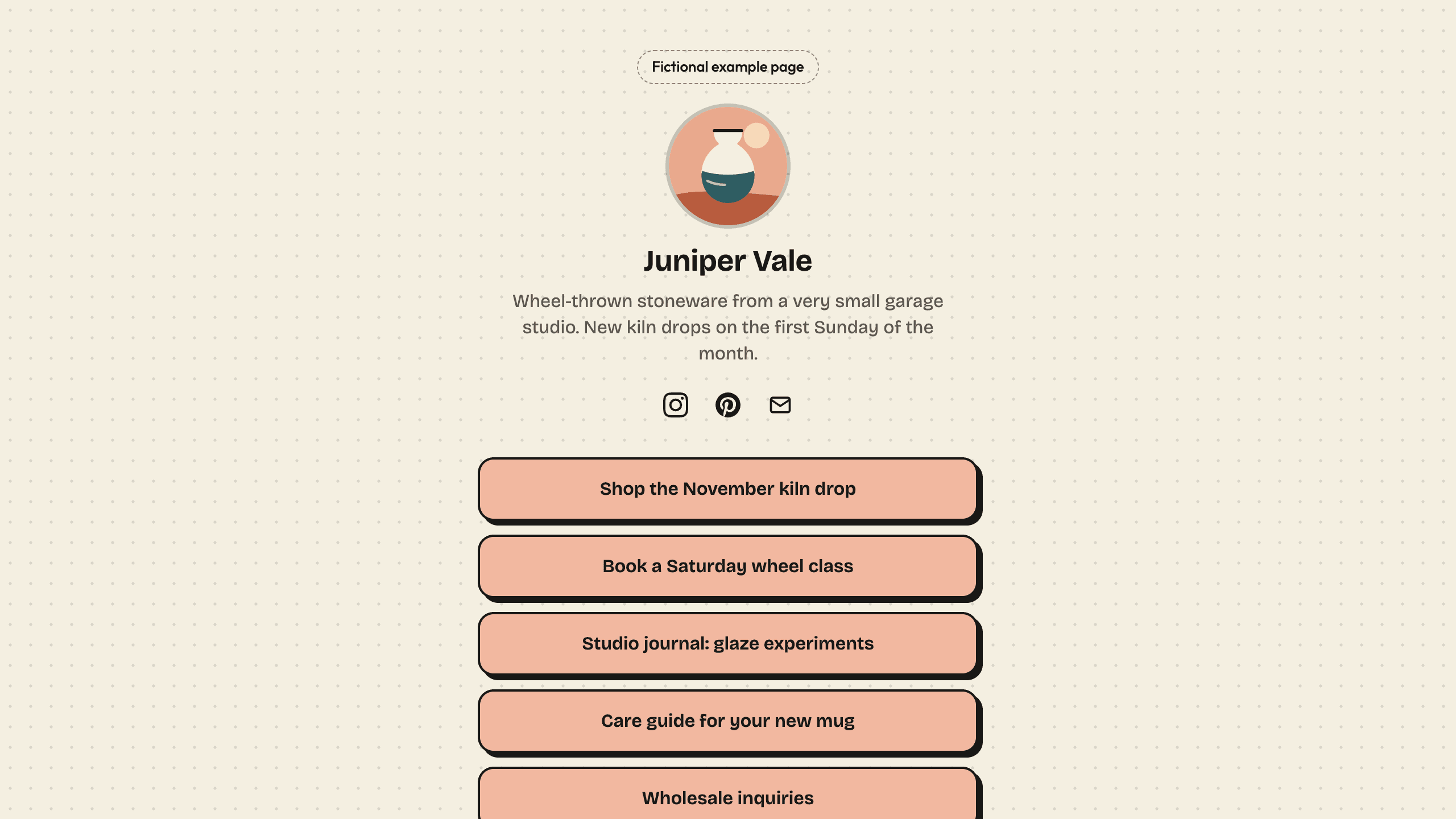
The HTML holds each link's title and a /go/<id> address. Destinations stay on the server, and hidden or scheduled links never reach the browser. Schedules run on the server's clock, and the redirect checks them again, so a stale tab holding an ended link lands back on the page.
Every URL passes through one function in the browser and again on the server, where the result is final. The redirect runs it once more, however the URL got into the table:
- Only
http,https, andmailtoare allowed.javascript:anddata:links get Use a link that starts with https://, http://, or mailto:. - A bare
example.combecomeshttps://example.com, and a bare email address becomes amailto:link. - Control characters and backslashes are refused, and
https://bank.example@evil.examplegets Links can't include a username or password.
These checks cover a URL's format. They cannot tell whether a site is a scam, which is one reason for reports. Social icons link straight to their URLs, checked when saved.
3. Keep themes readable
Owners will pick colors you would never choose, so readability belongs in the code. Linkleaf has eight themes, and owners can change the accent color, background (solid or gradient), button style, button shape, and font. Choosing another theme clears those changes.
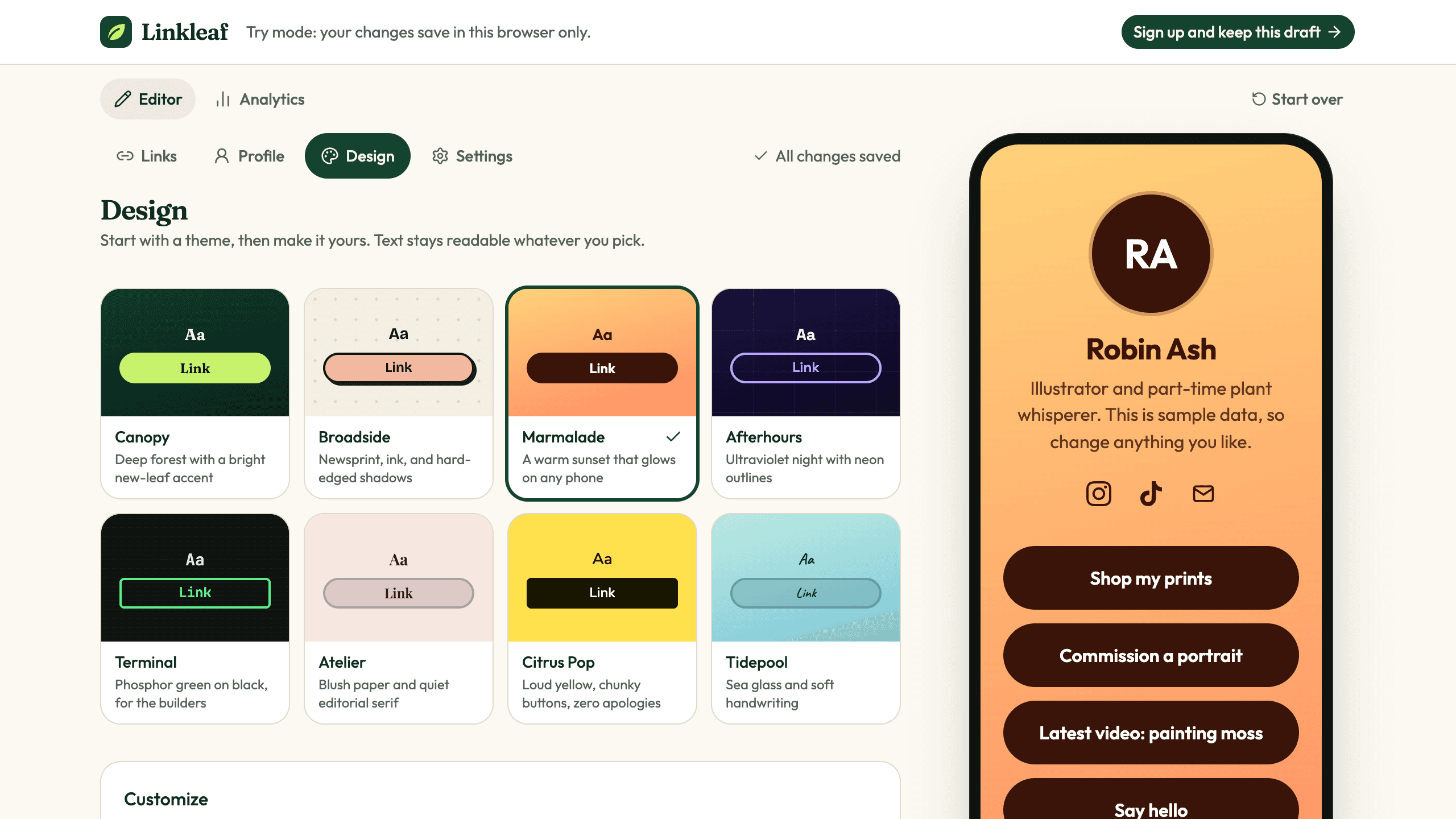
All page colors come from one function, which keeps text at 4.5:1 contrast or better. A gradient can dip between its ends, so it samples nine points along the background. There is no text color field: text comes from the theme, or switches to white or near-black when a custom background needs it. When a gradient such as black to white has no readable text color, the function moves the background until one fits, and Design says We adjusted these colors a little on your page so every word stays easy to read. Ask the AI to route every color through one place like this, or a later feature will skip the check.
4. Count views and clicks without storing IP addresses
Each owner gets an Analytics page, separate from the Analytics in Layerwise, which covers traffic to the whole site. Decide how each number is counted, because that decides what it means:
- Page views are reported by the page after it loads, so crawlers, link previews, and preloads don't count. A visitor without JavaScript adds no view.
- Link clicks are counted in the
/go/redirect after the response goes out, so visitors never wait. Known bots and prefetches reach the destination uncounted. - Sources come from a
utm_sourcetag, then the in-app browser's user agent, because those browsers often send no referrer, then the referrer's host. The rest is Direct.
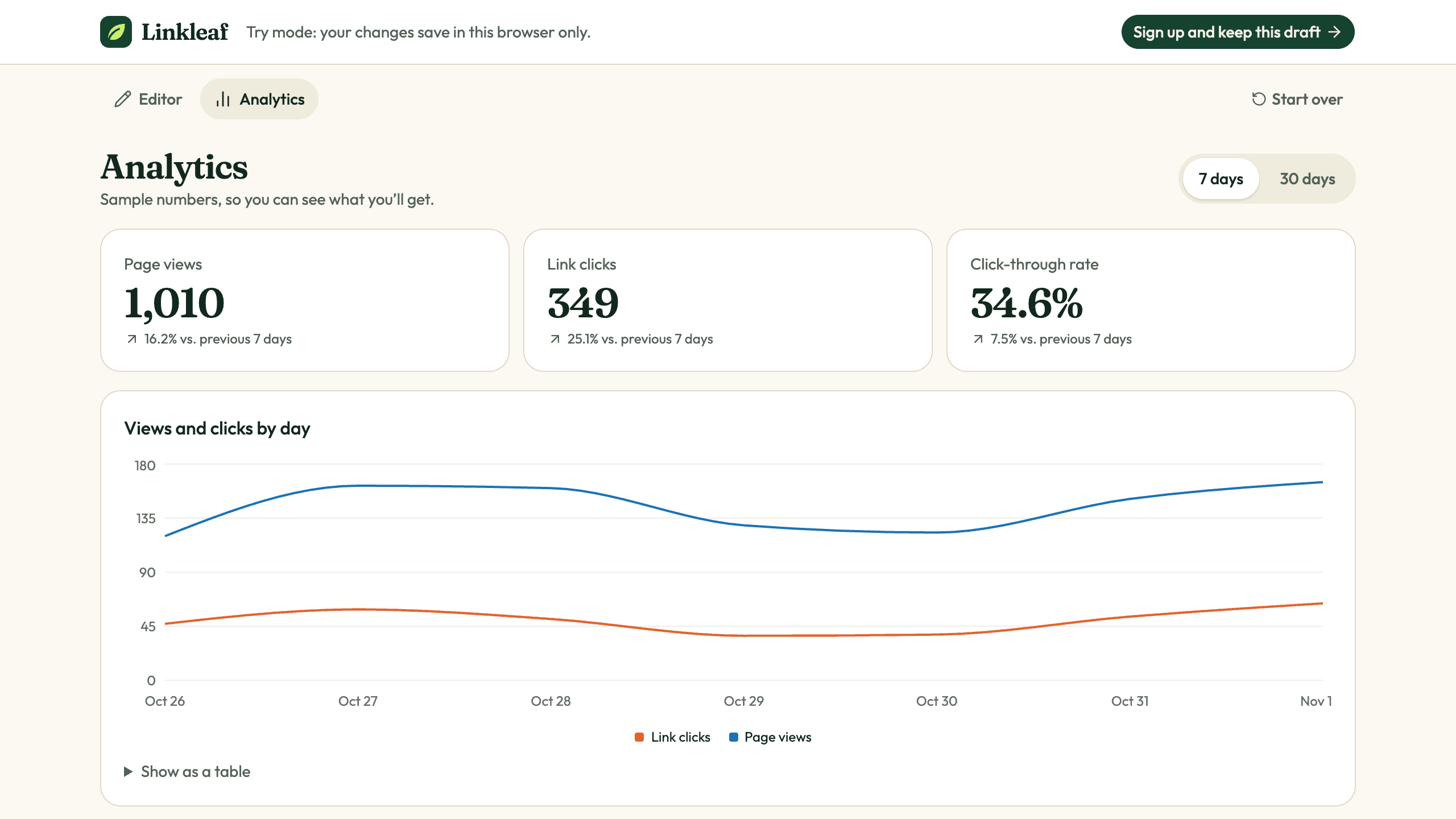
Linkleaf stores daily counters only: page_daily_stats has a day, a source, views, and clicks, and link_daily_stats has a link, a day, its last title, and clicks. Rate limits use a salted hash of the address, and Better Auth's IP tracking is off. The tradeoff is real. There is no unique-visitor count, a refresh is another view, the owner's own visits count, clicks can't be split by both link and source, and social icon clicks aren't counted. Ranges are 7 or 30 days, in UTC.
5. Let people try it before signing up
Linkleaf's /try route opens the real editor with four sample links and sample analytics. Changes save in the browser's localStorage, and a photo waits there as a 256×256 copy. Some in-app browsers block that storage, so the app tells people to sign up to keep their work.
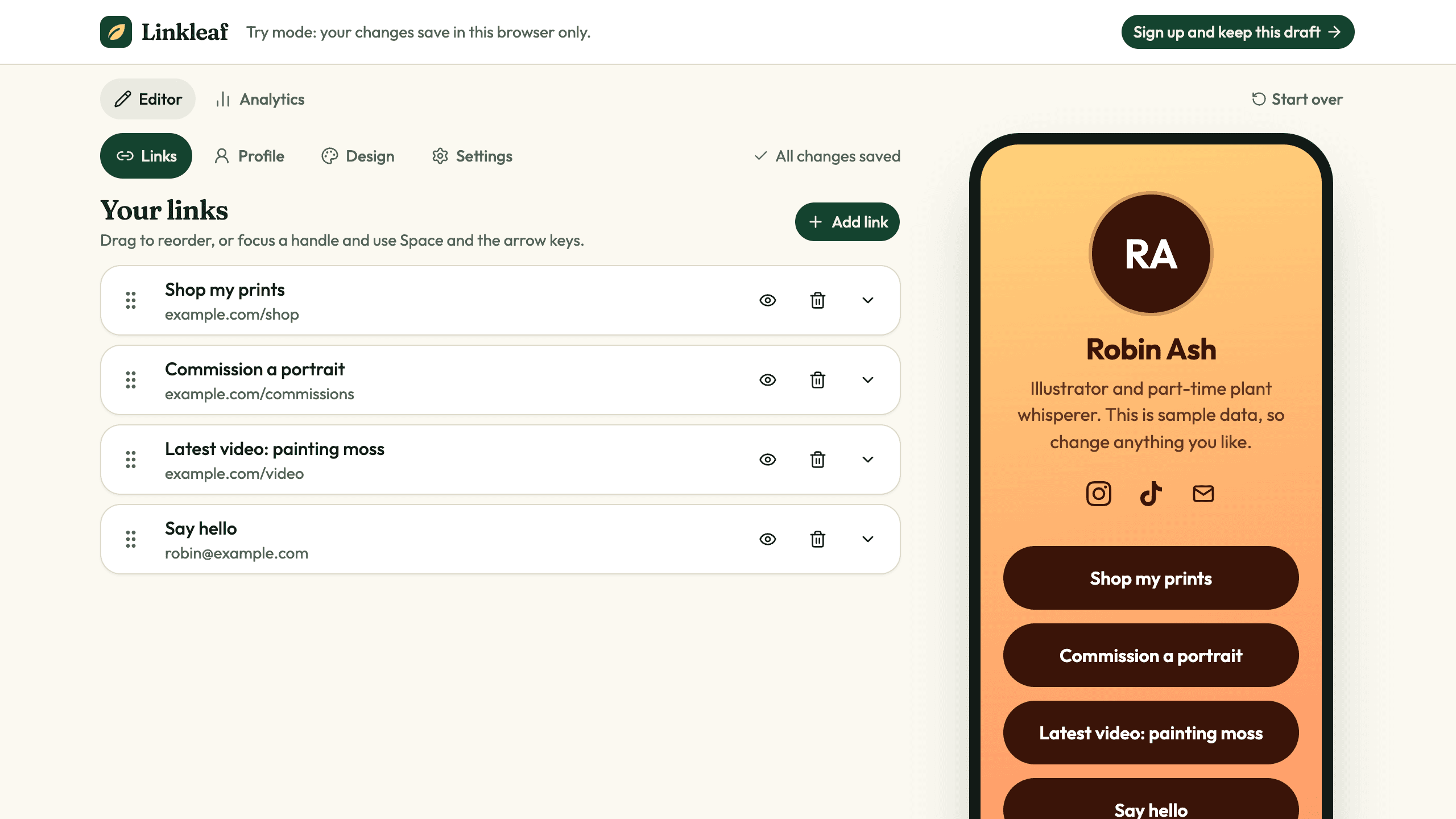
Sign up and keep this draft leads through sign-up to Claim your name. A name chosen in try mode isn't held, since nothing is on the server yet. Treat the draft as untrusted browser data: the server validates it like any save and replaces its link IDs, because every draft starts from the same sample links. The draft is cleared only after the page exists. Someone who already has a page chooses between Replace my page and Discard draft. Drafts stay in one browser, so signing up on another device starts fresh.
6. Plan files, share images, and abuse
Avatars. The browser crops a JPG, PNG, or WebP file of up to 5 MB to a 512×512 JPEG, which also drops location data. The server judges the type from the file's bytes, so SVG fails. Files stay private in Storage, because the local preview can't make files public, and a /media/ route serves only avatar keys.
Share images. The app draws a 1200×630 PNG in the page's theme on first request and keeps it in Storage. Its address carries a fingerprint of the name, bio, avatar, theme, and first three live links, so changing any of them requests a new image. The embedded fonts cover Latin text; a name in another script falls back to the username, and a bio or link title in another script is left off. If drawing fails or passes its limit, the request redirects to the site's default image.
Rate limits. Limits are per visitor and live in src/linkleaf.config.ts: 15 sign-ups an hour, 20 sign-in attempts per 10 minutes, 40 username checks a minute, 60 clicks and 60 views a minute, 5 reports an hour, 20 uploads per 10 minutes, 240 saves a minute, and 30 share images drawn a minute. Past the click limit the redirect still works and the click goes uncounted.
Reports. Every public page has Report this page, with five reasons, optional details, and an optional email. Reports go to the reports table with no admin screen or alert, and nothing happens to the page automatically, so someone has to read them in Database. To take a page down, set published to false on its row in pages. The owner can turn it back on from Settings unless you also ban the account in Authentication, which ends its sessions.
7. Choose a starting point
Download Layerwise, sign in, and select a team. Linkleaf is a link-in-bio template with a landing page, five fictional example pages, try mode, an editor with autosave and a live phone preview, owner analytics, and reports. To start from it, open Linkleaf, choose Use this template, pick a team and project name in Layerwise, then choose Copy to Layerwise. The name, colors, themes, fonts, reserved usernames, and limits are all in src/linkleaf.config.ts. Other workflows are in the template gallery.
To start from scratch, enter a description in Describe the app you want to build... on the team home page. Include the decisions above: one username per account with app routes reserved, server-rendered pages, the allowed URL schemes, the contrast rule, daily counters, and a try mode that survives sign-up. A blank start lets you choose each rule, but you must verify each one yourself. The prompting guide explains how to describe users, data, and screens.
8. Test as an owner and as a visitor
Once the local preview loads, choose Try the editor. Add a link, pick Atelier on Design, reload to confirm both stayed, then choose Sign up and keep this draft and create an account. Claim your name should say Your draft comes with you: 5 links, your design, and your profile. Type try and it should say That name is reserved. Try another. Type juniper-vale and it should say That name is taken. with suggestions. Enter a free name and choose Claim and continue.
On Links, choose Add link, give it a title, and enter javascript:alert(1); the form should refuse it. Add example.com/shop and open the row to see it saved with https://. Set Hide after to a past time: the row should show Ended, and the phone preview should drop the link and say 1 link is hidden or scheduled and not showing right now. On Design, set Background to Gradient, From to #000000, and To to #FFFFFF; the adjustment note should appear. On Profile, a file over 5 MB should get Use an image under 5 MB. Upload a JPG, then find it under avatars/ in Storage.
Now be a visitor. Open the preview in your default browser from the preview header, then open your page in a private window with ?utm_source=newsletter on the address. The page source should show link titles with /go/ addresses and no link destinations. Tap a link and confirm it reaches the destination. In Analytics, Page views and Link clicks should each rise by 1, with the link under Top links and newsletter under Top sources. Links on /juniper-vale explain that they are examples and aren't counted.
Choose Report this page, pick Scam or phishing, and choose Send report. You should see Thanks for telling us and a new row in reports under Database → Local. A sixth report within an hour should get You've sent several reports recently. Please try again later. Then turn off Publish my page in Settings; the address should show Nobody's planted anything here yet. Check the page and editor at phone width, where the phone preview moves to a Preview tab. If a check fails, open the preview console from Preview actions, or find the failed request in Logs.
9. Publish and improve it
New projects on paid plans start private, which would send visitors to a sign-in screen, so turn off Private in the Publish menu before sharing a link. Choose Publish in the preview header, then Publish in the menu, and open the live URL when the release finishes. The publishing guide covers release status. Local and Online use separate databases, so claim your name again on the live app. Storage is shared, so files from your tests remain in it. The five example pages are added by a migration, so they also appear on the live landing page and in the sitemap; to replace them, follow the note at the top of scripts/build-seed-sql.mjs.
Test where the page will live. Put the link in an Instagram or TikTok bio, tap it on a real phone, and confirm the source appears in Analytics. After you connect a custom domain, make it the main address, as Search and sharing describes. A domain applies to the whole app, so each person's page is still a path on it.
Start from Linkleaf if one page per person fits your users, or from a prompt if you need a different model. Either way, settle the addresses, link rules, and what you count before adding features. For the full project workflow, follow the Quick start.