How to Build a Brand Guidelines Site with AI
Build a brand guidelines site in Layerwise with logo downloads, copyable colors, computed contrast, design tokens, and optional password protection.
Table of contents
A brand guidelines PDF goes out of date the day someone needs a new logo size, and nobody can copy a color from it without typing the value by hand. A website solves both, but only if it stays in sync with the brand files. The way to get that is to generate as much of the site as you can from one source.
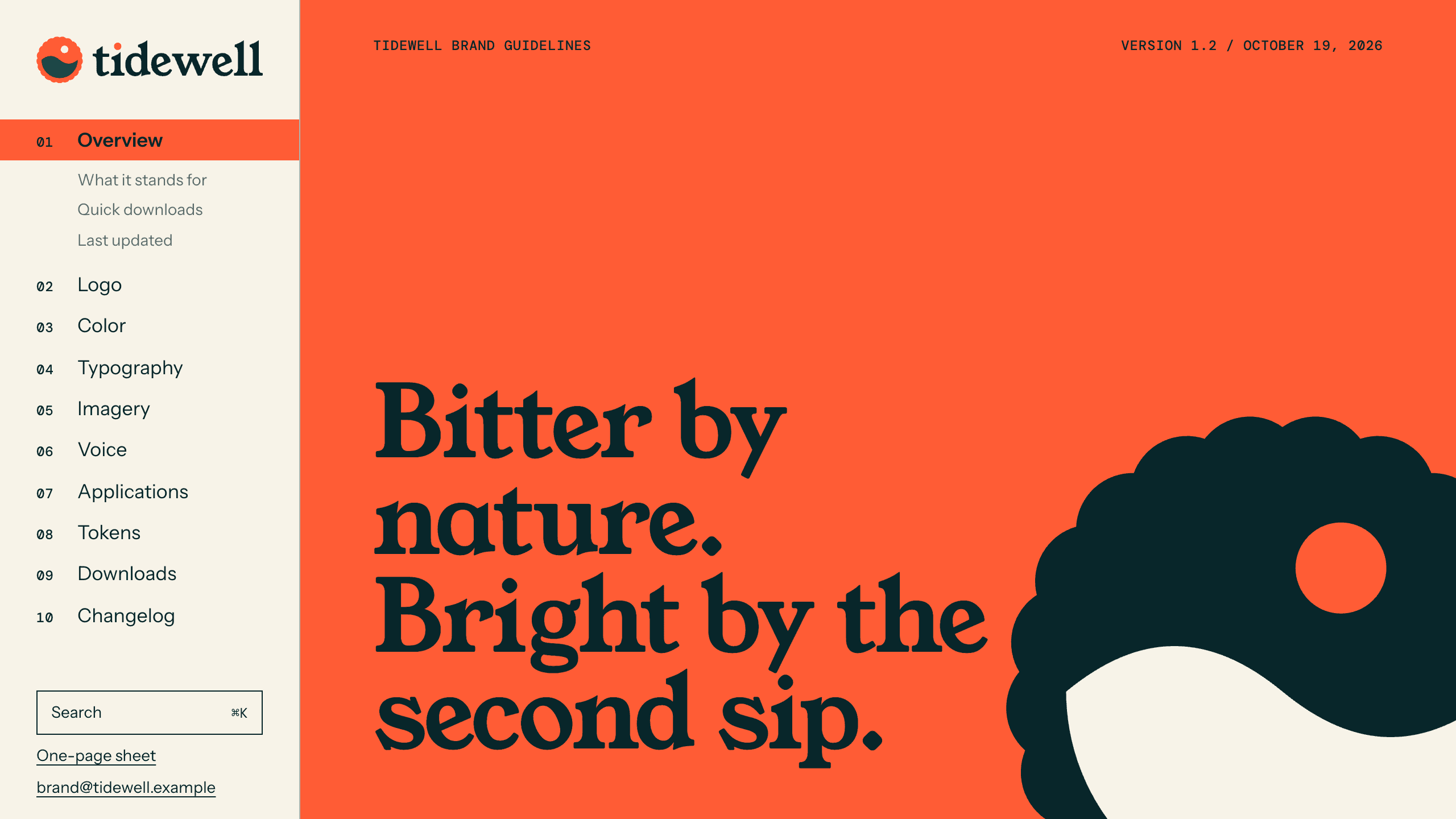
This guide builds a brand guidelines site with Layerwise. You will put the brand in one config, generate files and tokens from it, make colors and contrast calculated values, plan protection, start from the Stylebook template or a prompt, test, and publish. To see the result first, open the live demo, which uses a fictional sparkling tonic brand called Tidewell.
1. Put the brand in one config
One config file and a folder of logos drive everything in Stylebook, including the site's own fonts and colors. Change them, and every page changes with them.
src/brand/brand.config.server.ts   name, colors, fonts, type scale, voice, changelog
brand-files/logos/                 source SVGs
brand-files/fonts/                 one .woff2 per weight, plus any license text
brand-files/generated/             PNGs, tokens, rendered examples, and the zip
A layout that holds up for one brand can break for the next. A long name can run into the logo, and four colors can leave an empty cell. Before delivering, test with a second brand that has a long name and a color that fails contrast.
2. Generate logo files and rules
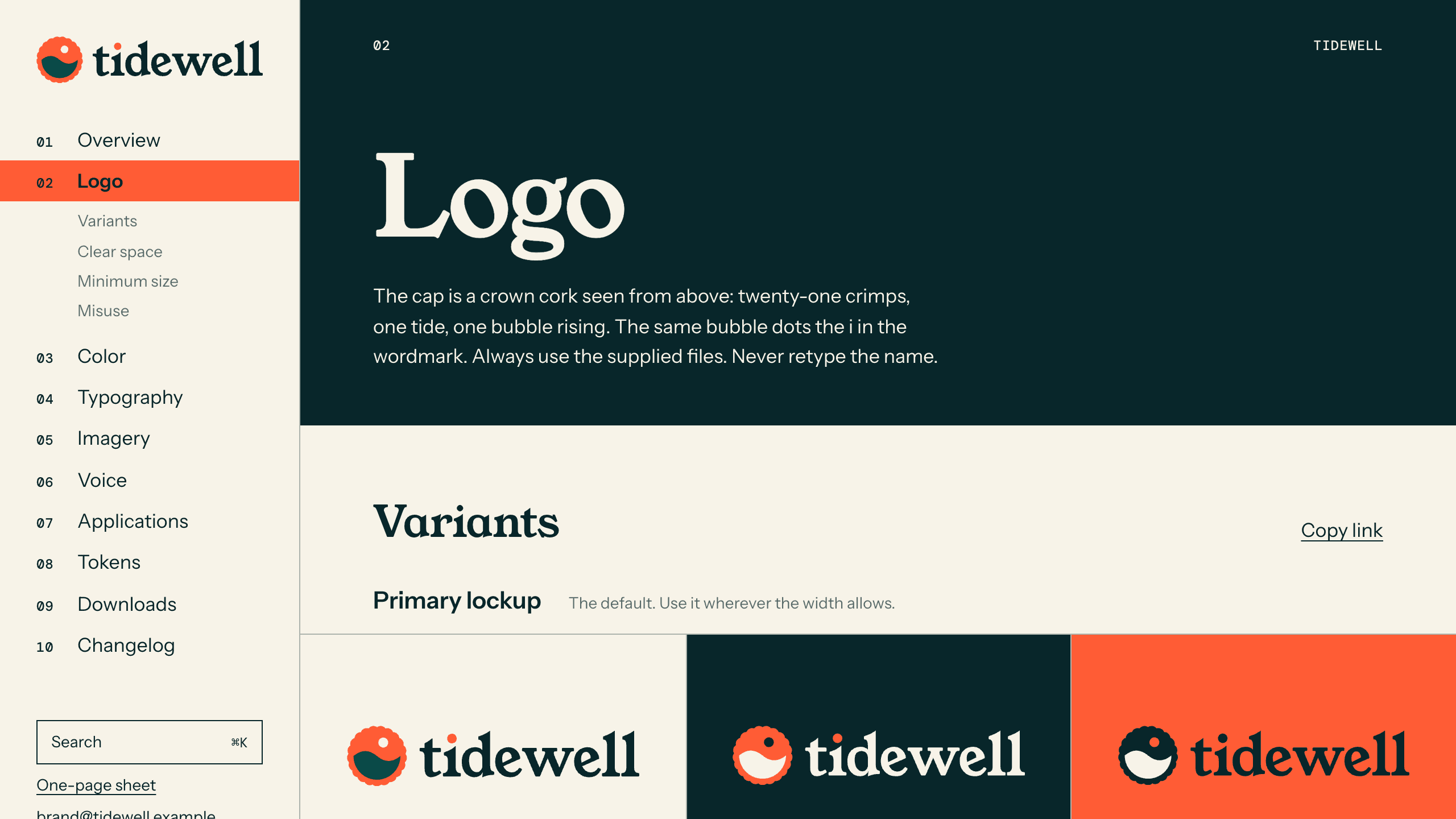
Drawing clear space and misuse examples by hand means redoing them for each brand, so generate them. Stylebook draws clear space and minimum size from the real SVG, and its misuse examples, such as stretched or recolored logos, come from the same file. Each variant appears on light, dark, and brand backgrounds, with SVG and PNG downloads.
After you change a logo, one command rebuilds everything:
pnpm build-brandIt writes PNGs at 512, 1024, and 2048 px, the colorways, the tokens, and brand-assets.zip. If an SVG is broken, the build names the file and leaves the last good build in place.
3. Calculate colors and contrast
HEX, RGB, HSL, and OKLCH can all be calculated from one value, so they should be. Store one source color, compute the rest, and give each a copy button. WCAG contrast is a calculation too, so a contrast grid can't drift out of date.
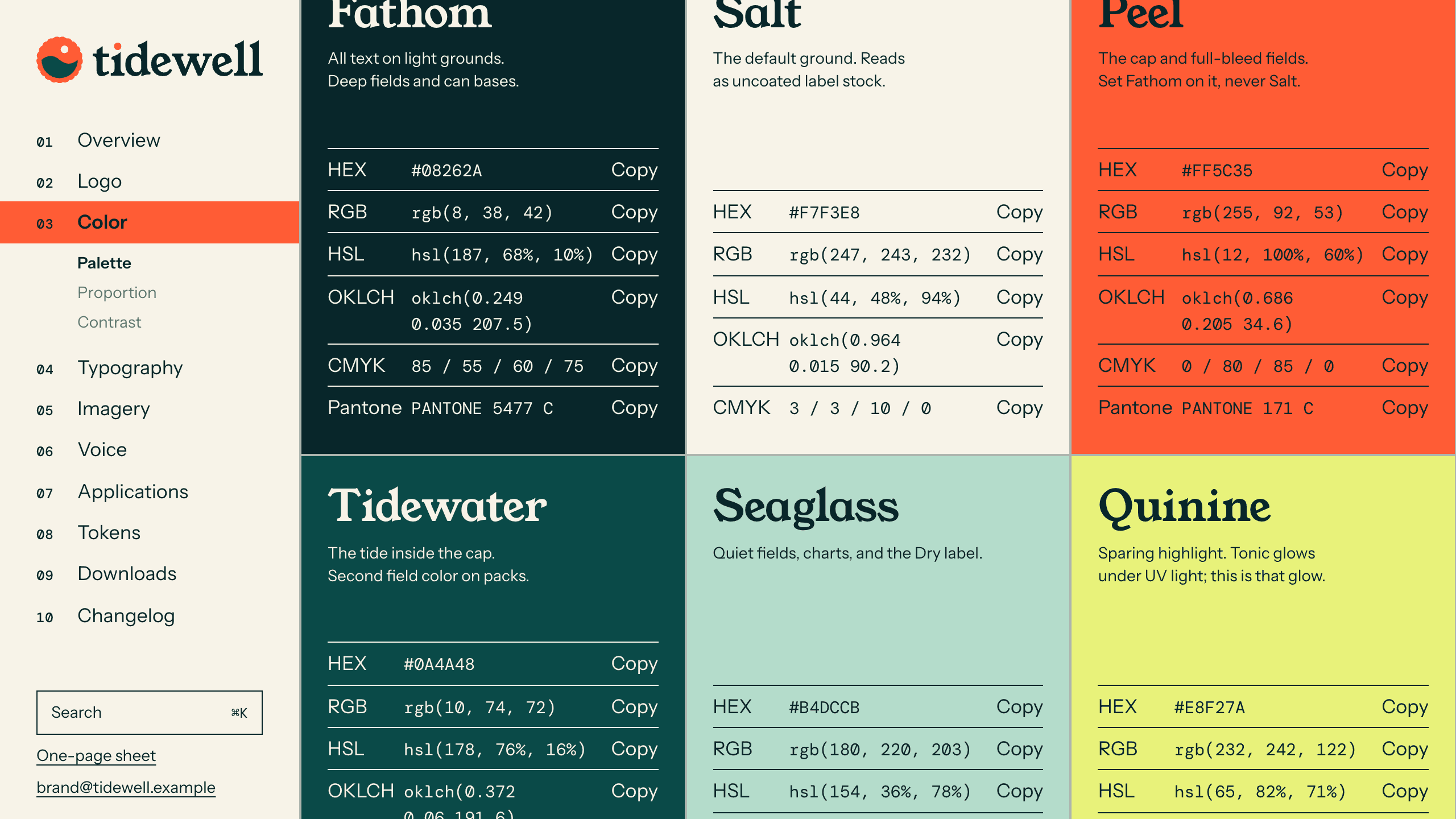
CMYK and Pantone are different. They can't be reliably calculated, so Stylebook shows them only when you provide them. A guessed Pantone value looks authoritative, and it can end up on a printed box.
The site also has to stay readable when the brand changes. If a brand color can't reach 4.5:1 on a background, Stylebook uses the nearest ink or paper color for that text.
4. Generate design tokens
Developers need the brand as code. Stylebook generates CSS variables, a Tailwind theme, and JSON from the config, with copy and download buttons on the Tokens page. Since they share a source with the pages, the docs and the code can't disagree.
Fonts need one more decision. Show a download link only when the license allows it. In Stylebook, license.allowsDownload controls that. A restricted font still displays on the site but stays out of Downloads and the zip.
5. Protect a brand before launch
A brand can be secret until launch, and your client probably doesn't have a Layerwise account. Stylebook supports one shared password, set as a SITE_PASSWORD secret under environment variables. With no password set, the site is public.
Protecting a site takes more than a password screen. Anything in public/ or in the JavaScript sent to browsers can be fetched without the password. So Stylebook keeps brand content in server-only modules and keeps its files in private Storage, served only after the check. pnpm check-leaks searches the built client files for brand content.
The password page shows nothing about the brand, and every response tells search engines to stay out. Tries are limited to five per 15 minutes, and changing the password ends every unlock. Forked projects don't copy Storage files, so the local preview uploads missing files from brand-files/ when it starts.
6. Choose a starting point
Download Layerwise, sign in, and select a team. Open the Stylebook template and choose Use this template to copy it into a project. Then ask the agent to make it your client's:
Replace Tidewell with Harbor & Pine, a coffee roaster in Portland. Use the logo
SVGs and fonts I attached, with #1F3A34 as ink, #F5EFE3 as paper, and #C8553D as
the brand color. Rewrite the voice page for a warm, plain-spoken roaster. Run
pnpm build-brand, and confirm nothing still mentions Tidewell.
To start from scratch, enter a description in Describe the app you want to build... on the team home page. Include the single config, generated files and tokens, calculated colors, the rule for CMYK and Pantone, and the protection requirements above.
7. Test it like the person receiving it
On Color, choose Copy next to a value and paste it somewhere. On Downloads, choose Download all, unzip the file, and compare it with the list on the page. Open /sheet and print to PDF: the summary should fit on one page. Press Cmd+K and search for a color name.
Then run the leak check, and search the finished site for your old brand's name:
pnpm build && pnpm check-leaks8. Publish and hand it over
New projects on paid plans start private, which only your team can open, so turn off Private in the Publish menu and choose Publish. To protect the site, add SITE_PASSWORD as a Secret, select Republish, and send your client the link and password separately. Open a private window to confirm you see only the password page.
Connect a custom domain such as brand.yourclient.com so the address outlasts your project. Start from Stylebook, or from a prompt, and keep one rule either way: if a page can be generated from the brand files, generate it.