How to Build a Note-Taking App with AI
Build a Markdown notes app in Layerwise. Define the note record, choose local saving or account sync, handle search and deletion, test, and publish.
Table of contents
A note-taking app looks small: a list, an editor, and a search box. The decisions that shape it are less visible. Where is a note saved while you type? What happens when the same note changes on a laptop and a phone? Can a deleted note come back? Answer those before asking an AI to write code, and the first version is much easier to test.
This guide builds a personal Markdown notes web app with Layerwise. You will define the note record, choose how notes are saved, plan search and deletion, start from the NoteNest template or a prompt, test, and publish.
1. Define the note record
Every feature in a notes app reads or writes the same record, so write it down first. This is the note type in NoteNest:
type Note = {
  id: string; // created on the device with crypto.randomUUID()
  title: string;
  content: string; // Markdown source
  folderId: string | null; // null means the note is in All notes
  pinned: boolean;
  createdAt: number; // milliseconds since 1970
  updatedAt: number; // changes on every edit
  deletedAt: number | null; // set when the note moves to Recently deleted
};
Three fields matter more than they look. The id is generated on the device, so a note exists before any server knows about it. updatedAt is how two copies of a note are compared during sync. deletedAt makes deletion a change of state rather than a removal, which allows recovery.
Keep the body as Markdown rather than HTML: it stays readable in the database, search works on it directly, and it exports cleanly as .md files. Folders use a similar record with a name.
2. Decide where notes are saved
There are three reasonable models:
- Local only. Notes stay in the browser's storage. No account is needed, but clearing site data or switching devices loses access.
- Account only. Notes live in the project database and follow the user, but saving requires a connection and sign-in.
- Local first, with optional sync. Notes save on the device as you type. Signing in merges them with the account's copy.
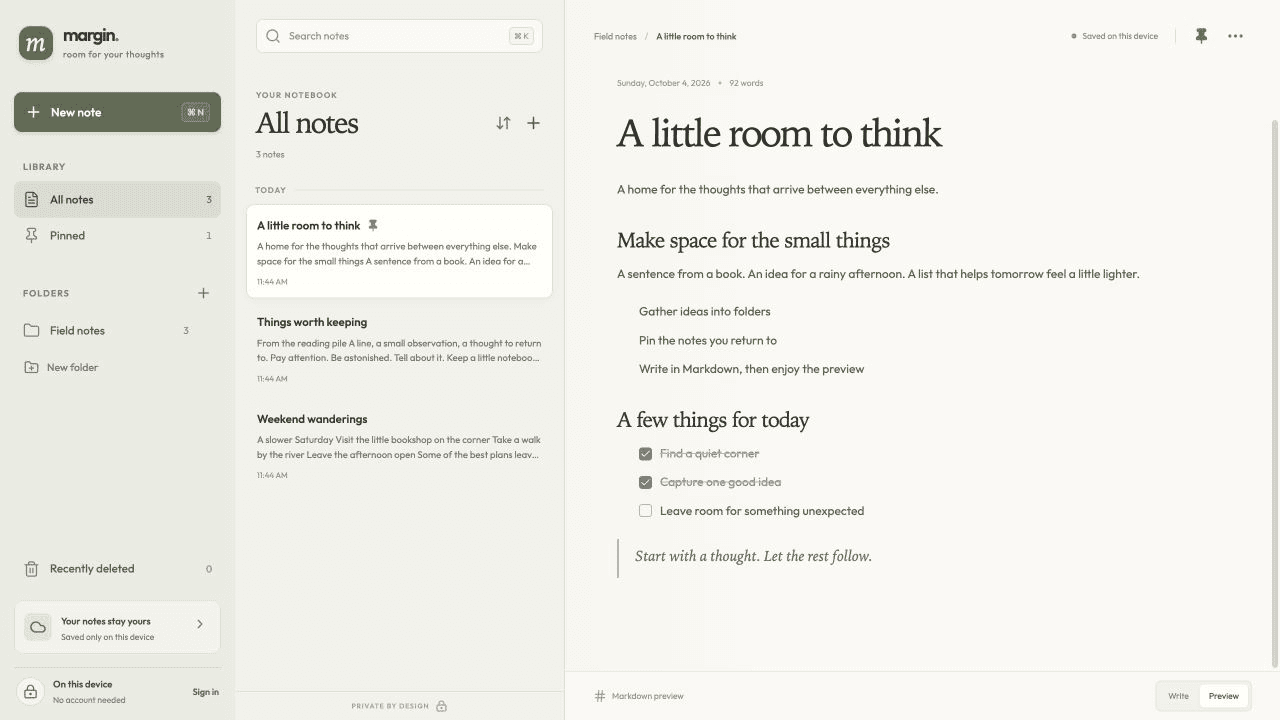
NoteNest uses the third model. Signed out, its status reads Saved on this device. After sign-in, it merges local notes with the account's notes, then syncs shortly after each edit, every 30 seconds, and when the window regains focus. Synced notes are stored per user in the project's built-in database, and sign-in uses the project's authentication.
The harder question is conflicts. NoteNest compares whole notes by updatedAt, as recorded by each device's clock, and keeps the newer one. If the same note is edited on two devices before they sync, the older edit is replaced rather than combined. For a personal notebook that may be acceptable. If not, decide now, because the fix changes the data model. Turn on Plan mode, described in Direct the agent, to review the approach before code changes:
Explain how note sync resolves conflicts today. Then propose a change: when a
note was edited on another device since this device last synced it, keep both
versions, save the incoming one as a copy titled "<title> (conflict)", and show
a short notice. Keep automatic local saving for signed-out users.
3. Plan search and deletion
NoteNest searches titles, note text, and folder names on the device as you type, ignoring case, and lists pinned notes first. That works because the whole notebook is already in the browser. Its sync sends the whole notebook each time and accepts up to 500 notes and 100 folders. For a larger collection, ask for incremental sync and server-side search.
Deletion is soft. Move to recently deleted sets deletedAt, and Restore note clears it. The template never permanently removes notes. If you add that, a note removed from one device can return on the next merge, because the server or another device still has a copy. State that requirement in the prompt:
Permanently remove notes that have been in Recently deleted for 30 days, and
add a Delete now action there with a confirmation. For signed-in users, sync
permanent deletion so another device cannot restore the note.
4. Choose a starting point
Download Layerwise, sign in, and select a team.
NoteNest is a Markdown notes app template with folders, pinned notes, search, and a Recently deleted view. To start from it, open NoteNest, choose Use this template, pick a team and project name in Layerwise, then choose Copy to Layerwise. The note record, local saving, and account sync are already implemented, so your work is adapting them. Other workflows are in the template gallery.
To start from scratch, enter a description in Describe the app you want to build... on the team home page, including the decisions above:
Build a personal Markdown notes app. Each note has a title, Markdown body,
optional folder, pinned flag, created and updated times, and a deleted time
used by a Recently deleted view. Save notes in the browser automatically while
signed out. After email sign-in, sync notes to the project database and keep
the most recently updated copy of each note. Include search across titles and
note text, a Write and Preview toggle, and a layout that works on a phone.
A blank start lets you choose each behavior, but you must verify each one yourself. The prompting guide explains how to describe users, data, and screens.
5. Test with two browsers and two accounts
Once the local preview loads, test while signed out. Create a note, add a heading and a task list, switch to Preview, and refresh. The note should still be there.
Next, open the preview in your default browser from the preview header. That browser has separate storage, so a device-only note should not appear there. Sign in with the same account in both windows. Your notes should appear in both, and an edit in one should reach the other within about 30 seconds, or sooner when you switch windows. If you changed the conflict rule, edit one note in both windows in quick succession and confirm the result.
Then sign up as a second user and confirm none of the first user's notes appear. You can also create test accounts with Add user in Authentication. Open Database, select Local, and confirm each synced note belongs to the right user. Finally, delete a note in one window, restore it in the other, and check phone width.
If a check fails, open the preview console from Project actions, or find the failed sync request in Logs.
6. Publish and improve it
Choose Publish in the preview header, then Publish in the menu, and open the live URL when the release finishes. Local and Online use separate databases, so test notes and accounts are not copied. Repeat the sync checks on a real laptop and phone signed in to one account. The publishing guide covers release status.
Choose the next change from what you observe. Analytics shows pageviews and visitors, not what anyone writes. If the status shows Sync paused, select Online in Logs and find the failing request. Because note bodies are Markdown, export is a small, useful addition:
Add Export to the note actions menu that downloads the current note as a .md
file named after its title. Add Export all to the sidebar that downloads every
note not in Recently deleted as a zip of .md files, grouped by folder.
Start from NoteNest if its three-pane workspace fits how you write, or from a prompt if you need a different model. Either way, settle saving, conflicts, and deletion before adding features. For the full project workflow, follow the Quick start.