How to Move a Lovable Project to Layerwise
Export your Lovable code, bring it into a Layerwise project, move your data, users, files, and secrets, then publish. A step-by-step migration guide.
Table of contents
You can move a Lovable app to Layerwise in an afternoon: download the code, drop it into a new Layerwise project, and have the agent port it. The interface usually carries over almost unchanged. The real work is the backend, because Lovable apps run on Supabase and Layerwise projects use their own database, sign-in, Storage, and email.
This guide walks through the whole move: what to export from Lovable, how to set up the Layerwise project, the prompt that does the porting, and how to bring over your data, users, files, and secrets before you publish. If you're still deciding, read Layerwise vs Lovable first. You don't have to switch everything at once, and your Lovable project keeps running until you turn it off.
Lovable menu names were checked against Lovable's documentation on November 16, 2026.
What carries over and what changes
Lovable and Layerwise build on the same kind of stack: React, TypeScript, Tailwind CSS, and shadcn/ui. Lovable projects created since May 2026 also use TanStack Start, the framework Layerwise projects use. Pages and components move with few edits.
| Part of your app | In Lovable | In Layerwise | What the move takes |
|---|---|---|---|
| Pages and components | React, Tailwind, shadcn/ui | React, Tailwind, shadcn/ui | Copied, with routes adjusted for TanStack Start |
| Database | PostgreSQL (Supabase) | SQLite (Cloudflare D1) | Tables rewritten for SQLite; rows imported from CSV |
| Sign-in | Supabase Auth | Built-in email authentication | Users imported; they sign in with an email code |
| File uploads | Supabase Storage | Built-in Storage | Files downloaded, then uploaded |
| Server code | Supabase Edge Functions | Server functions in the app | Rewritten by the agent |
| API keys | Cloud secrets | Environment variables | Added again by hand |
Two things don't come over automatically. Passwords can't be moved, so existing users sign in with an email code or set a new password. And Supabase-only features, such as realtime subscriptions or row-level security policies, need a Layerwise equivalent. The agent handles both, but plan to test them.
1. Export your code from Lovable
Pick one of two ways:
- GitHub (any plan). In Lovable, open Project settings → Git → GitHub and connect the project. Lovable creates a repository and keeps it in sync. Clone it, or download it from GitHub with Code → Download ZIP.
- ZIP download (paid Lovable plans). Open Project settings → Git and use Download codebase, or select Download codebase at the bottom of the file panel in Lovable's code editor.
Unzip it somewhere easy to find, and check package.json: if it lists @tanstack/react-start, your app already uses TanStack Start and the port will be shorter.
The code export includes your database migrations, so the agent can read your table structure. It doesn't include your data or uploaded files. You'll export those in step 4.
2. Create a Layerwise project for the app
Open Layerwise, choose your team, and start a project from the team home page with a short description of the app. Keep this first prompt simple; the real instructions come in the next step.
Create a project for an app I'm moving from Lovable. Keep the starter as is
for now; I'll add the source code next.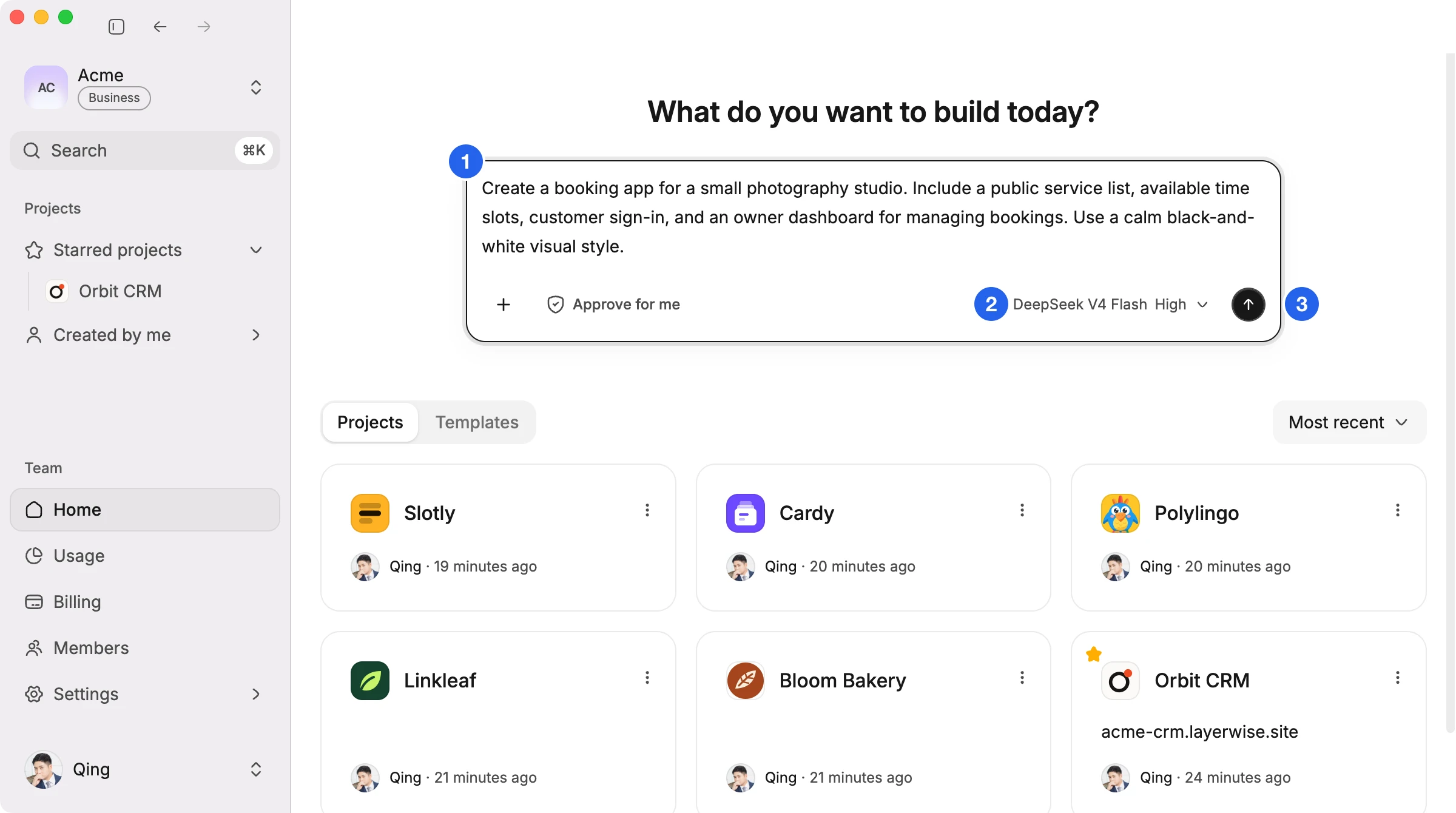
When the project opens, open the mode menu in the preview header and choose Open in → your file manager. That opens the project folder on your computer. Copy your unzipped Lovable code into it as a folder named lovable-source.
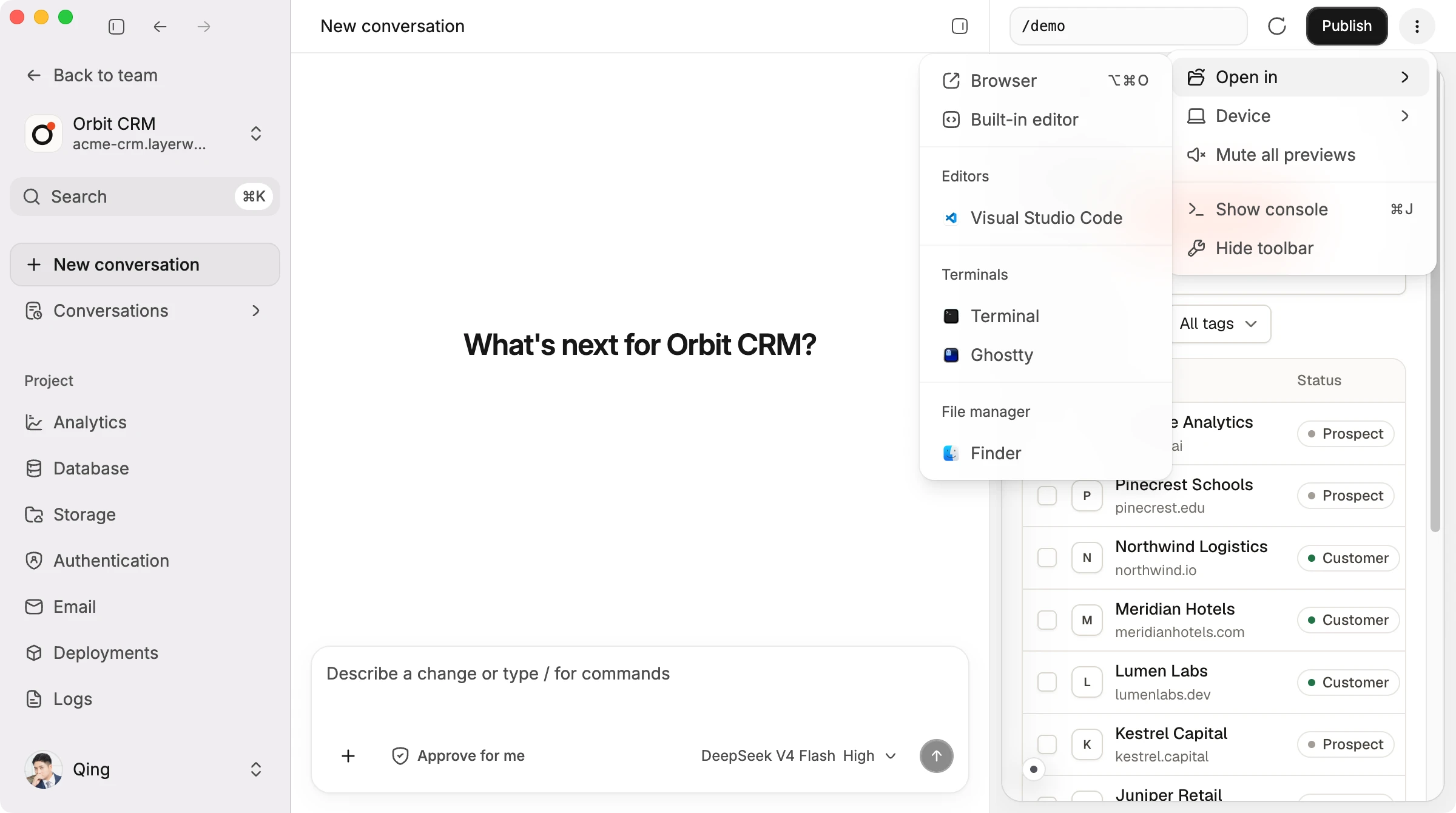
Putting the code inside the project matters. The agent's default Approve for me mode works inside the project folder without asking, so it can read every file you copied there.
3. Ask the agent to port the app
Choose a strong model for this conversation. Porting touches many files, and a capable model will need fewer follow-ups. Then send a prompt like this one, edited to describe your app:
The folder lovable-source/ holds an app I built in Lovable. Port it into this
Layerwise project.

- Rebuild every page and component in this project's structure. Keep the
  design, copy, and behavior the same.
- Replace Supabase: turn the tables in lovable-source/supabase/migrations into
  this project's database schema, move sign-in to the built-in authentication,
  file uploads to Storage, and Edge Functions to server functions.
- Remove the Supabase client and any Lovable-specific packages.
- List the environment variables the app needs, without values.
- When the preview works, delete lovable-source/ and tell me what you could not
  port.
The agent works through the pages in order and rebuilds the backend. Expect it to take a while on a large app. When it finishes, test each main path in the preview: sign up, sign in, create and edit records, and upload a file. Ask for one fix at a time when something is off, such as "The pricing page lost its FAQ section. Restore it from the Lovable version."
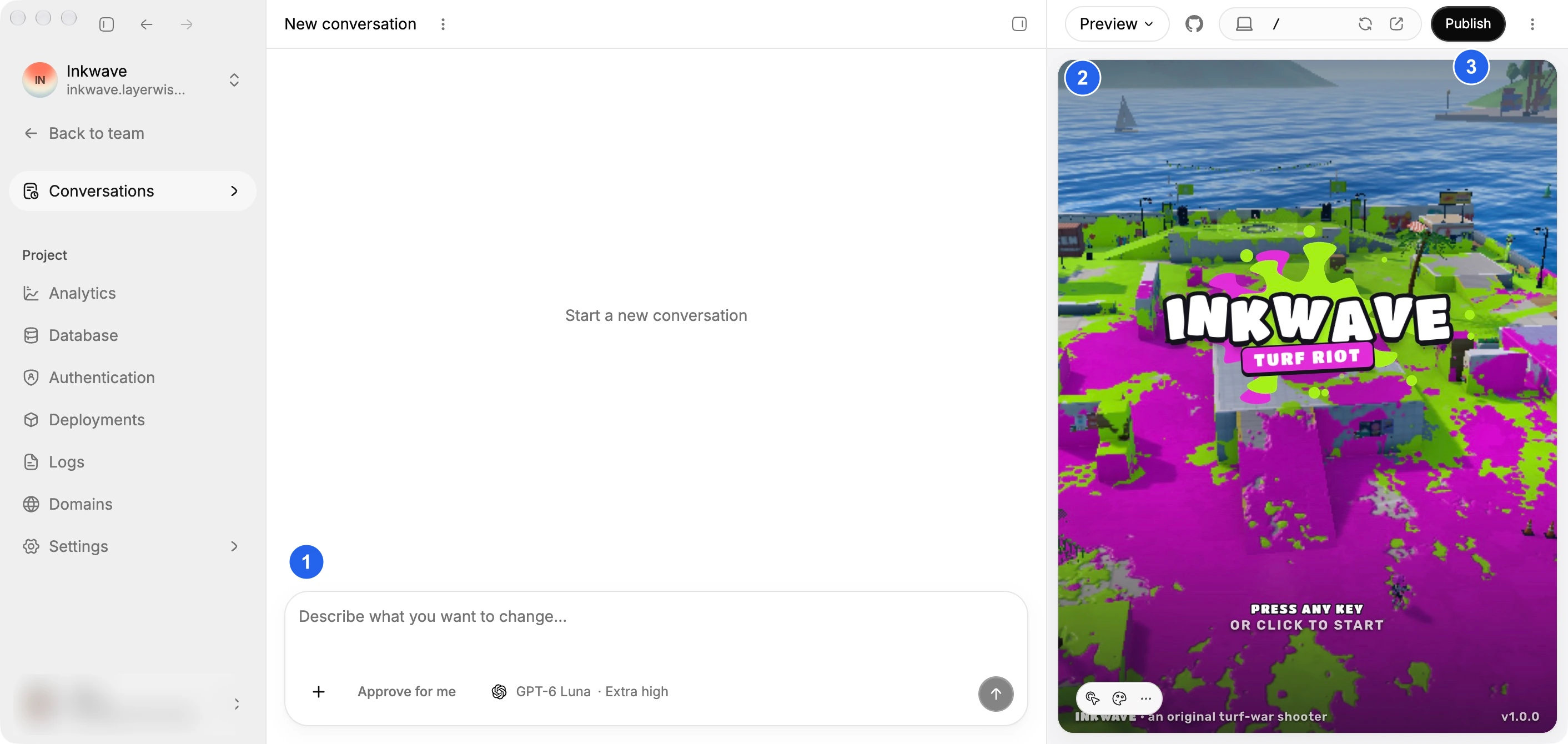
Make sure lovable-source/ is gone before you publish. The project checks all its TypeScript files when it builds, and the old Supabase code would fail that check.
4. Bring over your data
Your new app starts with empty tables. To move the rows:
- In Lovable, open More → Database, open each table, and select Export CSV.
- Copy the CSV files into your Layerwise project folder, for example into
data-import/. - Ask the agent to import them:
Import the CSV files in data-import/ into the matching tables. Convert values
where the column types changed, keep the original IDs, and skip Supabase
system tables. Load them into the local database first and tell me the row
counts.
Open Database in the project sidebar with Environment set to Local to check the rows. When the local data looks right, ask the agent how it will load the same rows into the published app, and check Online after you publish.
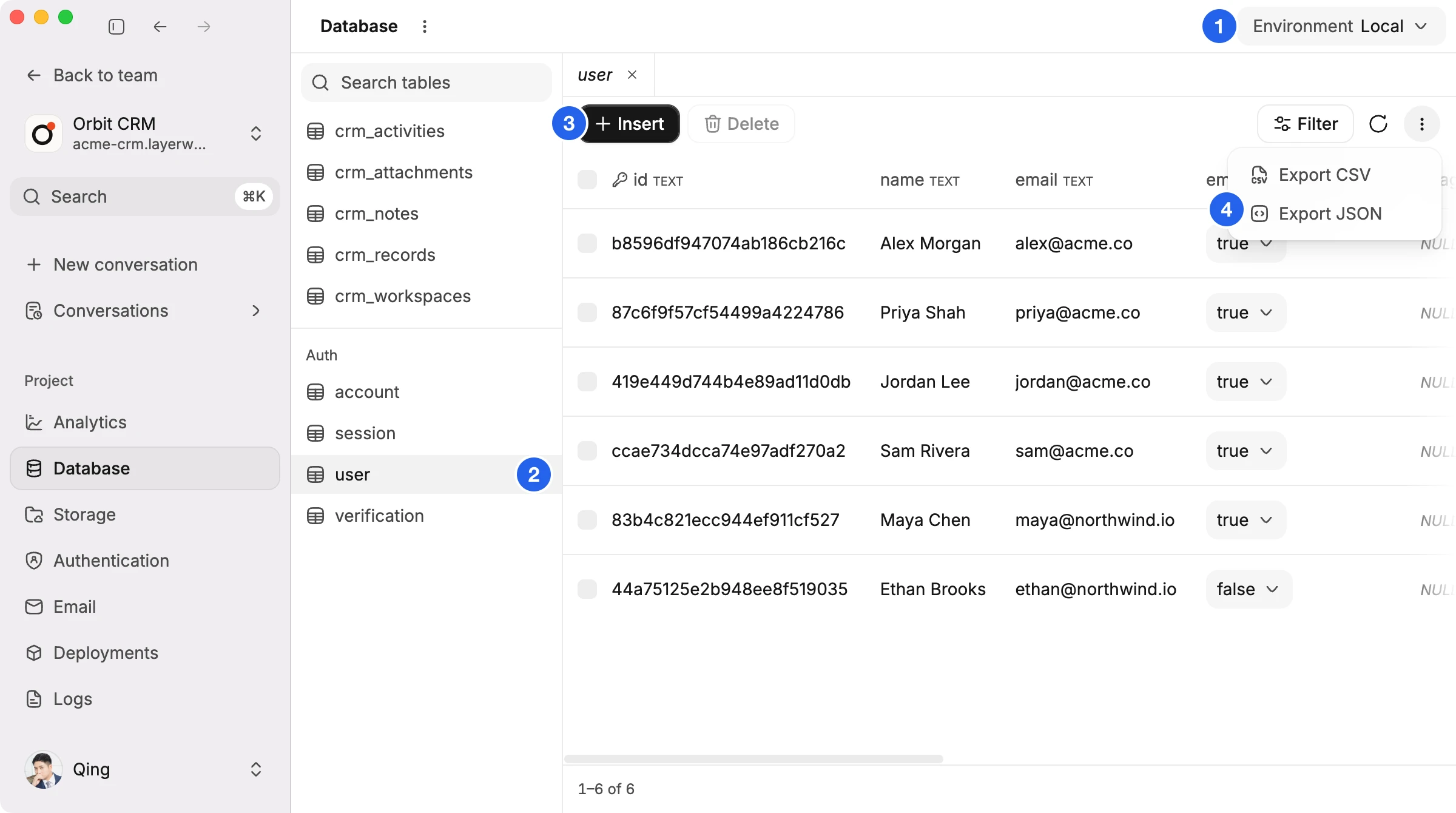
The full Lovable export (More → Database → Manage → Settings → Export data) is a PostgreSQL backup file. It's useful as a safe copy, but CSV files are easier to import into a SQLite database.
5. Move your users, files, and secrets
Users. Profile tables, such as profiles, come over with the CSVs. Sign-in accounts live in Supabase Auth instead, so ask the agent to create one Layerwise account per email address. Because password hashes can't be moved, those accounts start without a password and sign in with an email code. Tell your users before launch, and point them to the email-code sign-in or password reset. You can review accounts in Authentication.
Files. In Lovable, open More → Storage and download each bucket. In Layerwise, open Storage from the project sidebar, select Upload, and add the files or whole folders. Choose Public for files anyone can open, such as product images, and Private for user uploads. If your database stores file URLs, ask the agent to rewrite them to the new Storage paths.
Secrets. Lovable doesn't export secret values, so gather your API keys (Stripe, OpenAI, and so on) from each provider. Open Settings in the project sidebar, then Environment variables, and add them under the names the agent listed. If you keep them in a .env file, select Import .env.
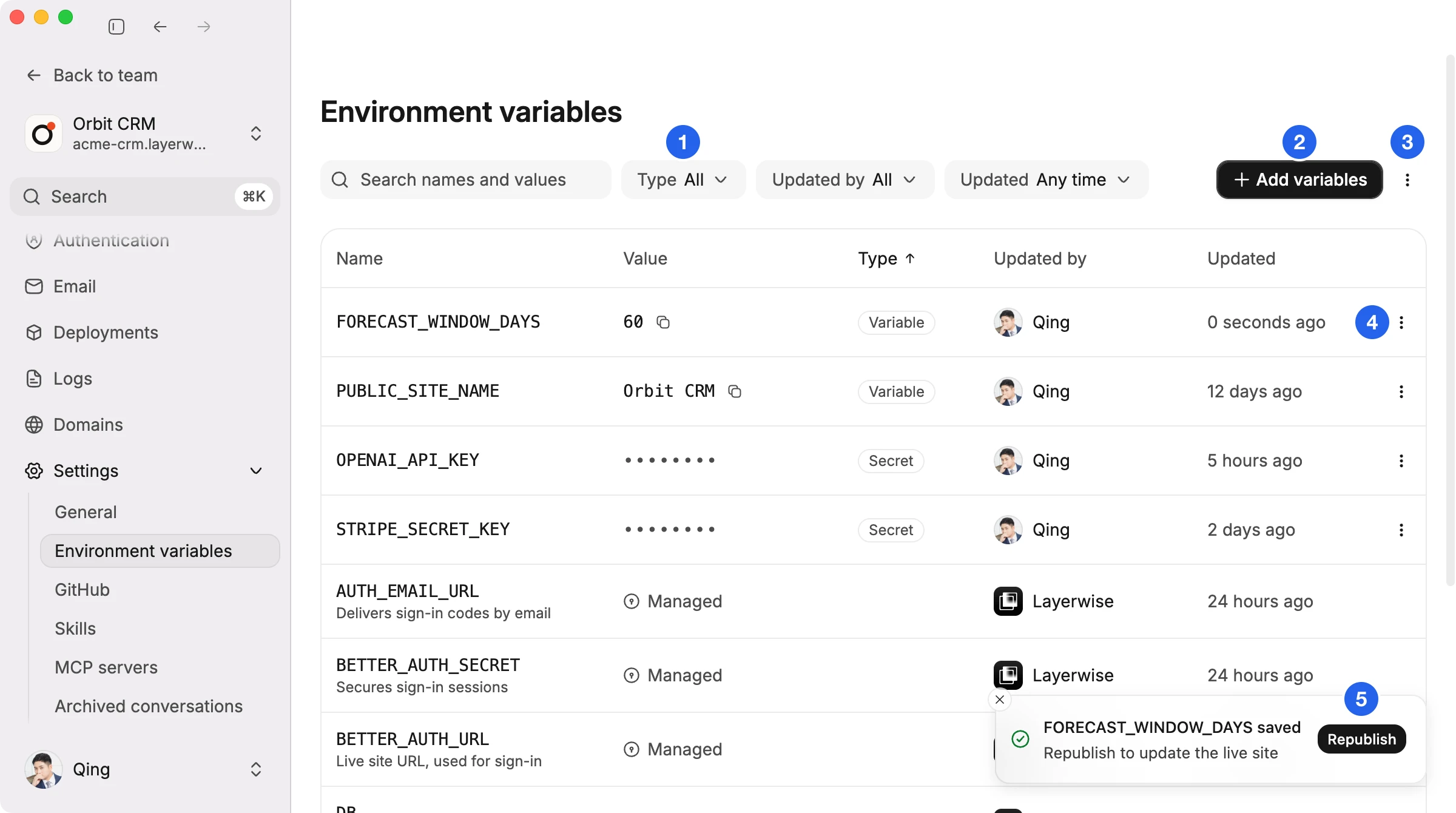
6. Publish and switch over
Choose Publish in the preview header, then Publish again in the menu. Layerwise creates the production database, applies your schema, and gives you a live URL on layerwise.site.
Before you move real traffic:
- Run through sign-in, saving data, and uploads on the live URL.
- Load your production rows into the Online database and check them in Database.
- Connect your custom domain in Layerwise and update its DNS records.
- Keep the Lovable project running for a few days. Turn it off only after the new app has served real users without problems, and after you've downloaded every export you need.
If a payment provider or OAuth app sends webhooks or redirects to your old URL, update those URLs in the provider's dashboard to your new domain.
Frequently asked questions
Can I import a Lovable project into Layerwise directly?
Not with one click. Lovable apps depend on Supabase, and Layerwise projects use their own database and services, so the backend has to be rewritten. Copy the Lovable code into a new Layerwise project and ask the agent to port it, as this guide shows.
Do I need a paid Lovable plan to move my app?
No. Connecting GitHub works on every Lovable plan, and you can download the repository as a ZIP from GitHub. The Download codebase button needs a paid Lovable plan.
Will my users keep their passwords?
No. Password hashes stay in Supabase Auth. Imported users sign in with an email code, or set a new password with password reset.
Can I keep using Supabase from Layerwise?
You can call any outside API from your app's server code and store its keys as environment variables. Most apps are simpler with the built-in database, authentication, and Storage, which publish together with the app and need no separate account.
What if my app uses Supabase realtime or row-level security?
Ask the agent to rebuild that behavior. Row-level security usually becomes access checks in server functions, and realtime updates become polling or a refresh after each change. Test with two accounts to confirm one user can't see another's data.
How long does the move take?
A small app with a few tables usually takes an afternoon. Most of the time goes into testing and moving data, not into the port itself.
To start, follow the Layerwise quick start or download the app below.
YOUR NEXT PROJECT
Give your idea a live URL.
Choose your model, build in a live preview, and publish with your project’s backend connected.
Download LayerwiseBuild your first app