Bloom Bakery Small Business Website Template
A small business website for a bakery or local shop: a home page, a menu, weekend box reservations with pickup capacity, a visit page with a contact form, and an owner dashboard. Business details live in one config file.
Opens in Layerwise on your computer. New to Layerwise? Download the app first.
- Category
- Business
- Tags
- Small Business, Website, Reservations, Bakery
- Updated
- Nov 7, 2026
- Requires
- Layerwise 0.7.0+
Build your own version of Bloom Bakery
Put a neighborhood bakery online, or adapt it to another local shop. Visitors see today’s open status, a menu with prices and dietary labels, and a Visit page with hours, directions, and a contact form. They reserve a weekend box by day and time, up to a set number of boxes per slot, get a confirmation email with a private link to cancel, and pay in store. Owners sign in with an emailed code to see today’s pickups, update reservation statuses, read messages, edit the menu, upload photos, and change hours, pickup times, and the box. The name, contact details, colors, social links, story, and owner list live in one config file that the emails, share tags, and structured data read too. Public forms have a hidden honeypot field and rate limits, and a read-only demo dashboard shows sample data. The business and its details are fictional. Built with Layerwise, React, and TanStack Start.
Use Bloom Bakery for a bakery, cafe, or similar shop whose customers check the hours and menu, reserve a limited item ahead, and pay in person. Choose View demo dashboard in the site footer to see the owner screens with sample data. The bakery, its address, and its customer quotes are fictional, so replace them before you publish.
What the template includes
- A home page, a menu with prices, dietary labels, and sold-out marks, and a Visit page with hours, a drawn street map, and a contact form.
- Weekend box reservations by day and time with a capacity check inside the database insert, a confirmation email, and a private link where customers can cancel. Customers pay in store.
- An owner dashboard with Today, Reservations, Messages, Menu, and Settings, emailed sign-in codes for addresses on the owner list, menu photos in Storage, search and sharing tags, and a read-only demo at /demo.
The template opens as a local project you can change through the conversation or the code editor. You can inspect the source for this template version before choosing how to extend it.
Copy it and make one useful change
- Install Layerwise and sign in. Choose Use this template, select a team and project name in the app, then choose Copy to Layerwise. Wait for setup and the local preview to finish.
- Start in src/business.config.ts: the name, contact details, hours, colors, social links, and story. Replace owners and notifyEmail with a real address, because the sample addresses cannot receive mail. Then edit the menu and box in the dashboard. Page headlines, menu categories, illustrations, and the Bakery type in the structured data are in code, so ask the agent to change them for another kind of business, and keep the capacity check in the insert and ownerMiddleware on every dashboard server function.
- Ask for the change in the project conversation. This prompt is a starting point; adjust it to describe your intended result.
Starter prompt Add a Quotes tab to the owner dashboard, after Menu, where an owner can add, edit, delete, and reorder the customer quotes shown on the home page, with fields for the quote, the author, and a short detail. Protect each new server function with ownerMiddleware, show the same screen read-only under /demo using the sample quotes, and keep the home page working with fewer than three quotes.
Check the result before publishing
- Open Weekend box in two tabs and pick the same day and a time showing 6 left. Reserve 4 boxes in the first tab, then choose Reserve and pay in store with 4 boxes in the second; it should show “Only 2 boxes are left at that time. Choose fewer boxes or another time.”
- At Owner sign-in, choose Continue with email with an address that is not in owners; no code should appear under Email → Local. Repeat with a listed address, enter the code, and choose Verify and sign in; Today should open.
- In Reservations, set a reservation to Ready and reload its private link; the page should say “It’s ready” with the customer’s first name. In Settings, set Boxes per time slot to 2 and choose Save pickup capacity; open slots on Weekend box should read Only 2 left.
Local and published apps use separate databases, so menu edits, saved settings, and reservations are not copied, while Storage is shared: upload real photos from the live dashboard. Set demoDashboard to false for a real business. There is no online payment, only the box can be reserved, customers can cancel but not reschedule, and the only customer email is the confirmation. Owners get no email for new reservations or cancellations, quotes are edited on the Database page, and Sold out stays on until an owner turns it off.
Use the local preview controls to test the affected path. When it works, publish a release and repeat the check at the live URL. For saved records or accounts, read about the separate Local and Online databases.
Step-by-step guide
More business app templates
See all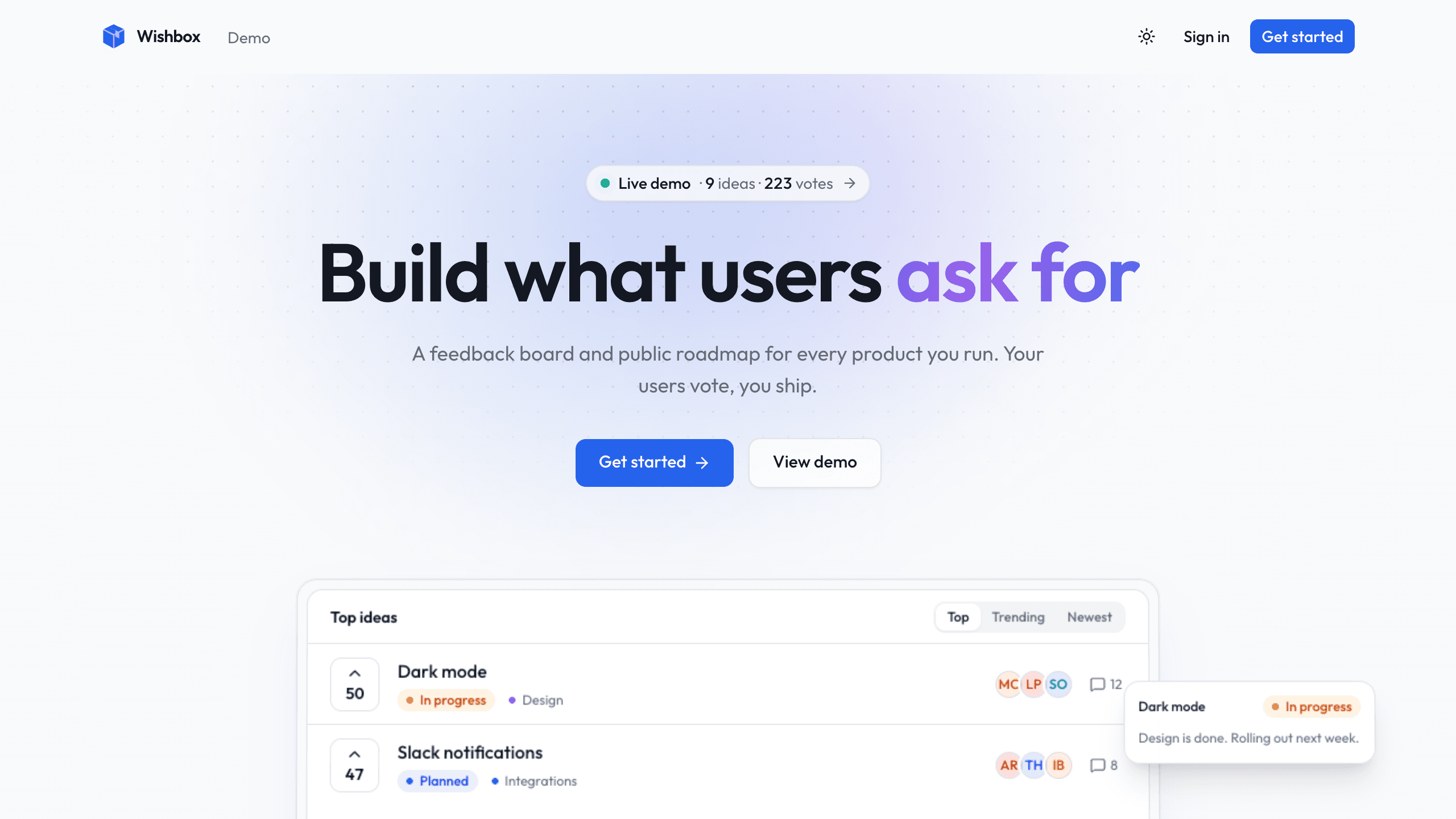
Wishbox
BusinessA feedback SaaS starter: teams create projects, and each gets a public board and roadmap for voting.
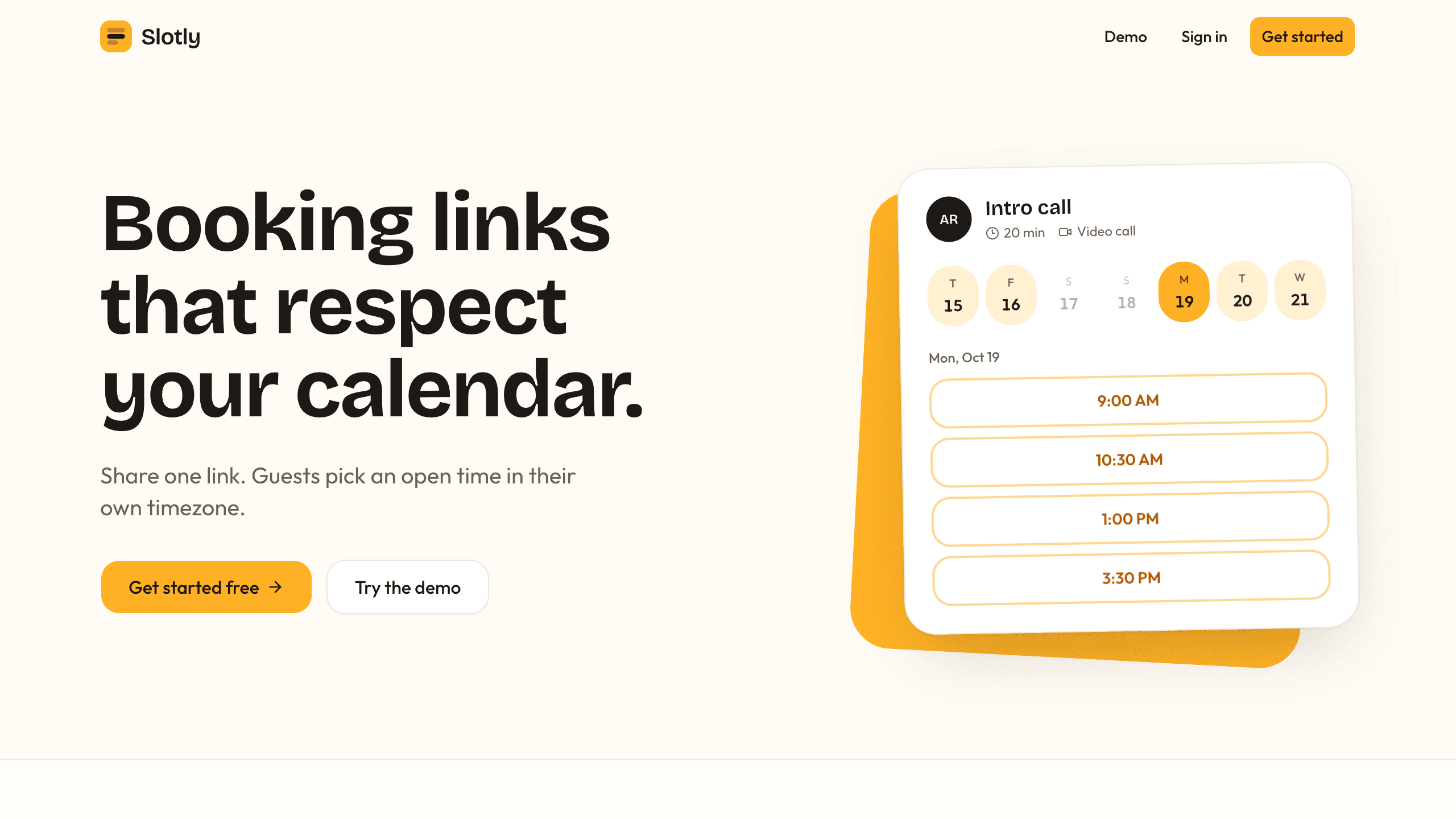
Slotly
BusinessA personal scheduling app with event types, booking rules, weekly availability, and booking pages that show times in each guest's time zone.
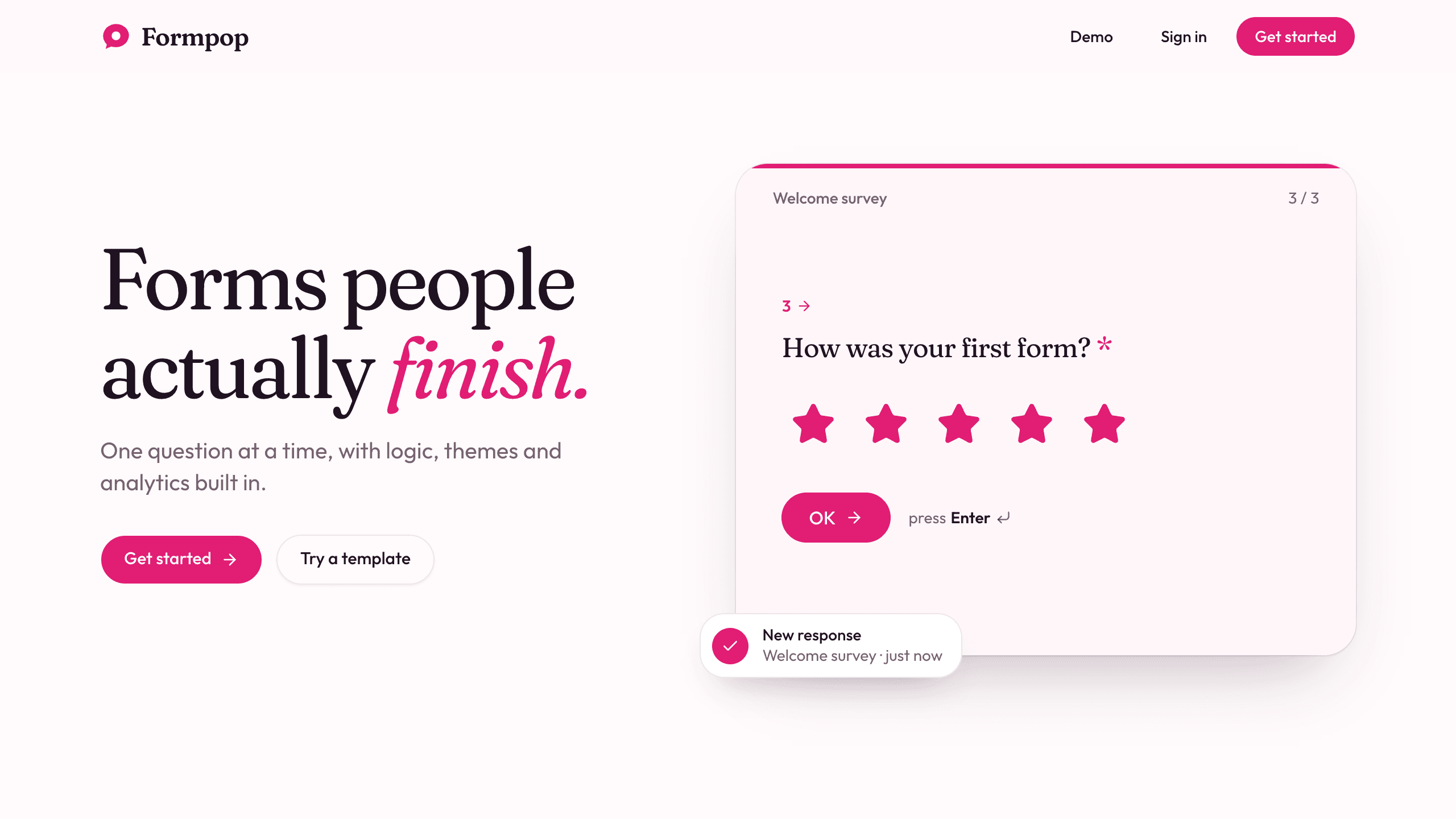
Formpop
BusinessA conversational form builder that asks one question at a time, with conditional logic, themes, shareable links, response export, and built-in analytics.