Stylebook Brand Guidelines Site Template
A brand guidelines site a designer can hand to a client: logo rules and downloads, copyable colors with a contrast grid, live type specimens, design tokens, and a one-page sheet. Optional shared password.
Opens in Layerwise on your computer. New to Layerwise? Download the app first.
- Category
- Design
- Tags
- Brand Guidelines, Design System, Design Tokens, Client Delivery
- Updated
- Nov 7, 2026
- Requires
- Layerwise 0.10.7+
- Source
- layerwise-app/stylebook
Build your own version of Stylebook
Deliver a brand as a website. One config file and a folder of logos drive every page, and the site takes on the brand’s own fonts and colors. The Logo page shows each variant on light, dark, and brand backgrounds, with clear space, minimum size, and misuse examples drawn from the real files, plus SVG and PNG downloads. Colors copy as HEX, RGB, HSL, or OKLCH, with computed WCAG ratios for every pair. CMYK and Pantone appear only when you supply them. Typography has live specimens and an editable test line, and voice, imagery, and applications each have their own page. CSS variables, a Tailwind theme, and JSON tokens are generated from the config, and Download all gets everything as one zip. Cmd+K searches every section, and a one-page summary prints on A4 or Letter. Sites are public by default. Add a password in your project settings and every page and file requires it, with no brand content in public files. The fictional sample brand is a sparkling tonic. There are no accounts or admin screens. Built with Layerwise, React, and TanStack Start.
Use Stylebook to hand a finished brand to a client as a website they can keep using. Open the live demo to see the fictional Tidewell brand, then give Layerwise your logos, colors, and fonts to make it yours. It is public by default and can be protected with one shared password.
What the template includes
- Pages for logo, color, typography, imagery, voice, applications, tokens, downloads, and a changelog, with deep links and Cmd+K search across sections and colors.
- Logo diagrams and misuse examples drawn from your SVGs, copyable color values with a computed contrast grid, an editable type specimen, and CSS, Tailwind, and JSON tokens generated from the config.
- A build script that makes PNGs and a zip of every file, a one-page printable brand sheet, and an optional password that covers every page and file, with a check that no brand content reaches public files.
The template opens as a local project you can change through the conversation or the code editor. You can inspect the source for this template version before choosing how to extend it.
Copy it and make one useful change
- Install Layerwise and sign in. Choose Use this template, select a team and project name in the app, then choose Copy to Layerwise. Wait for setup and the local preview to finish.
- Replace the SVGs in brand-files/logos and the fonts in brand-files/fonts, then rewrite src/brand/brand.config.server.ts and run pnpm build-brand. The running preview syncs the new files to Storage on its own. Only list CMYK and Pantone values you have from a printer or the designer, since they can’t be calculated reliably, and only allow font downloads when the license permits it. You can do all of this by asking the agent and attaching your files.
- Ask for the change in the project conversation. This prompt is a starting point; adjust it to describe your intended result.
Starter prompt Replace Tidewell with my client: Harbor & Pine, a coffee roaster in Portland. Use the logo SVGs and fonts I attached, with #1F3A34 as ink, #F5EFE3 as paper, and #C8553D as the brand color. Rewrite the voice page for a warm, plain-spoken roaster, and set the packaging to a box. Run pnpm build-brand, confirm nothing still mentions Tidewell, and check the Logo, Color, and sheet pages at phone width.
Check the result before publishing
- On Color, choose Copy next to a HEX value and paste it somewhere to confirm the exact value. A pair below 4.5:1 in the contrast grid should be marked as failing.
- On Downloads, choose Download all and unzip the file. It should match the list on the page. Open /sheet and print to PDF, and it should fit on one page.
- After publishing, add SITE_PASSWORD as a Secret under Settings, then Environment variables, and select Redeploy. A private window should show only the password page, with no brand name, and the right password should unlock every section.
New projects on paid plans start private, which only your team can open, so turn off Private in the Publish menu before sharing a link. The local preview and the published site share Storage, so publish soon after syncing a new brand. The password is one shared value, with no per-person access; changing it ends every unlock, and removing it makes the site public. Accounts, a CMS, more than one brand per site, and Figma import are not included.
Use the local preview controls to test the affected path. When it works, publish a release and repeat the check at the live URL. For saved records or accounts, read about the separate Local and Online databases.
Step-by-step guide
More templates for designers
See all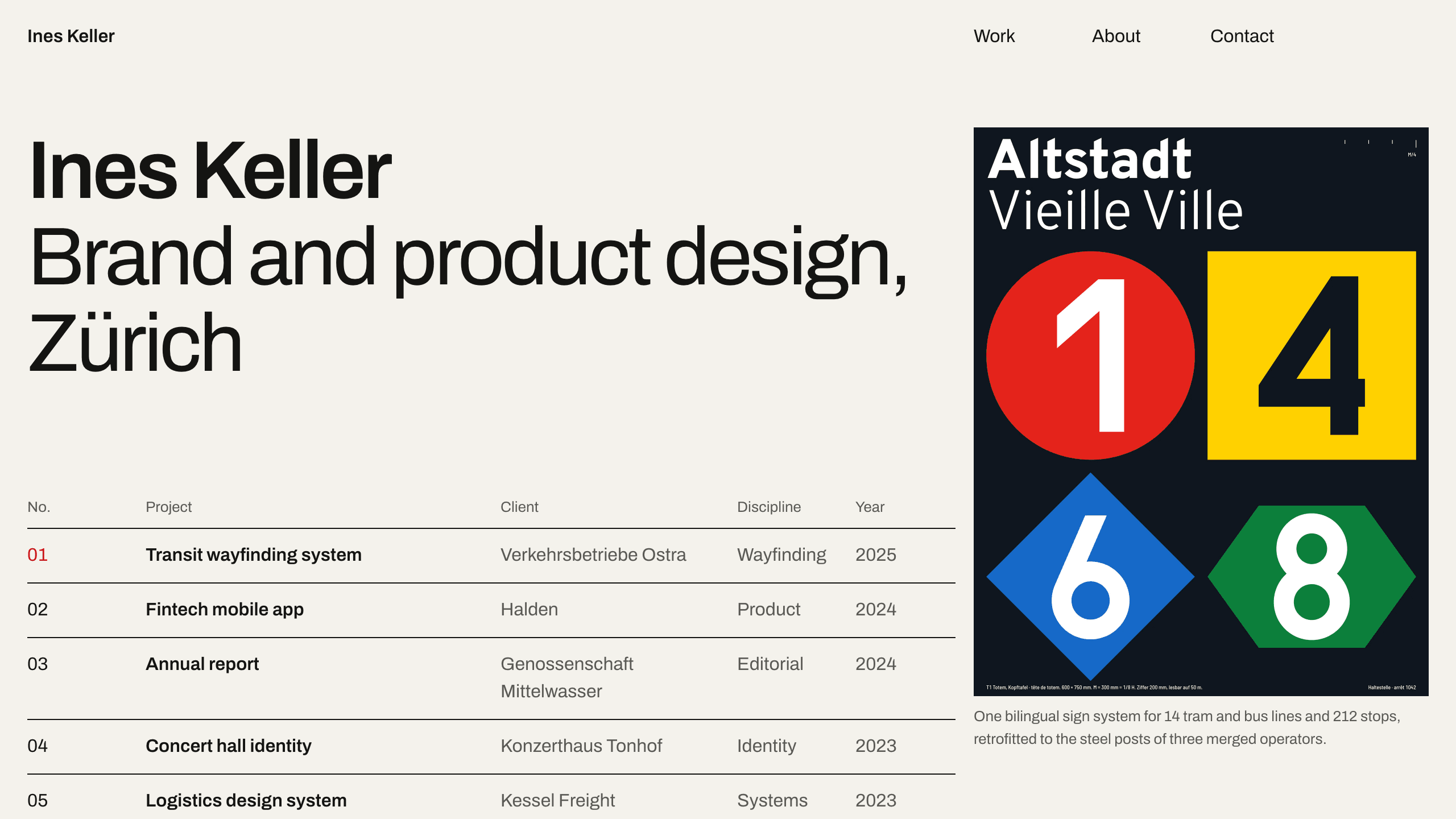
Gridwork
DesignA Swiss-style designer portfolio on a strict 12-column grid: an index table that reveals each cover, case studies, an About page with a CV, and a contact form. No accounts. Ships with 6 fictional projects.
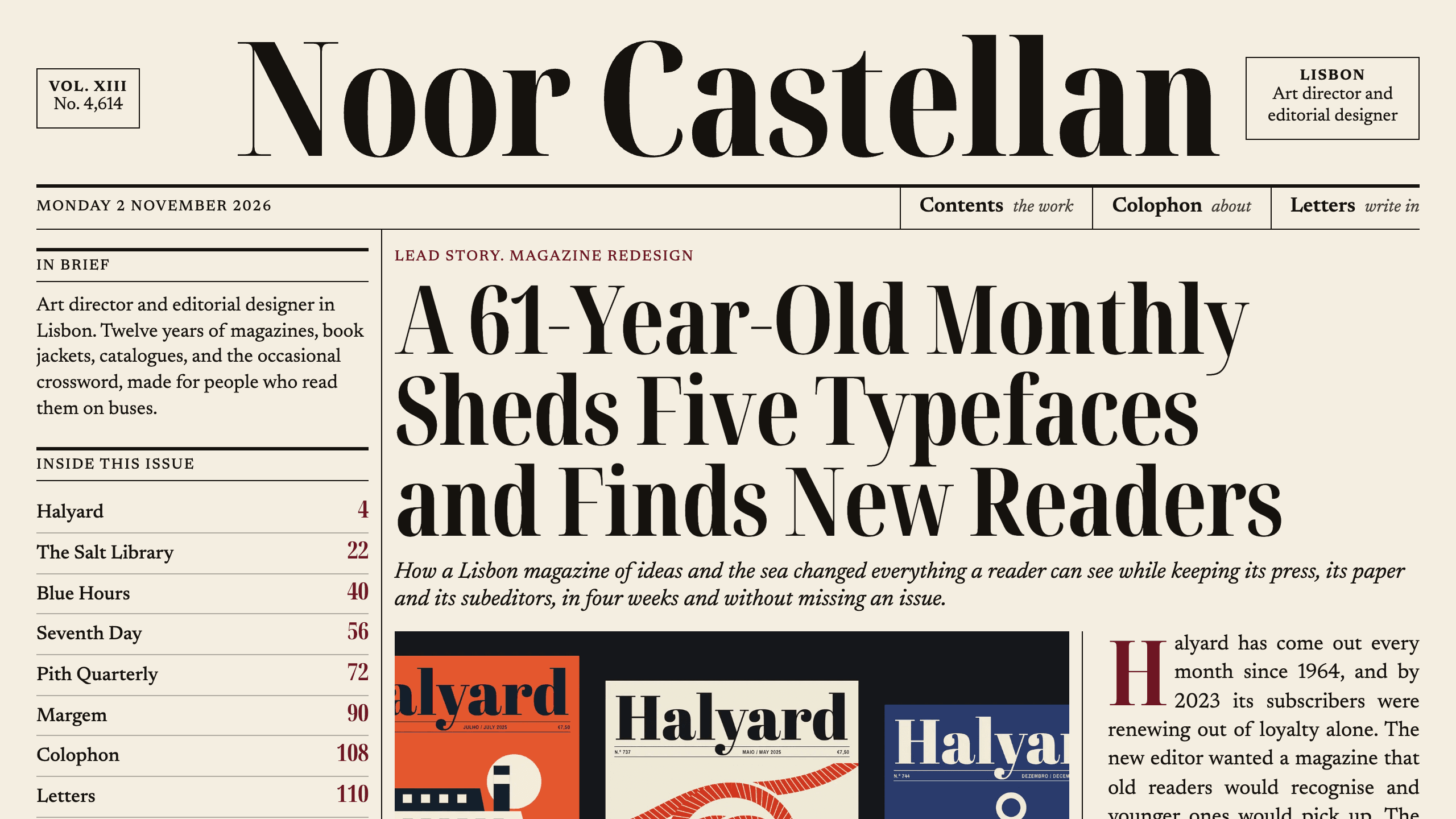
Broadsheet
DesignAn editorial designer portfolio set as a printed newspaper: a front page with a lead story, a Contents page with folios, long-form case studies with drop caps, and a contact page. No accounts. Ships with 6 fictional projects.
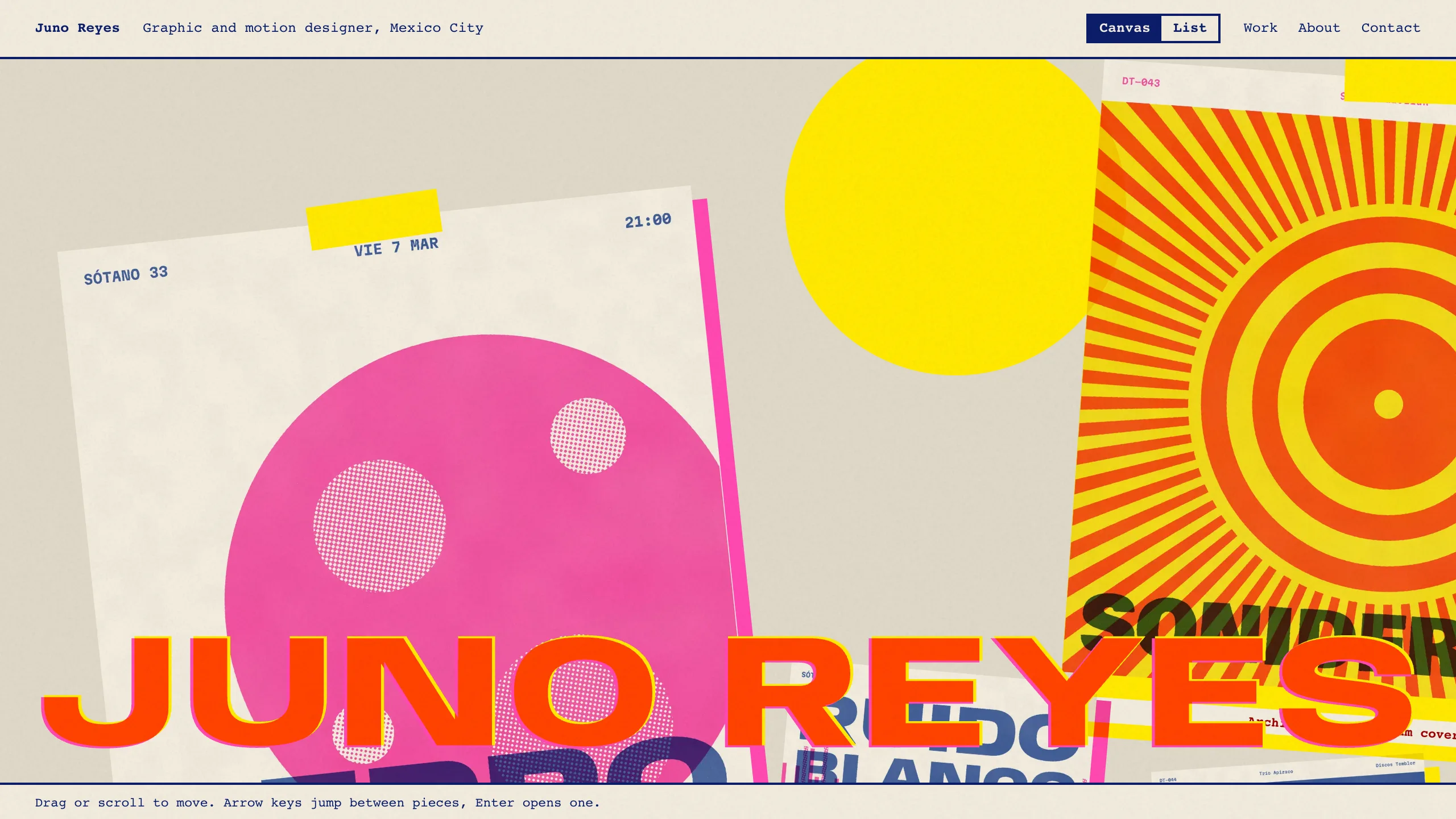
Overprint
DesignAn experimental designer portfolio inspired by risograph printing: a draggable canvas of pinned work, overlapping inks, huge type that reacts to the pointer, and a plain list view. No accounts. Ships with 6 fictional projects.