Broadsheet Editorial Designer Portfolio Template
An editorial designer portfolio set as a printed newspaper: a front page with a lead story, a Contents page with folios, long-form case studies with drop caps, and a contact page. No accounts. Ships with 6 fictional projects.
Opens in Layerwise on your computer. New to Layerwise? Download the app first.
- Category
- Design
- Tags
- Portfolio, Designers, Editorial, Personal Website
- Updated
- Nov 7, 2026
- Requires
- Layerwise 0.10.7+
- Source
- layerwise-app/broadsheet
Build your own version of Broadsheet
A public portfolio for one art director or editorial designer, styled as a newspaper. The home page is a front page with a masthead, issue number, and today’s date, with the featured project as the lead story and the others in ruled columns. The work index is a Contents page with folio numbers and filters by discipline, and About is a Colophon with a CV download. Case studies read as long features, with drop caps, pull quotes, numbered figures, margin notes, full-bleed spreads, and a folio that tracks your progress. On a phone, the drop caps, rules, and folios stay in a single column. Letters to the editor save to the database, have a honeypot and a rate limit, and email you once you set your address. There are no accounts or admin screens: projects are files you change by asking the agent. Includes 6 fictional projects with finished sample artwork. Built with Layerwise, React, and TanStack Start.
Use Broadsheet for an art director or editorial designer whose work reads well as stories. The front page leads with one featured project and runs the others in columns. Noor Castellan and every client are fictional, so replace them before you publish.
What the template includes
- A front page with a masthead, issue number, and the current date, a Contents page with folios and filters by discipline, and a Colophon with services, clients, experience, and a CV download.
- Long-form case studies with drop caps, pull quotes, numbered figures, margin notes, full-bleed spreads, and a folio that tracks progress as you read.
- A Letters page with a honeypot and a rate limit that saves messages to the database, six fictional projects with finished artwork, and a README that explains how to add a project.
The template opens as a local project you can change through the conversation or the code editor. You can inspect the source for this template version before choosing how to extend it.
Copy it and make one useful change
- Install Layerwise and sign in. Choose Use this template, select a team and project name in the app, then choose Copy to Layerwise. Wait for setup and the local preview to finish.
- Start in src/portfolio.config.ts, which holds your name, role, bio, social links, fonts, colors, and ownerEmail, then replace the project files in src/content/work. The lead story comes from the featured project, so write its headline like a newspaper headline. New images should go through pnpm add-images. You can do all of this by asking the agent and attaching your images.
- Ask for the change in the project conversation. This prompt is a starting point; adjust it to describe your intended result.
Starter prompt Make this portfolio mine: I am Sam Okoye, an art director in Chicago. Change the masthead name, replace the Halyard project with the magazine redesign in the images I attached, and write it as the lead story with a newspaper headline. Keep the hairline rules, drop caps, and folios. Change the oxblood accent to a dark green that still meets 4.5:1 on the paper color, and check the front page and the new feature at phone width.
Check the result before publishing
- Open a case study and scroll: the folio at the foot should change as you read, and full-bleed spreads should run edge to edge without a horizontal scrollbar.
- Open Contents, choose a department, and confirm the list narrows. On a phone-width window, the front page should keep its rules, drop cap, and folios in one column.
- Send a letter and confirm it appears in the contact_messages table under Database in Local. Open /sign-in and it should return a 404.
New projects on paid plans start private, so turn off Private in the Publish menu before sharing your site. Local and published apps use separate databases, so messages sent to the preview won’t appear on the live site. Email only sends after the first publish and only once ownerEmail is set; until then, read messages under Database. Replace the fictional owner, clients, figures, and social links before you publish. Passwords for private case studies, a CMS, and a blog are not included.
Use the local preview controls to test the affected path. When it works, publish a release and repeat the check at the live URL. For saved records or accounts, read about the separate Local and Online databases.
Step-by-step guide
More templates for designers
See all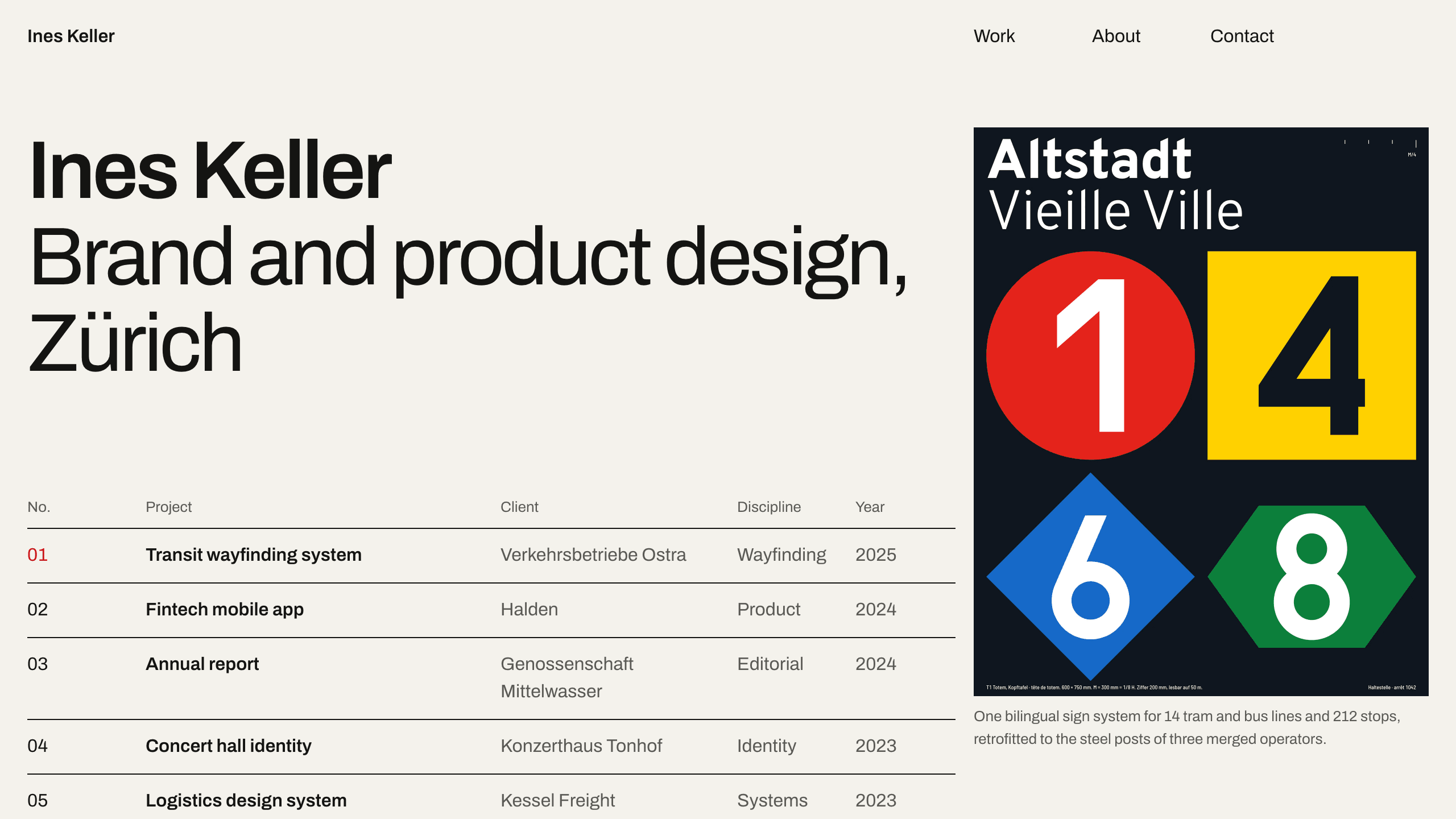
Gridwork
DesignA Swiss-style designer portfolio on a strict 12-column grid: an index table that reveals each cover, case studies, an About page with a CV, and a contact form. No accounts. Ships with 6 fictional projects.
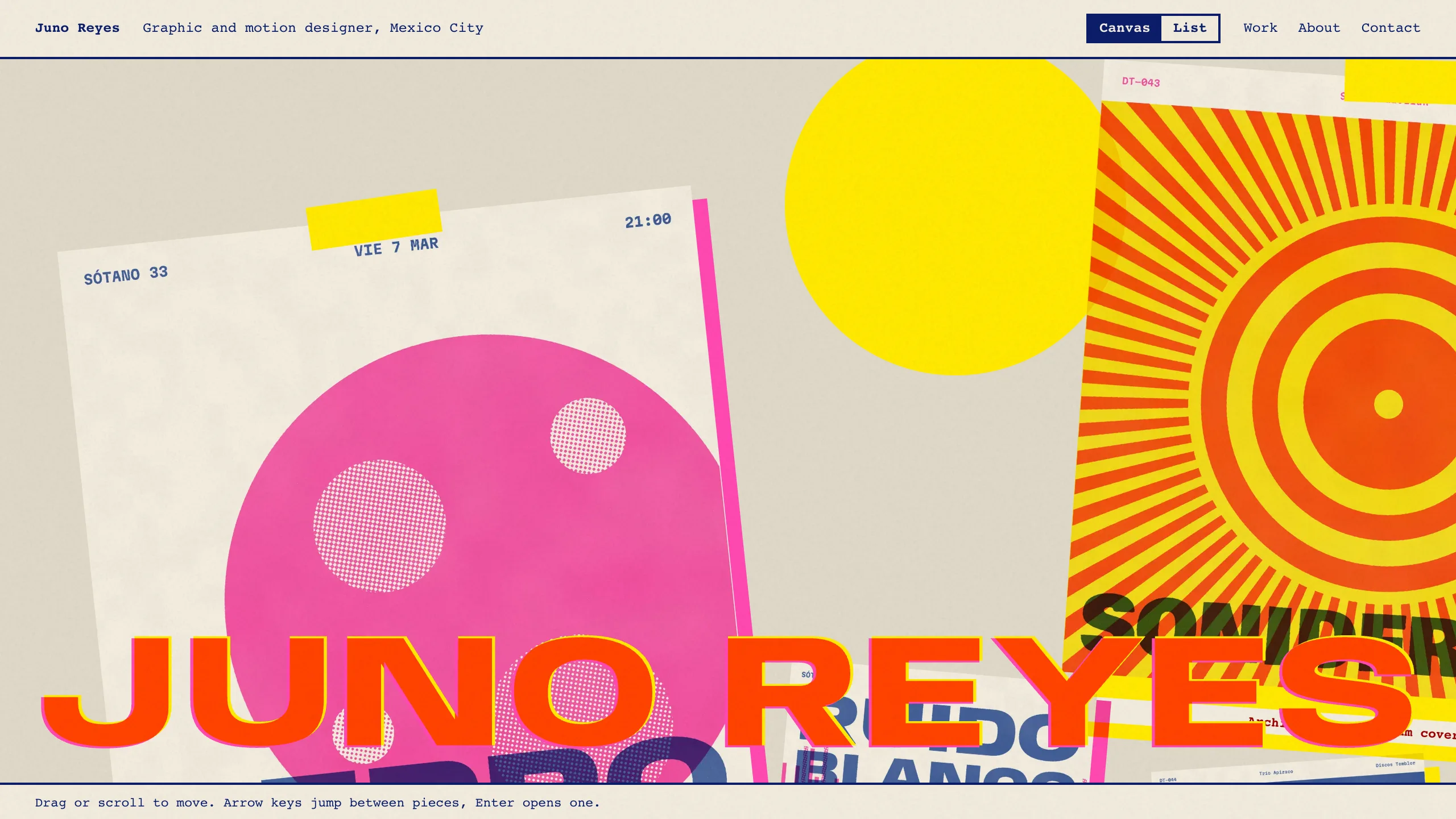
Overprint
DesignAn experimental designer portfolio inspired by risograph printing: a draggable canvas of pinned work, overlapping inks, huge type that reacts to the pointer, and a plain list view. No accounts. Ships with 6 fictional projects.
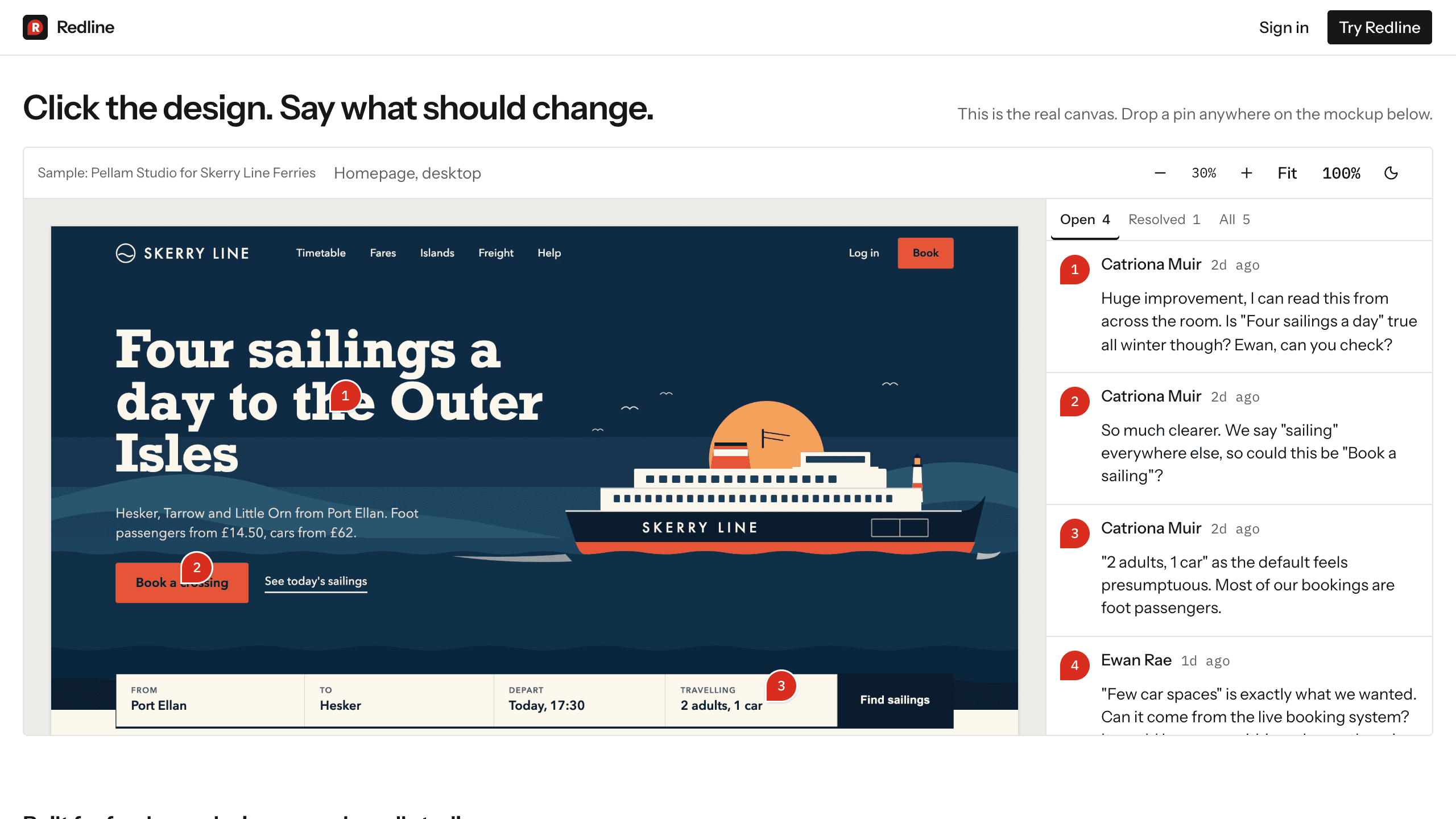
Redline
DesignA design review app: upload mockups or PDFs, send a link, and clients drop pins and approve a version with no account. Internal comments, version compare, an inbox, and email updates. Try it with sample data.