Redline Design Review App Template
A design review app: upload mockups or PDFs, send a link, and clients drop pins and approve a version with no account. Internal comments, version compare, an inbox, and email updates. Try it with sample data.
Opens in Layerwise on your computer. New to Layerwise? Download the app first.
- Category
- Design
- Tags
- Design Review, Client Feedback, Annotation, SaaS
- Updated
- Nov 7, 2026
- Requires
- Layerwise 0.10.7+
- Source
- layerwise-app/redline
Build your own version of Redline
Get client feedback on the design itself. Designers upload JPG, PNG, WebP, or PDF files and send a link, by email or by copying it. Clients open it with no account, enter a name, click anywhere to drop a numbered pin, and approve or request changes on a specific version. Teammates can mark a comment Internal, and the server never sends those comments to guests. Pins stay on the same spot at every zoom and screen size, threads can be resolved and reopened, and open comments can carry forward to a new version. Compare any two versions side by side or with a slider. A new version resets approval and keeps the earlier decisions in a history, labeled with the name each person gave. Review links can have a password and an expiry date and can be revoked. Each workspace has teammates, its own logo and accent color, a table of reviews, an inbox, and storage and email limits you set in one config file. Files stay private, and try mode opens the whole app with sample data and no account. Payments, video, and website review are not included. Built with Layerwise, React, and TanStack Start.
Use Redline to run a design review product for freelancers and small studios, or as your own studio’s review tool. Choose Try Redline to see the dashboard, inbox, team view, and client view with sample data and no account. The studio, clients, and comments are fictional.
What the template includes
- Sign-up with workspaces, teammates, a table of reviews with search and filters, an inbox with unread state, and settings for your logo, accent color, and storage use.
- A review canvas with zoom and pan, numbered pins, threaded comments, Internal comments that guests never receive, version compare, and keyboard shortcuts, plus browser-made previews for images and PDFs.
- Review links with an optional password and expiry, no-account guest comments, per-version Approve and Request changes with a decision history, email updates, a report form, and try mode with sample data.
The template opens as a local project you can change through the conversation or the code editor. You can inspect the source for this template version before choosing how to extend it.
Copy it and make one useful change
- Install Layerwise and sign in. Choose Use this template, select a team and project name in the app, then choose Copy to Layerwise. Wait for setup and the local preview to finish.
- Start in src/redline.config.ts, which holds the product name, colors, fonts, limits, and rate limits; the server enforces those limits. All workspaces share your project’s Storage and daily email limit, so set the per-workspace limits with your plan in mind before opening sign-up. Comments stay plain text, and a guest’s email address is only used to tell them about replies.
- Ask for the change in the project conversation. This prompt is a starting point; adjust it to describe your intended result.
Starter prompt Add an optional due date to each review. Team members set it in the review header, and clients see it near the Approve and Request changes buttons. On the dashboard, add a Due column that sorts by date and shows overdue reviews with a text label as well as color. Validate the date on the server, keep try mode in browser storage, and check the review page at phone width.
Check the result before publishing
- Sign up, drop in an image and a PDF, and create a review. Choose Share, then Copy link, and open it in a private window. Click the design, write a comment, and enter a name when asked. The comment should appear for the team within about 15 seconds, and in Inbox.
- As the team, add a comment and mark it Internal. Reload the private window and confirm the guest can’t see it. Upload a new version with the option to copy open comments, and confirm they appear labeled From V1.
- As the guest, choose Approve. Upload another version as the team, and the asset should return to In review with the earlier approval still in Decision history. Revoke the link in Share, and the private window should stop showing the design.
New projects on paid plans start private, so turn off Private in the Publish menu before sharing links. Local and published apps use separate databases, but they share one Storage, so test files count toward your usage. Real email only sends after the first publish. Decisions record the name a guest typed, which is not proof of identity. Payments, plans, video review, website review, and Figma import are not included, and reports wait in the reports table with no admin screen.
Use the local preview controls to test the affected path. When it works, publish a release and repeat the check at the live URL. For saved records or accounts, read about the separate Local and Online databases.
Step-by-step guide
More templates for designers
See all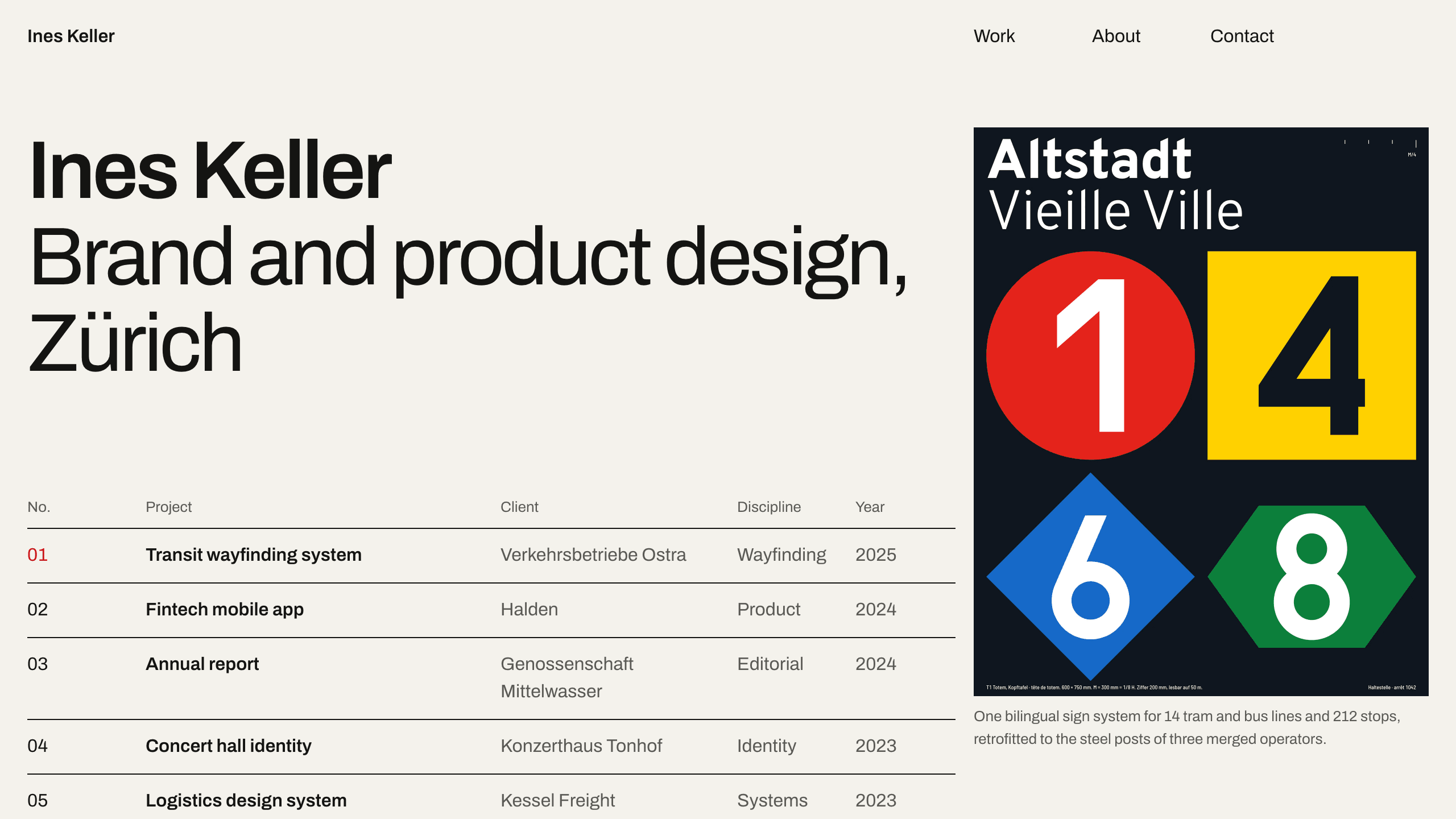
Gridwork
DesignA Swiss-style designer portfolio on a strict 12-column grid: an index table that reveals each cover, case studies, an About page with a CV, and a contact form. No accounts. Ships with 6 fictional projects.
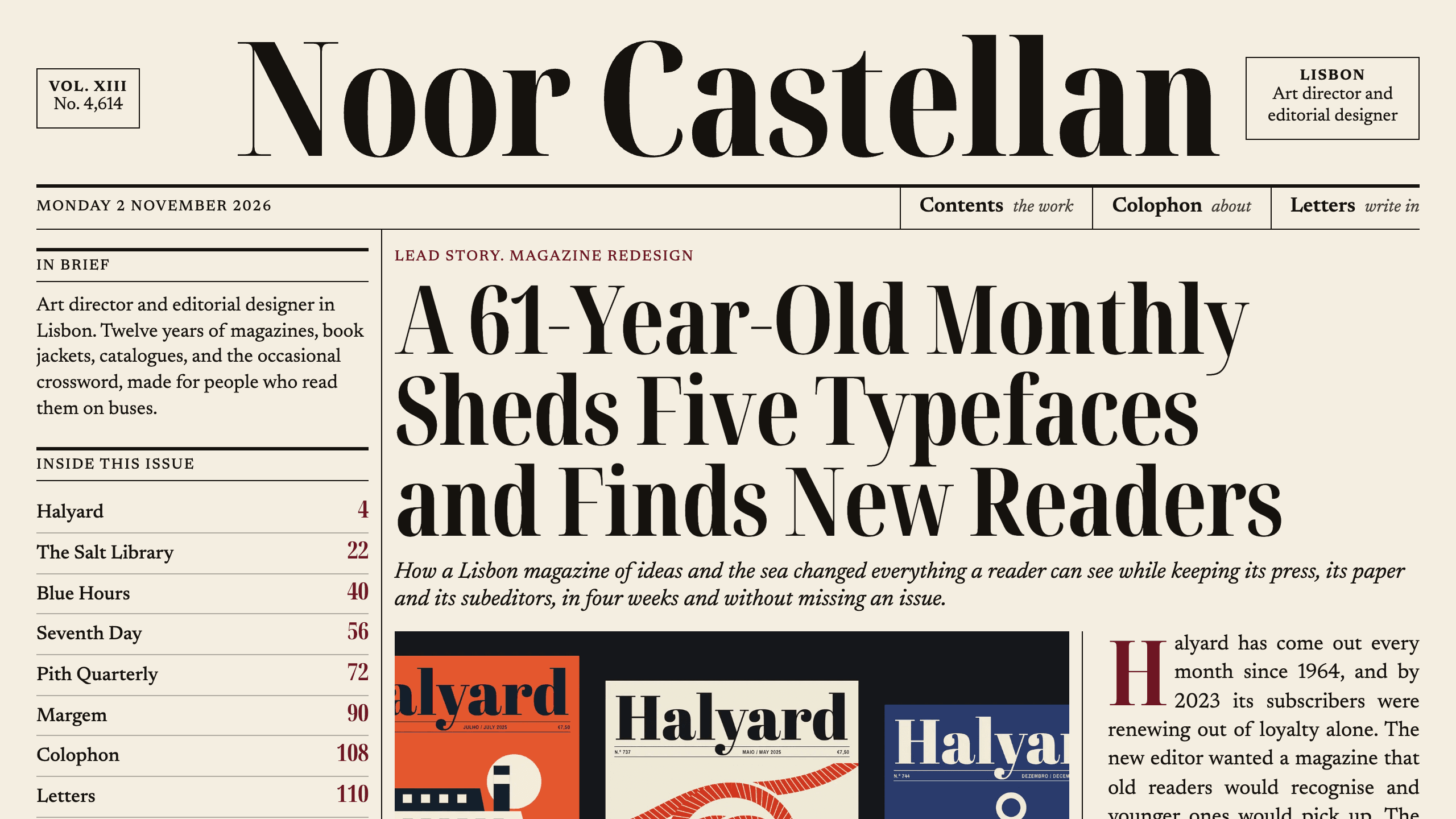
Broadsheet
DesignAn editorial designer portfolio set as a printed newspaper: a front page with a lead story, a Contents page with folios, long-form case studies with drop caps, and a contact page. No accounts. Ships with 6 fictional projects.
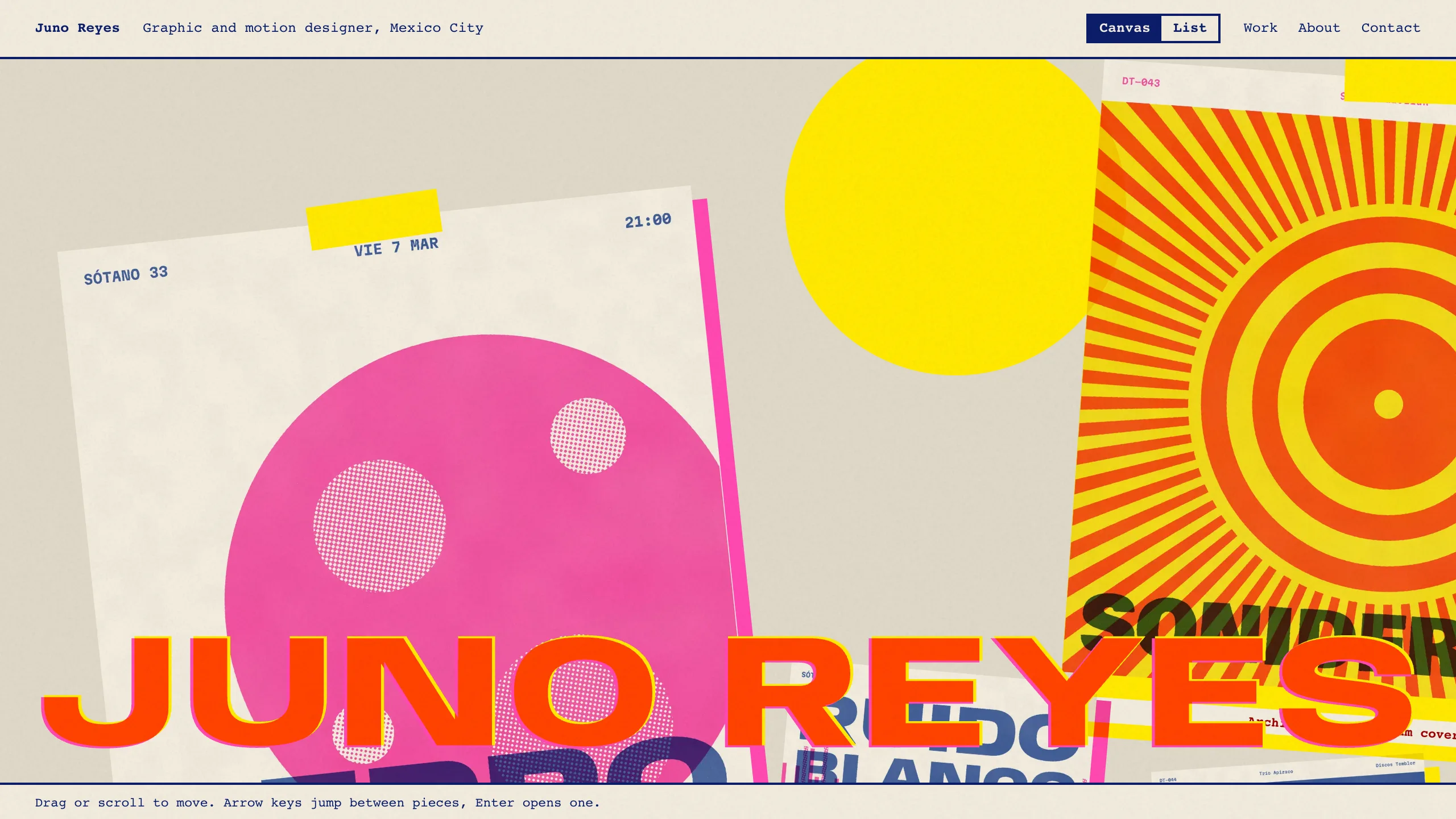
Overprint
DesignAn experimental designer portfolio inspired by risograph printing: a draggable canvas of pinned work, overlapping inks, huge type that reacts to the pointer, and a plain list view. No accounts. Ships with 6 fictional projects.