Fieldglass WebGL Particle Portfolio Template
A WebGL portfolio for a designer who codes: 100,000 particles gather around your initials, settle behind a glass dashboard, and take a new shape for each project. No accounts. Ships with 6 fictional projects.
Opens in Layerwise on your computer. New to Layerwise? Download the app first.
- Category
- Design
- Tags
- Portfolio, Creative Coding, WebGL, Personal Website
- Updated
- Nov 7, 2026
- Requires
- Layerwise 0.10.7+
- Source
- layerwise-app/fieldglass
Build your own version of Fieldglass
A public portfolio for one designer or creative coder, where a live particle field is the material of the site. On load, up to about 100,000 GPU particles gather from a burst into a radial form around the owner’s initials, and the pointer pushes them like wind. Scrolling pulls the field back behind a frosted glass dashboard with an intro, a stippled portrait, a row of tool icons, and tiles for Selected work, About, Index, and Writing. Opening a project turns the field into that project’s own shape, such as contour lines or an orbit, while the case study fades in, and each project file names its shape. The footer spells the owner’s name in huge letters that dissolve into particles around the pointer. The particle count adapts to the device, reduced motion shows the finished form, and without WebGL the page shows a rendered still. Case studies give the client, year, role, and team, then the problem, decisions, and outcome, with live demos, images, image pairs, video, quotes, before and after sliders, and metrics. About lists services, experience, clients, and writing with a CV download, and the contact form saves each message to the database and emails you once you set your address. There are no accounts or admin screens: projects are files you change by asking the agent. Includes 6 fictional projects. Built with Layerwise, React, WebGL, and TanStack Start.
Use Fieldglass for a designer or creative coder whose work lives in code: generative identities, visualizers, shaders, and prototypes. In the live demo, move the pointer through the particles, scroll into the dashboard, and open a project to watch the field change shape. Noor Haddad and every client are fictional, so replace them before you publish.
What the template includes
- A WebGL particle field that gathers around your initials, moves with the pointer, settles behind a glass dashboard as you scroll, and takes a new shape for each project, plus a footer name that dissolves around the pointer.
- Case studies with the client, role, team, problem, decisions, and outcome, then live demos, images, video, quotes, before and after sliders, and metrics, plus a Work page with a grid and an index and an About page with writing and a CV download.
- Six fictional projects with screens drawn in code, a contact form with a honeypot and a rate limit, a script for responsive WebP images with blur placeholders, and fallbacks for phones, reduced motion, and browsers without WebGL.
The template opens as a local project you can change through the conversation or the code editor. You can inspect the source for this template version before choosing how to extend it.
Copy it and make one useful change
- Install Layerwise and sign in. Choose Use this template, select a team and project name in the app, then choose Copy to Layerwise. Wait for setup and the local preview to finish.
- Start in src/portfolio.config.ts for your name, initials, role, bio, links, tools, fonts, colors, and ownerEmail. Each project is one file in src/content/work, and its shape field picks the form the particles take: contour, waveform, lattice, orbit, ribbon, or volume. The Index lives in src/content/archive.ts, and About lives in src/content/about.ts. New images should go through pnpm add-images. You can do all of this by asking the agent and attaching your work.
- Ask for the change in the project conversation. This prompt is a starting point; adjust it to describe your intended result.
Starter prompt Make this portfolio mine: I’m Kai Moreno, a creative technologist in Mexico City. Put my initials KM at the center of the field and change the orange to #2F6BFF. Remove the sample projects and add two from the images I attached, using pnpm add-images, one with the orbit shape and one with lattice. Keep the glass dashboard and the footer effect. Check Home and both case studies at phone width.
Check the result before publishing
- On the home page at desktop width, wait for the particles to settle around the initials, then move the pointer through them and confirm they part and return. Scroll down, and the field should blur behind the glass dashboard.
- Open a project from Selected work. Its title should appear within about half a second while the field changes into the project’s shape beside it. With reduced motion turned on in your system settings, reload, and the home page should show the finished form with nothing moving.
- On a phone-width window, nothing should scroll sideways. Send the form on Contact and confirm the message appears in the contact_messages table under Database in Local. Open /sign-in and it should return a 404.
New projects on paid plans start private, so turn off Private in the Publish menu before sharing your site. Local and published apps use separate databases, so messages sent to the preview won’t appear on the live site. Email only sends after the first publish and only once ownerEmail is set; until then, read messages under Database. Replace the fictional owner, clients, figures, and social links before you publish. Passwords for private case studies and a CMS are not included.
Use the local preview controls to test the affected path. When it works, publish a release and repeat the check at the live URL. For saved records or accounts, read about the separate Local and Online databases.
Step-by-step guide
More templates for designers
See all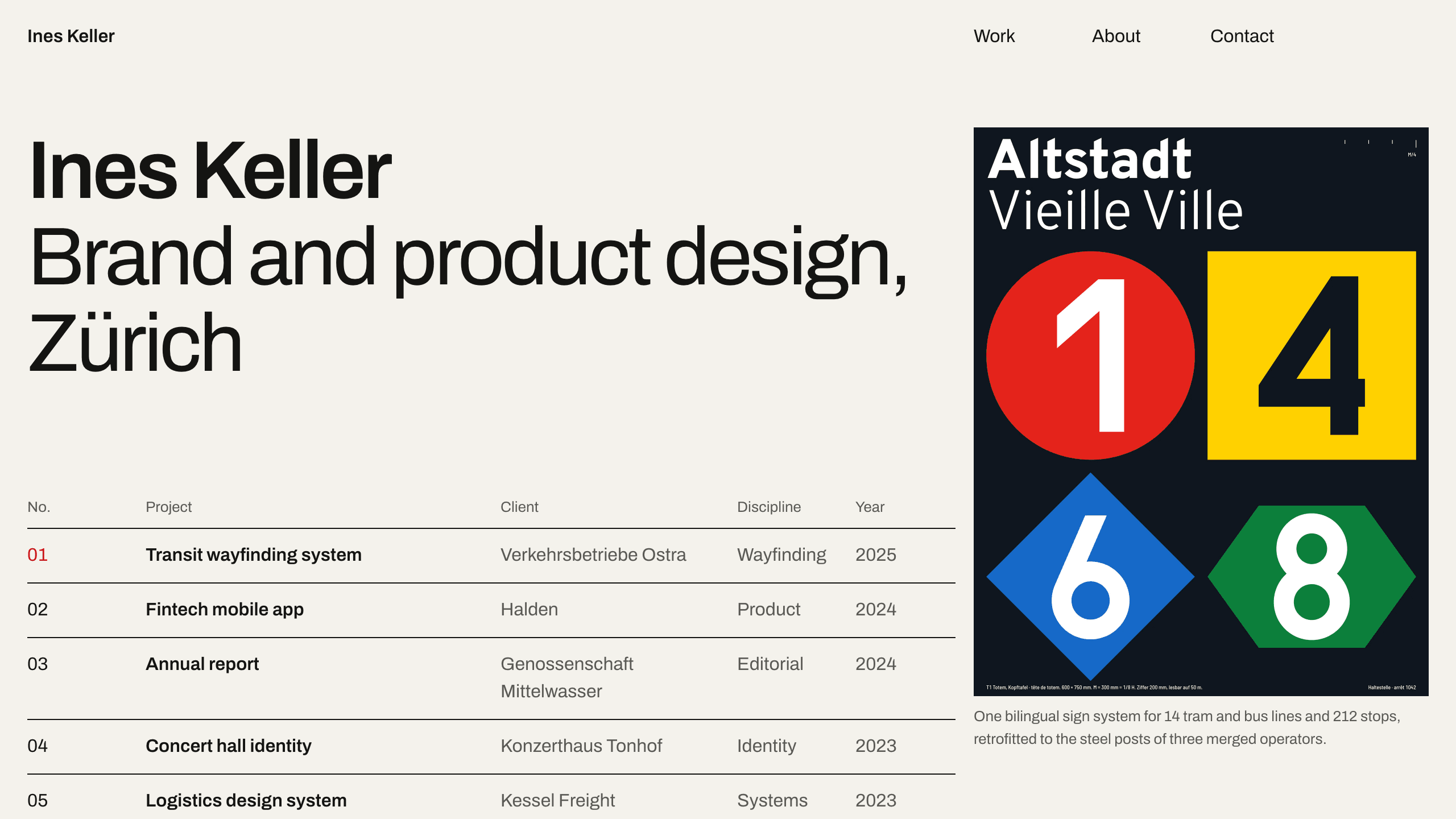
Gridwork
DesignA Swiss-style designer portfolio on a strict 12-column grid: an index table that reveals each cover, case studies, an About page with a CV, and a contact form. No accounts. Ships with 6 fictional projects.
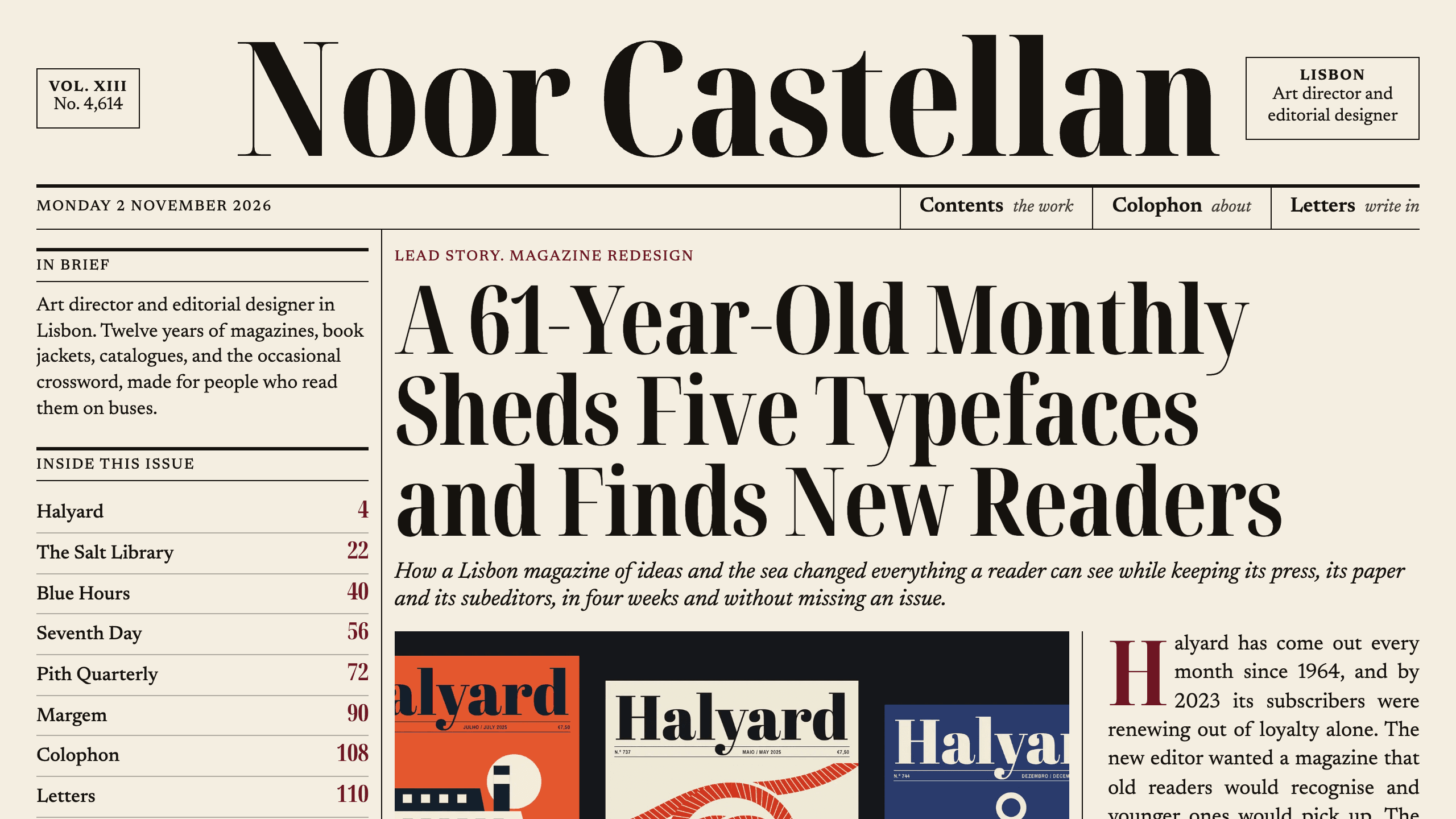
Broadsheet
DesignAn editorial designer portfolio set as a printed newspaper: a front page with a lead story, a Contents page with folios, long-form case studies with drop caps, and a contact page. No accounts. Ships with 6 fictional projects.
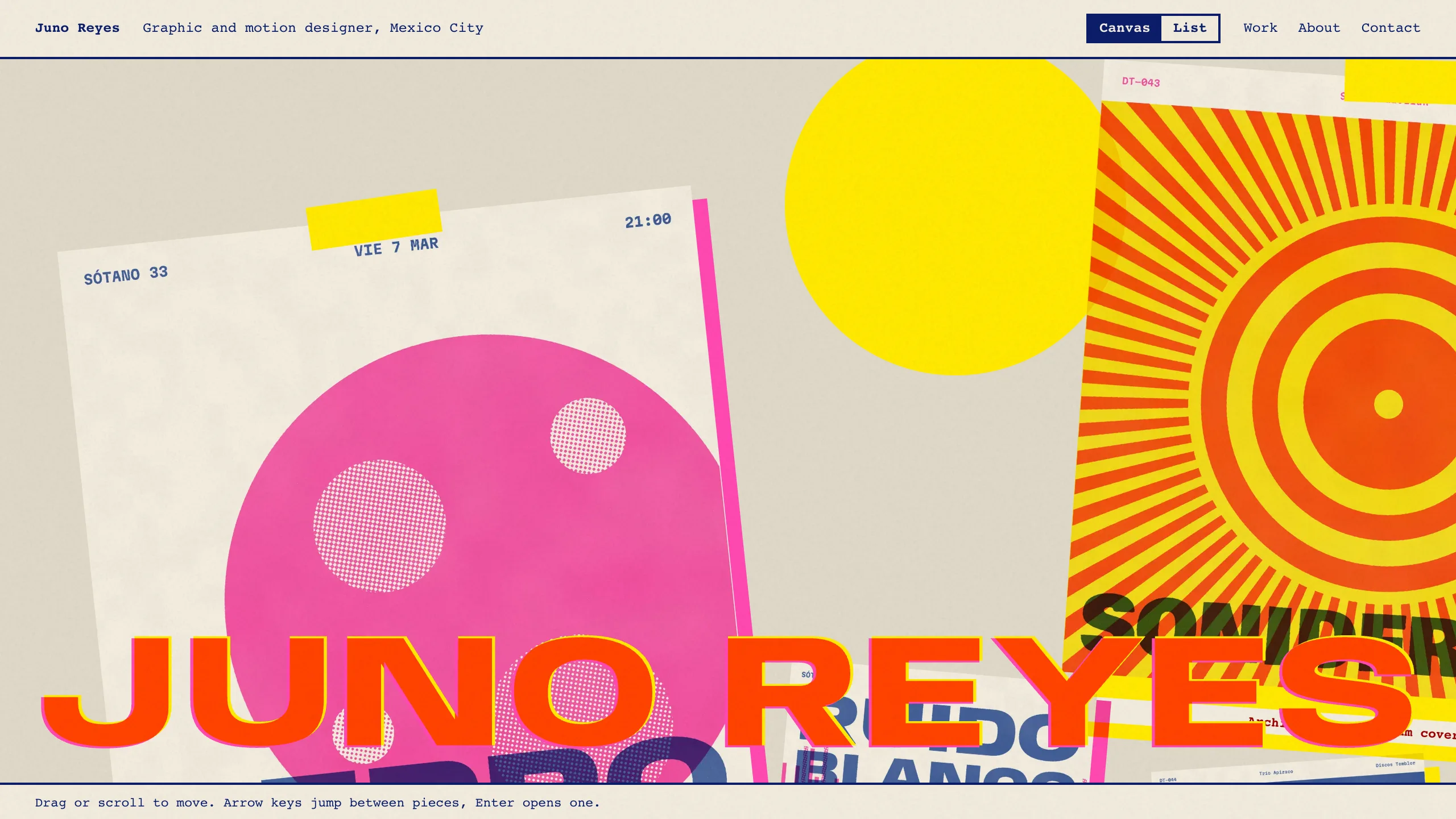
Overprint
DesignAn experimental designer portfolio inspired by risograph printing: a draggable canvas of pinned work, overlapping inks, huge type that reacts to the pointer, and a plain list view. No accounts. Ships with 6 fictional projects.