Dialtone Hardware Pre-Order Landing Page Template
A hardware pre-order landing page: a 3D model built in code, a scroll-driven exploded view, a dial you can turn and hear click, a finish picker, a datasheet, and free numbered reservations. No accounts. Ships with a fictional desk dial.
Opens in Layerwise on your computer. New to Layerwise? Download the app first.
- Category
- Landing Pages
- Tags
- Landing Page, Hardware, Pre-Order, 3D
- Updated
- Nov 7, 2026
- Requires
- Layerwise 0.10.7+
Build your own version of Dialtone
A public launch site for one piece of hardware, presented like an industrial design object: warm light gray, black, and a single Signal Orange accent, with tiny uppercase labels and part numbers. The hero is the device itself, a three.js model built in code with a knurled cap, an e-ink label, and a ring of LEDs, which turns slowly and can be dragged around. On desktop, scrolling through Inside takes the device apart into seven parts, each with a callout and a one-line note, then puts it back together; on phones and with reduced motion, Inside is a list of rendered stills. Try the dial puts a drawn dial beside an e-ink screen: drag it, scroll over it, or use the arrow keys, and each step ticks while the screen redraws the volume, focus timer, or light level. The finish picker recolors the models live and carries the choice into the reservation form. Without WebGL, the 3D views show rendered stills. A Specs page has a dimension drawing, materials, connectivity, battery, a compatibility table, what’s in the box, and 10 questions. Reserving is free: the form asks for an email, a country, and a finish, gives out the next number in order, such as DT1-00482, and shows it on a drawn shipping label with its batch and ship month. It has a honeypot and a rate limit, keeps one reservation per email, and emails you each new one once you set ownerEmail, never the visitor. There are no accounts or admin screens: the product facts, parts, finishes, and questions are files you change by asking the agent. The company, its people, and its product are fictional. Built with Layerwise, React, three.js, and TanStack Start.
Use Dialtone to launch a physical product before it ships, such as a gadget, an instrument, or a keyboard that people want to turn over and look inside before they reserve one. In the live demo, drag the model in the hero, scroll through Inside to take it apart, and turn the dial with your pointer or the arrow keys. Dialtone, its studio in Copenhagen, and its people are fictional, so replace them before you publish.
What the template includes
- A three.js model of the device built in code that turns slowly and can be dragged, a scroll-driven exploded view of its seven parts with callouts and part numbers, and rendered stills for phones, reduced motion, and browsers without WebGL.
- Try the dial, which turns by drag, scroll, or arrow keys with a short tick per step and an e-ink screen for volume, focus timer, and light, plus What it controls, a finish picker that recolors the model live, and a Made to last datasheet block.
- A Specs page with a dimension drawing, a compatibility table, and 10 questions, and a free reservation form that gives out numbers in order, puts every 500 in a batch, and shows the result on a drawn shipping label.
The template opens as a local project you can change through the conversation or the code editor. You can inspect the source for this template version before choosing how to extend it.
Copy it and make one useful change
- Install Layerwise and sign in. Choose Use this template, select a team and project name in the app, then choose Copy to Layerwise. Wait for setup and the local preview to finish.
- Start in src/site.config.ts for the company and product name, tagline, navigation, button labels, social links, colors, fonts, and ownerEmail. Product facts live in src/content/product.ts: the price, the three finishes and their model colors, the seven parts, specs, shipping countries, and batches, where size and firstShipMonth set each reservation’s batch and ship month. Home page copy is in src/content/home.ts in page order, and the questions are in src/content/faq.ts. The four e-ink screens under What it controls are drawn in code; to show a photo instead, add it with pnpm add-images and change that item’s screen in home.ts. After changing a finish or the model in src/components/device/scene.ts, run pnpm stills to re-render the stills. You can do all of this by asking the agent.
- Ask for the change in the project conversation. This prompt is a starting point; adjust it to describe your intended result.
Starter prompt Make this launch page ours: we’re Fernwood Audio in Portland, and the product is the Fernwood Knob, $189, shipping in batches of 250 starting June 2027 to the United States and Canada only. Rename the finishes to Walnut, Smoke, and Brass with matching model colors, rewrite the part notes for our build, and run pnpm stills afterward. Keep the exploded view, the dial demo, and the shipping label. Check Home and Specs at phone width.
Check the result before publishing
- In Try the dial, press Tab until the dial is focused, then press the Right arrow; the volume should rise from 42 to 44 with a tick. Press Enter, and the screen should flash and switch to Focus at 25 minutes. Choose Graphite under Finishes, and the model and the dial cap should turn dark gray.
- At desktop width, scroll through Inside: the device should come apart into seven labeled parts and go back together at the end of the section, while the page keeps scrolling normally. On a phone-width window, Inside should show seven stills, one per part, with no sideways scrolling.
- Choose Reserve yours and reserve with an email, a country, and a finish. A shipping label should show a number like DT1-00001 with Batch 01 and March 2027, and the row should appear in the reservations table under Database in Local. Reserve again with the same email, and it should say Already on the list. Open /sign-in and it should return a 404.
New projects on paid plans start private, so turn off Private in the Publish menu before sharing your site. Local and published apps use separate databases, so reservations made in the preview won’t appear on the live site, and live numbers start again at DT1-00001. Email only sends after the first publish and only once ownerEmail is set; until then, read reservations under Database. Replace the fictional company, address, quote, specs, and social links before you publish. Payment, emails to people who reserve, self-serve cancellation, and a screen for managing reservations are not included.
Use the local preview controls to test the affected path. When it works, publish a release and repeat the check at the live URL. For saved records or accounts, read about the separate Local and Online databases.
More landing page templates
See all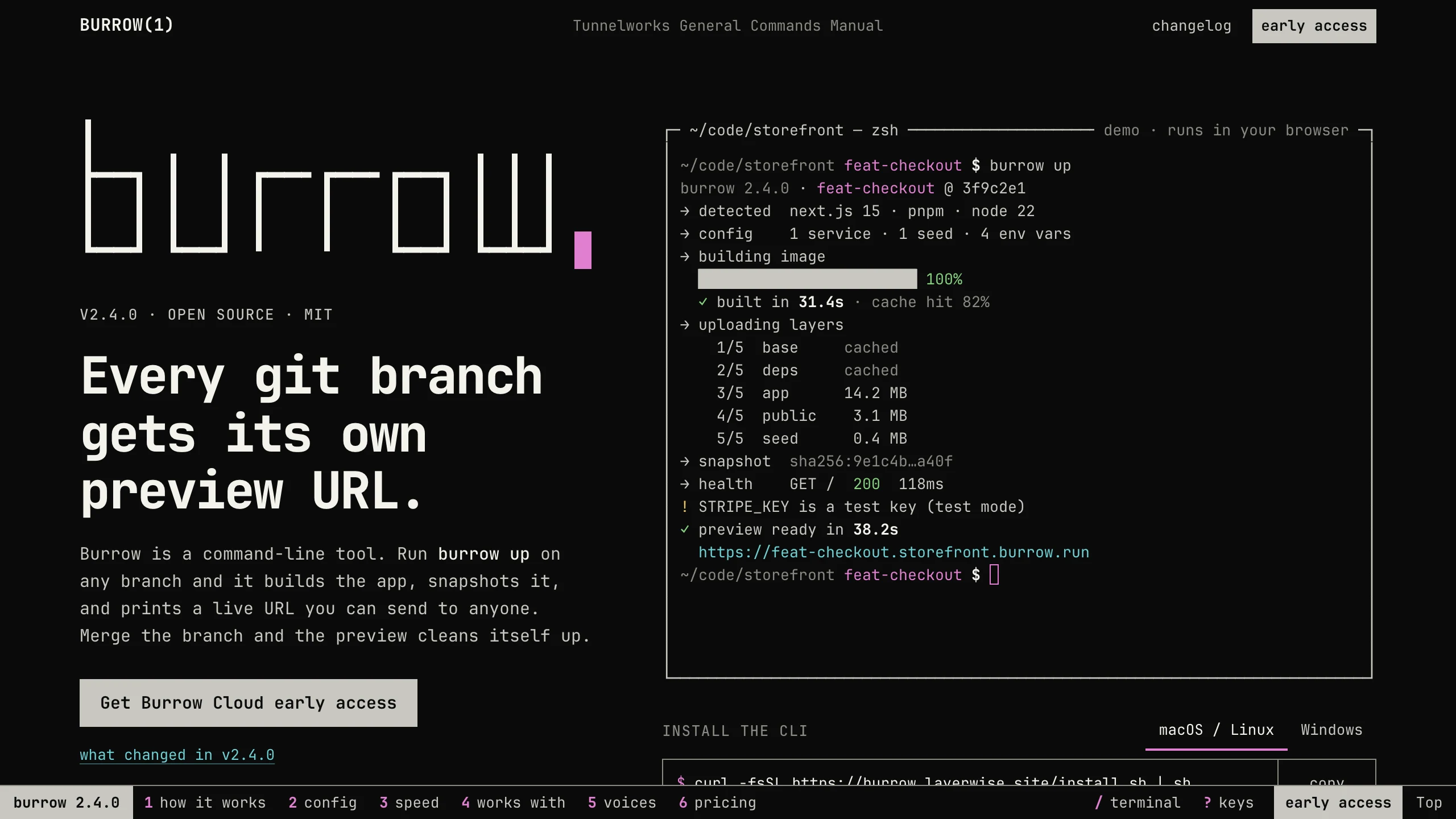
Burrow
Landing PagesA man-page style landing page for a developer CLI: a live terminal types its demo, then runs your commands, with install tabs, a box-drawn pipeline, and an ASCII benchmark. No accounts. Ships with 7 fictional releases.
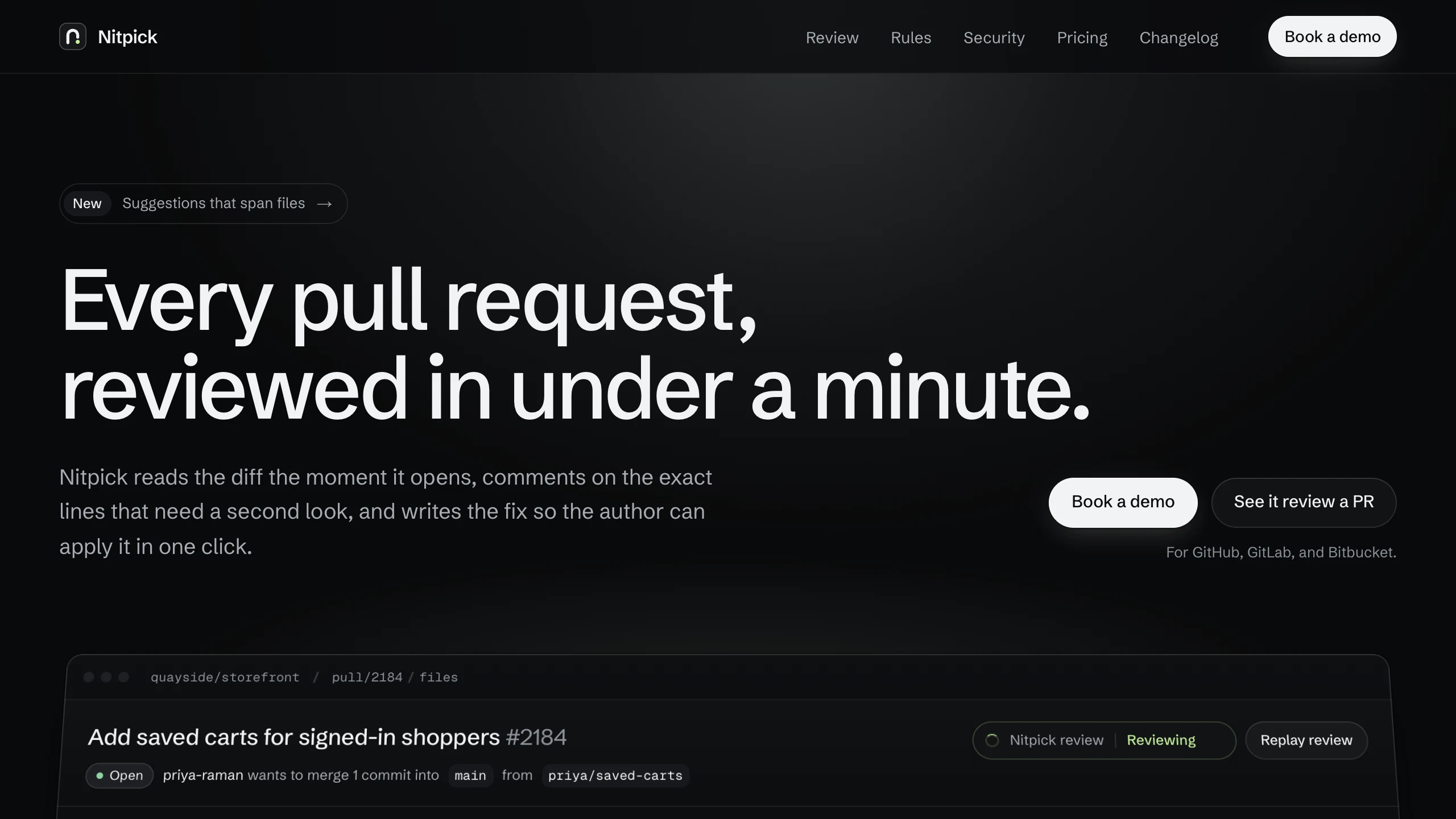
Nitpick
Landing PagesA dark landing page for an AI code review SaaS: a pull request reviewed live in the hero with one-click fixes, six rule switches that re-annotate a diff, and a merge timeline. No accounts. Ships with 6 fictional changelog entries.
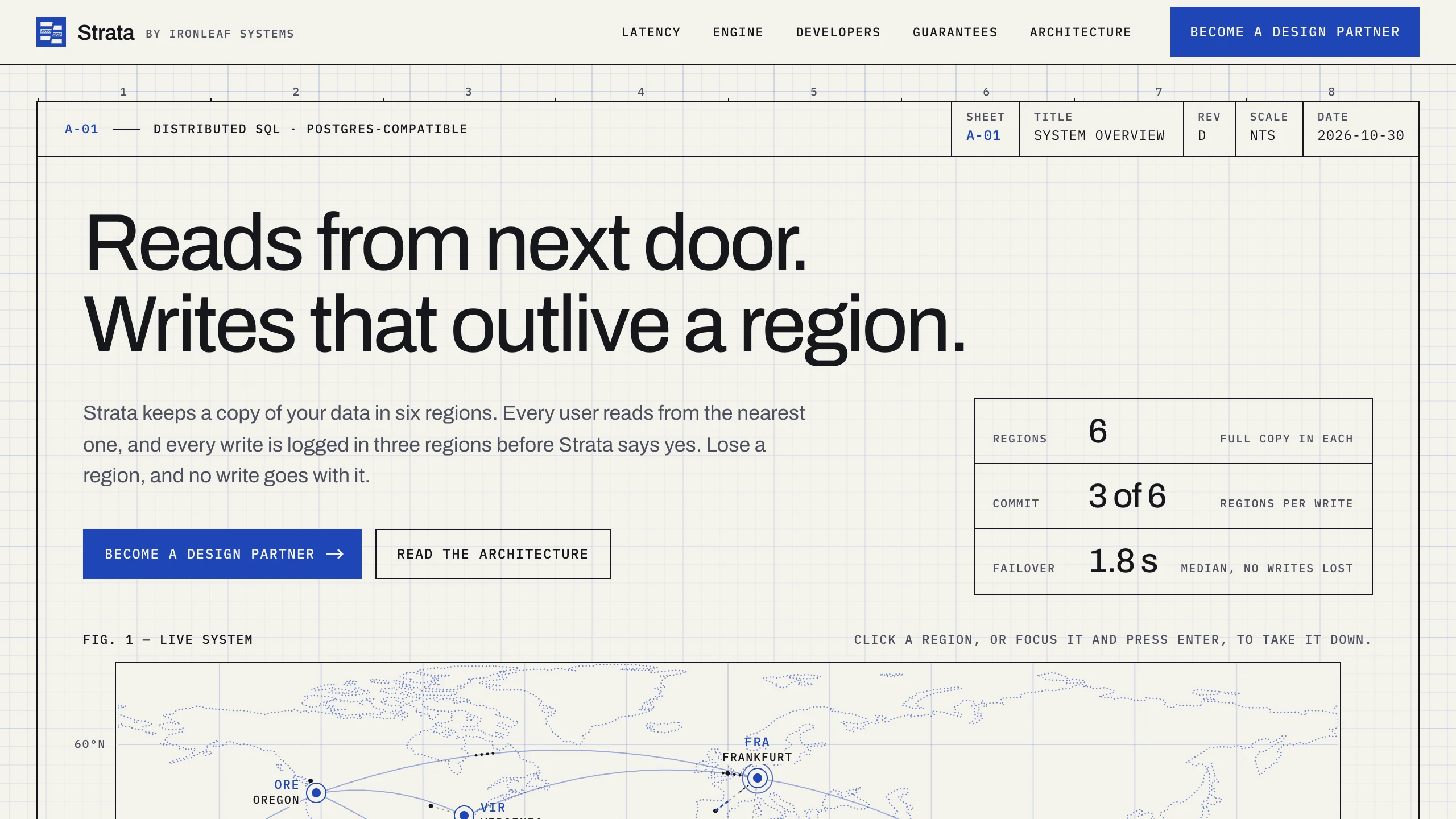
Strata
Landing PagesA blueprint-style landing page for a distributed database: take regions down on a live system map, pick a city to see its latency, and watch the engine come apart in layers. No accounts. Ships with fictional latency data for 12 cities.