Daybreak Bento Grid App Landing Page Template
A launch page for a calendar app in a bright bento layout: a phone that plays a day as you scroll, eight live feature tiles, and a Plan my day demo. No accounts. Ships with a fictional app, a sample user’s day, and five beta quotes.
Opens in Layerwise on your computer. New to Layerwise? Download the app first.
- Category
- Landing Pages
- Tags
- Landing Page, App Launch, Bento Grid, Waitlist
- Updated
- Nov 7, 2026
- Requires
- Layerwise 0.10.7+
- Source
- layerwise-app/daybreak
Build your own version of Daybreak
A launch page for a calendar and day planner app in a bright keynote style: off-white pages, large rounded tiles with soft shadows, a sunrise palette, and rounded numerals for times. The hero is an iPhone drawn in code, and on desktop, scrolling plays Ana’s Thursday from 7:00 to 22:00 as the time line moves, to-dos snap into free gaps, and the sky turns from dawn to dusk. On phones it plays once when the phone is in view, with a scrubber. Eight live bento tiles let visitors drag an event while overlapping ones slide aside with a note, type Lunch with Sam Friday 12:30 at Pellegrini’s and watch a rule-based parser turn it into an event, run a focus timer, resize a widget, switch to dark, find a time across three time zones, tap habit streaks, and open a Mac menu bar dropdown. Plan my day fits seven to-dos into free time by priority and length, and Shuffle picks another plan that still keeps high priority first and work inside work hours. iPhone, iPad, and Mac frames show the same day, followed by five beta quotes, eight questions, and the waitlist, plus Privacy, Terms, and a 404 with an empty day. The form asks for an email and at least one device, saves each sign-up to the database, shows the visitor’s place in line, has a honeypot and a rate limit, says when an email is already on the list, and emails you once you set your address, never the visitor. Every app screen is a React component you can swap for a screenshot or video, and the sample day, tiles, and questions are files you change by asking the agent. Fennel Studio, Ana Ruiz, and the beta users are fictional. Built with Layerwise, React, and TanStack Start.
Use Daybreak to launch a consumer app, especially one for iPhone, iPad, and Mac, with a page people want to play with before they sign up. In the live demo, scroll the hero to play Ana’s day, try the tiles in the bento grid, and choose Plan my day, then Shuffle. Fennel Studio, Ana Ruiz, and the beta users are fictional, so replace them before you publish.
What the template includes
- A hero iPhone drawn in code whose Today view plays a day from 7:00 to 22:00 as you scroll on desktop, or once with a scrubber on phones, while the sky behind it turns from dawn to dusk.
- Eight live bento tiles for drag to reschedule, quick add with a rule-based parser, a focus timer, widget sizes, light and dark, time zones, habit streaks, and the Mac menu bar, plus Plan my day with a tested planner and Shuffle.
- iPhone, iPad, and Mac frames with the same day, five beta quotes, eight questions, Privacy, Terms, an empty-day 404, and a waitlist form with a honeypot and a rate limit that shows each sign-up’s place in line.
The template opens as a local project you can change through the conversation or the code editor. You can inspect the source for this template version before choosing how to extend it.
Copy it and make one useful change
- Install Layerwise and sign in. Choose Use this template, select a team and project name in the app, then choose Copy to Layerwise. Wait for setup and the local preview to finish.
- Start in src/site.config.ts for the product and studio names, tagline, navigation, button labels, colors, fonts, and ownerEmail. Home page copy, the tiles, and the quotes are in src/content/home.ts, the questions are in src/content/faq.ts, and Ana’s events and to-dos are in src/content/sample-day.ts, which the hero, the tiles, Plan my day, and the device frames all read. Each to-do has a duration, a priority, and a kind: work to-dos stay inside workHours, personal ones may go in the evening, and pnpm test checks every plan Shuffle can make. To show your real app, run pnpm add-images and point a slot in src/content/screens.ts at the image. You can do all of this by asking the agent.
- Ask for the change in the project conversation. This prompt is a starting point; adjust it to describe your intended result.
Starter prompt Make this page mine: my app is Margin, a study planner for university students on iPhone, iPad, and Mac, made by three students in Wellington and launching in autumn 2027. Replace Ana with a sample student, Kiri, whose Tuesday has two lectures, a lab, and a café shift, plus seven study to-dos. Rewrite the hero, the tiles, the quotes, and the questions for students, and keep the scroll-driven phone, the bento grid, and Plan my day. Run pnpm test after changing the day, and check the page at 390 px.
Check the result before publishing
- In the first tile, drag Standup onto Design review; the review should slide aside, and a note should say what moved and to when. In the quick add tile, choose Type it for me, and the card should read Lunch with Sam, Friday 12 March · 12:30–13:30, at Pellegrini’s.
- Choose Plan my day; every to-do should get a time, starting with Finish review deck at 8:30. Choose Shuffle a few times, and the high-priority to-dos should always come first, with nothing after 20:30. On a phone-width window, the hero phone should play once as it scrolls into view, and the scrubber should move through the day.
- Send the waitlist form with an email and at least one device. It should show your place in line, and the row should appear in the waitlist table under Database in Local with the same position. Send the same email again, and it should say You’re already on the list. Open /sign-in, and it should return a 404.
New projects on paid plans start private, so turn off Private in the Publish menu before sharing your page. Local and published apps use separate databases, so sign-ups sent to the preview won’t appear on the live site, and places in line start again at #1 there. Email only sends after the first publish and only once ownerEmail is set; until then, read sign-ups under Database. Replace the fictional studio, sample user, quotes, and launch date before you publish. The site never emails the people who sign up, so send beta invites yourself. Payments, accounts, and app downloads are not included.
Use the local preview controls to test the affected path. When it works, publish a release and repeat the check at the live URL. For saved records or accounts, read about the separate Local and Online databases.
More landing page templates
See all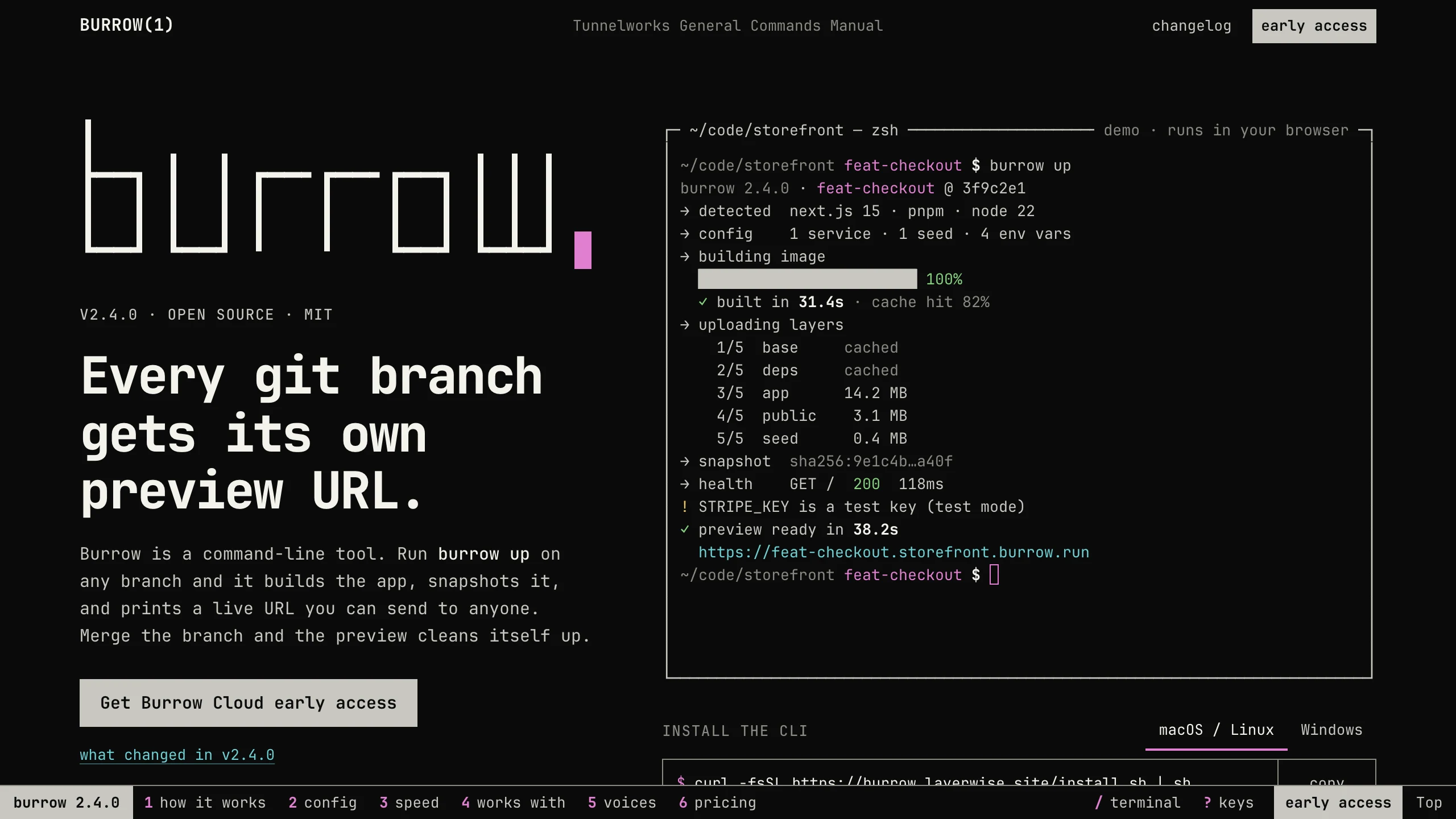
Burrow
Landing PagesA man-page style landing page for a developer CLI: a live terminal types its demo, then runs your commands, with install tabs, a box-drawn pipeline, and an ASCII benchmark. No accounts. Ships with 7 fictional releases.
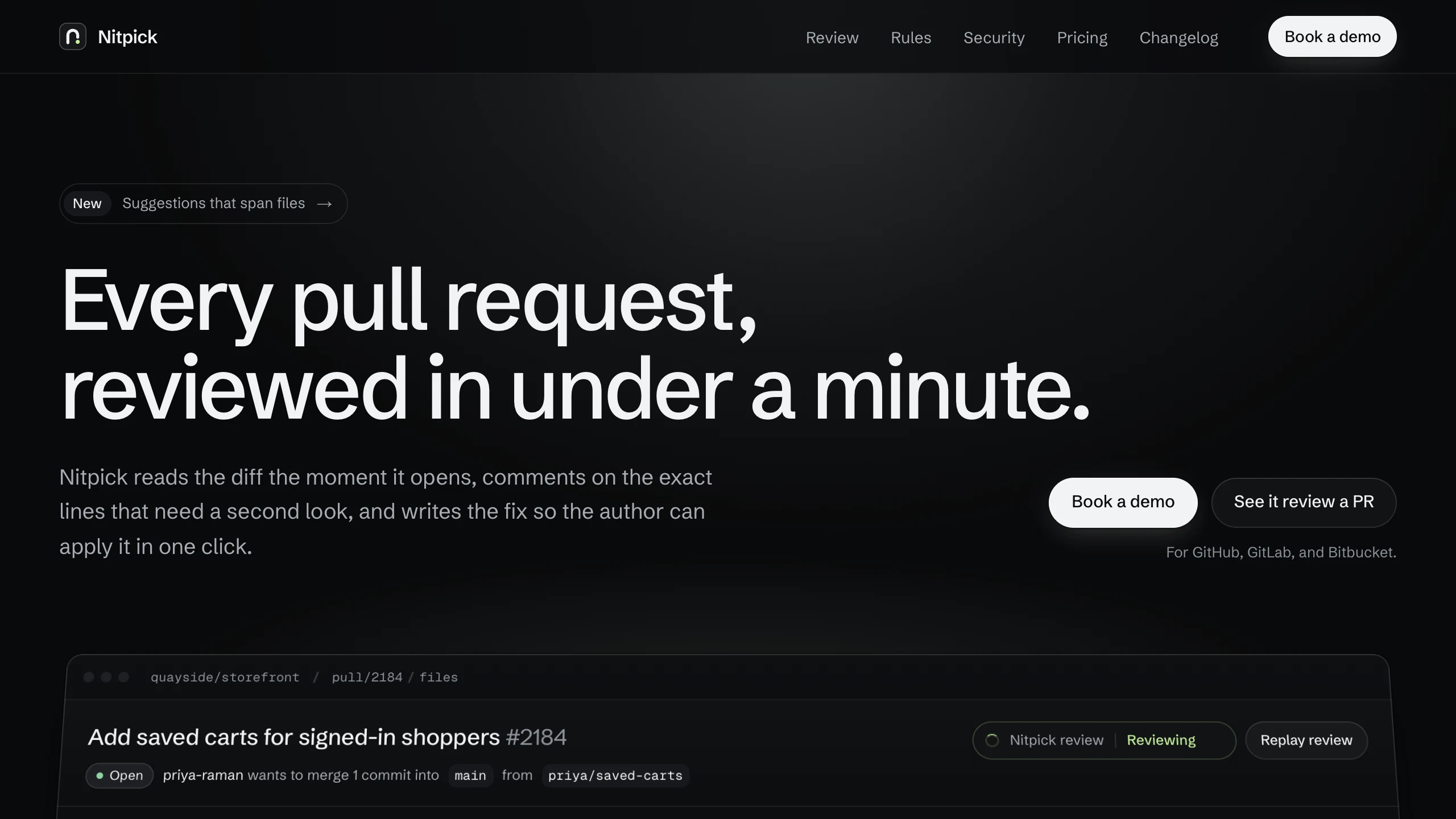
Nitpick
Landing PagesA dark landing page for an AI code review SaaS: a pull request reviewed live in the hero with one-click fixes, six rule switches that re-annotate a diff, and a merge timeline. No accounts. Ships with 6 fictional changelog entries.
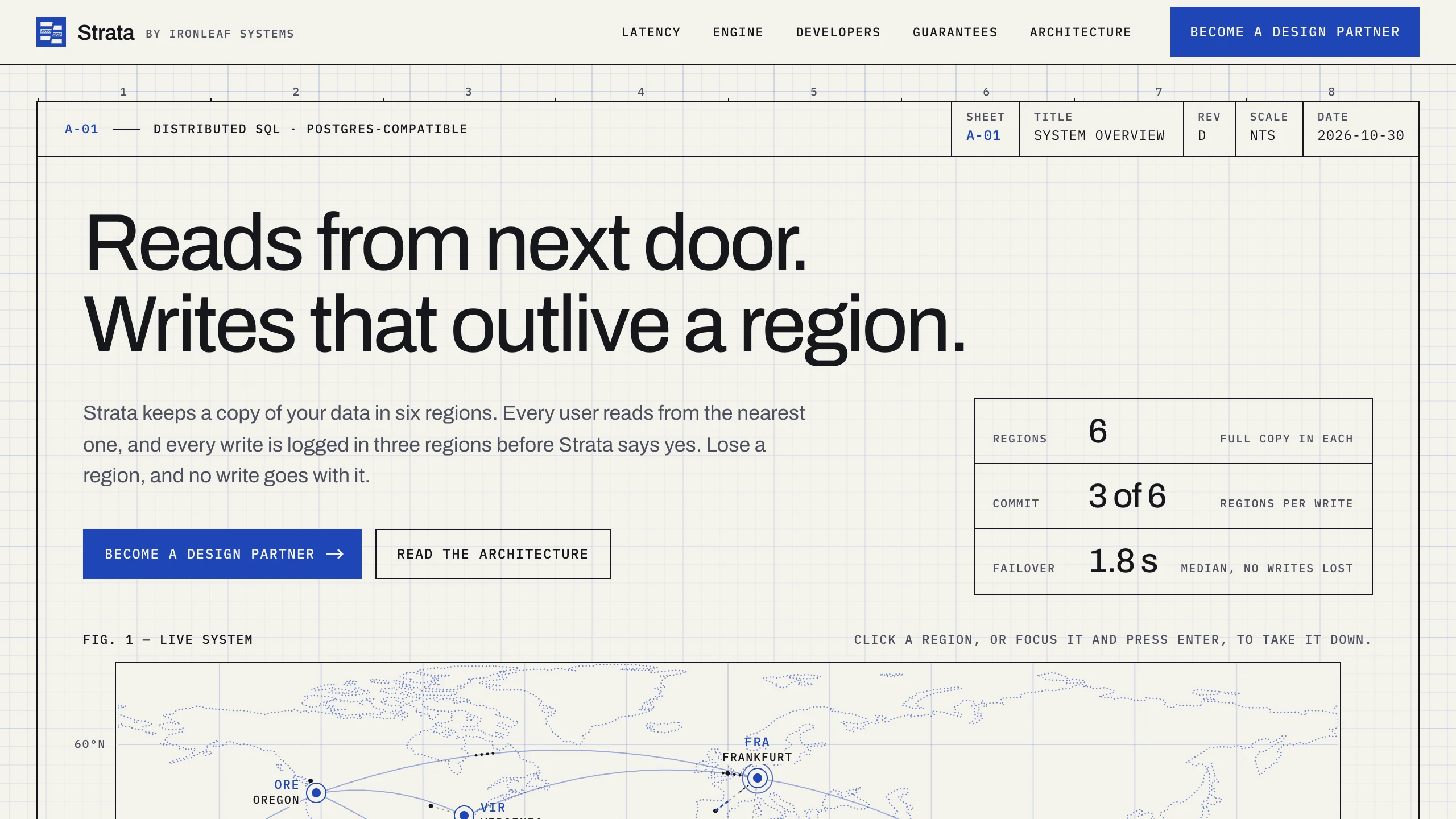
Strata
Landing PagesA blueprint-style landing page for a distributed database: take regions down on a live system map, pick a city to see its latency, and watch the engine come apart in layers. No accounts. Ships with fictional latency data for 12 cities.