Clipjar Retro Desktop Mac App Landing Page Template
A Mac app’s marketing site built as a retro desktop: drag windows, copy text into a working clip history demo, and find a game in the Trash. No accounts. Ships with a fictional app, 7 features, and 6 changelog builds.
Opens in Layerwise on your computer. New to Layerwise? Download the app first.
- Category
- Landing Pages
- Tags
- Landing Page, Mac App, Retro, Beta Sign-up
- Updated
- Nov 7, 2026
- Requires
- Layerwise 0.10.7+
- Source
- layerwise-app/clipjar
Build your own version of Clipjar
The marketing site for a small Mac app, built as an original retro desktop with a dithered wallpaper, a pixel font for titles and menus, and one candy color per window. Desktop icons open Read Me, Clipjar.app, Features, Pricing.txt, Changelog, Beta Sign-up, and Trash, and windows drag, resize, zoom, cascade, and reopen where you left them after a reload. Read Me opens on load with the headline, the pitch, and Join the beta. Clipjar.app is a working demo: text copied anywhere on the page lands in its history with the time and the window it came from, where visitors can search, pin, and paste a clip into Notepad with a click or ⌥⌘V. It keeps up to 50 clips in memory and listens only to copy events on the page. The Trash hides Shelf Life, a small game where you slide a jar to catch falling clips and dodge padlocks, with sound that starts muted. After 90 seconds idle, pixel jars drift across a screensaver, and on phones the desktop becomes an app grid with a stack of full-width windows. Features, Pricing, Changelog, each build, and Beta Sign-up are also server-rendered pages that open with their window in front, and unknown addresses show a This file could not be found dialog. The beta form asks for an email, Mac model, and macOS version, saves each sign-up to the database, has a honeypot and a rate limit, says when an email is already on the list, and emails you once you set your address, never the visitor. There are no accounts or admin screens: window copy and changelog builds are files you change by asking the agent. Small Hours Software and its app are fictional. Built with Layerwise, React, HTML canvas, and TanStack Start.
Use Clipjar for a small Mac app, a utility, or an indie product whose site should be as fun to explore as the app is to use. In the live demo, choose Try it on this page, copy a snippet in Notepad and watch it land in Clipjar.app, then open the Trash. Small Hours Software, its team, and Clipjar itself are fictional, so replace them before you publish.
What the template includes
- A retro desktop with a menu bar, a live clock, desktop icons, and windows that drag, resize, zoom, cascade, and reopen where you left them, plus a screensaver after 90 seconds and an app grid with stacked windows on phones.
- A working Clipjar.app demo that catches text copied on the page, with search, pins, up to 50 clips kept in memory, and paste into Notepad by click or ⌥⌘V, plus Shelf Life, a catch-the-clips game in the Trash with synthesized sound that starts muted.
- Read Me, Features with pixel illustrations, Pricing.txt, six changelog builds that each open in their own window, Privacy, and Terms as server-rendered pages, and a Beta Sign-up form with a honeypot and a rate limit that saves sign-ups to the database.
The template opens as a local project you can change through the conversation or the code editor. You can inspect the source for this template version before choosing how to extend it.
Copy it and make one useful change
- Install Layerwise and sign in. Choose Use this template, select a team and project name in the app, then choose Copy to Layerwise. Wait for setup and the local preview to finish.
- Start in src/site.config.ts for the company and product names, tagline, the pages in the Clipjar menu, button labels, each window’s candy color, fonts, and ownerEmail. Each window’s copy is one file in src/content/windows, the menu bar, desktop icons, and sticky note are in src/content/home.ts, and page titles and share images are in src/lib/pages.ts. Each changelog build is one file in src/content/changelog; copy one to add a build, and it appears in the Changelog window, at its own address, and in the sitemap. To show a real screenshot of your app, run pnpm add-images and point the screen in src/content/screens.ts at it. You can do all of this by asking the agent.
- Ask for the change in the project conversation. This prompt is a starting point; adjust it to describe your intended result.
Starter prompt Make this site mine: I sell Stowaway, a Mac app by Lena Ortiz in Austin that keeps the files you drag to the menu bar, $15 once at launch. Rewrite Read Me, Features, and Pricing.txt for it, rename Clipjar.app to Stowaway.app, and replace its clip history screen with my attached screenshot, using pnpm add-images. Keep the desktop, the window chrome, and the Trash game. Replace the six changelog builds with the three in my notes below, and check the desktop at 1440 px and the app grid at 390 px.
Check the result before publishing
- Choose Try it on this page, then press Copy next to Studio address in Notepad. Clipjar.app should list Rua do Frasco 12, 1100-200 Lisboa with the time and from Notepad. Click the clip, and it should be pasted into the scratch pad; with the scratch pad focused, ⌥⌘V should open Paste from the jar.
- Drag Read Me by its title bar, resize it from the corner, and reload; it should open where you left it. On a phone-width window, the desktop should become an app grid, and tapping an icon should open its window full width in a stack that scrolls normally.
- Open Beta Sign-up, send the form, and confirm the row appears in the beta_signups table under Database in Local. Send the same email again, and it should say Already on the list. Open /sign-in, and it should return a 404 with the This file could not be found dialog.
New projects on paid plans start private, so turn off Private in the Publish menu before sharing your site. Local and published apps use separate databases, so sign-ups sent to the preview won’t appear on the live site. Email only sends after the first publish and only once ownerEmail is set; until then, read sign-ups under Database. Replace the fictional studio, app, people, prices, and changelog before you publish. The site never emails the people who sign up, so send beta builds yourself. Payments, a download page, and a blog are not included.
Use the local preview controls to test the affected path. When it works, publish a release and repeat the check at the live URL. For saved records or accounts, read about the separate Local and Online databases.
More landing page templates
See all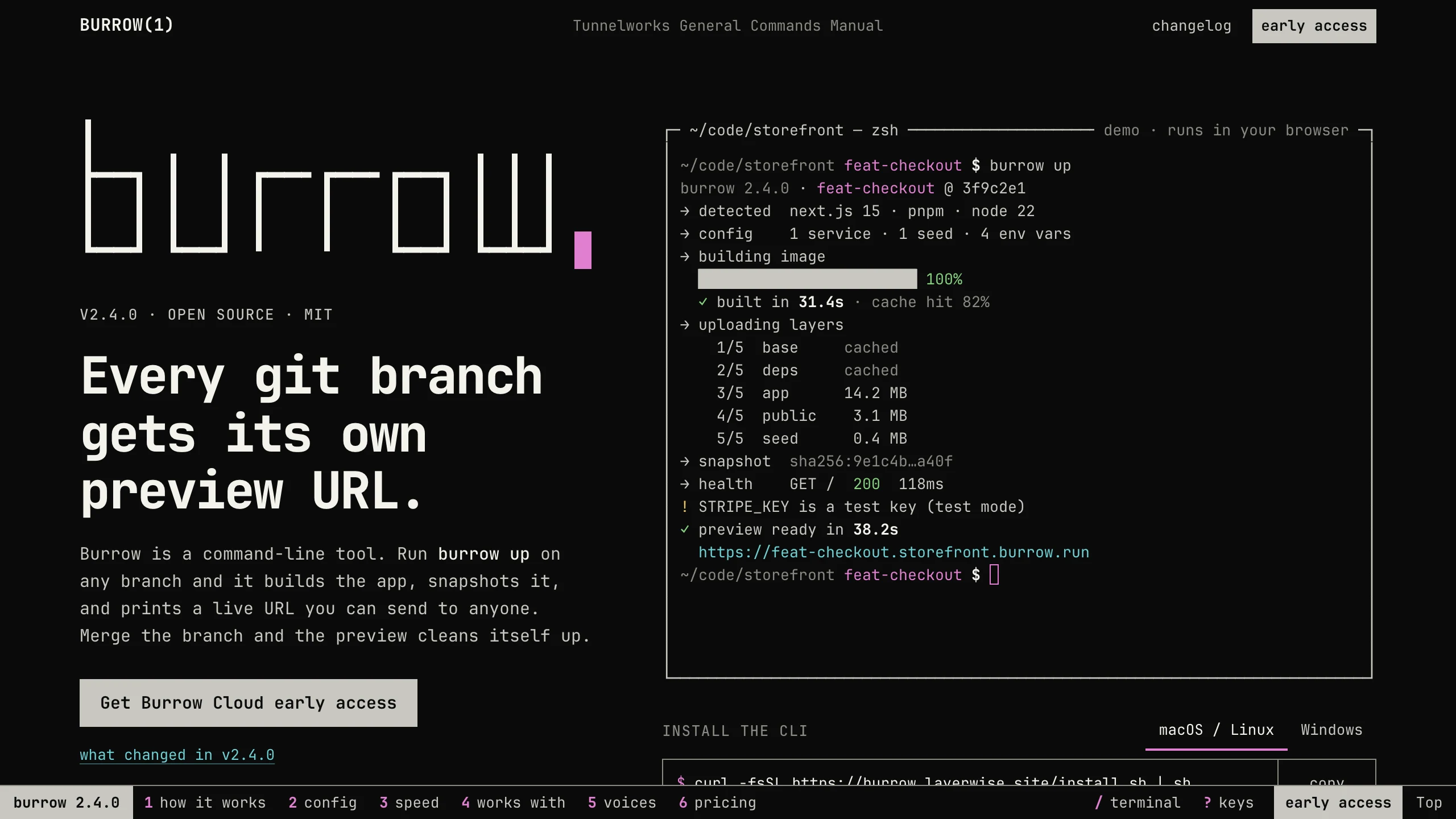
Burrow
Landing PagesA man-page style landing page for a developer CLI: a live terminal types its demo, then runs your commands, with install tabs, a box-drawn pipeline, and an ASCII benchmark. No accounts. Ships with 7 fictional releases.
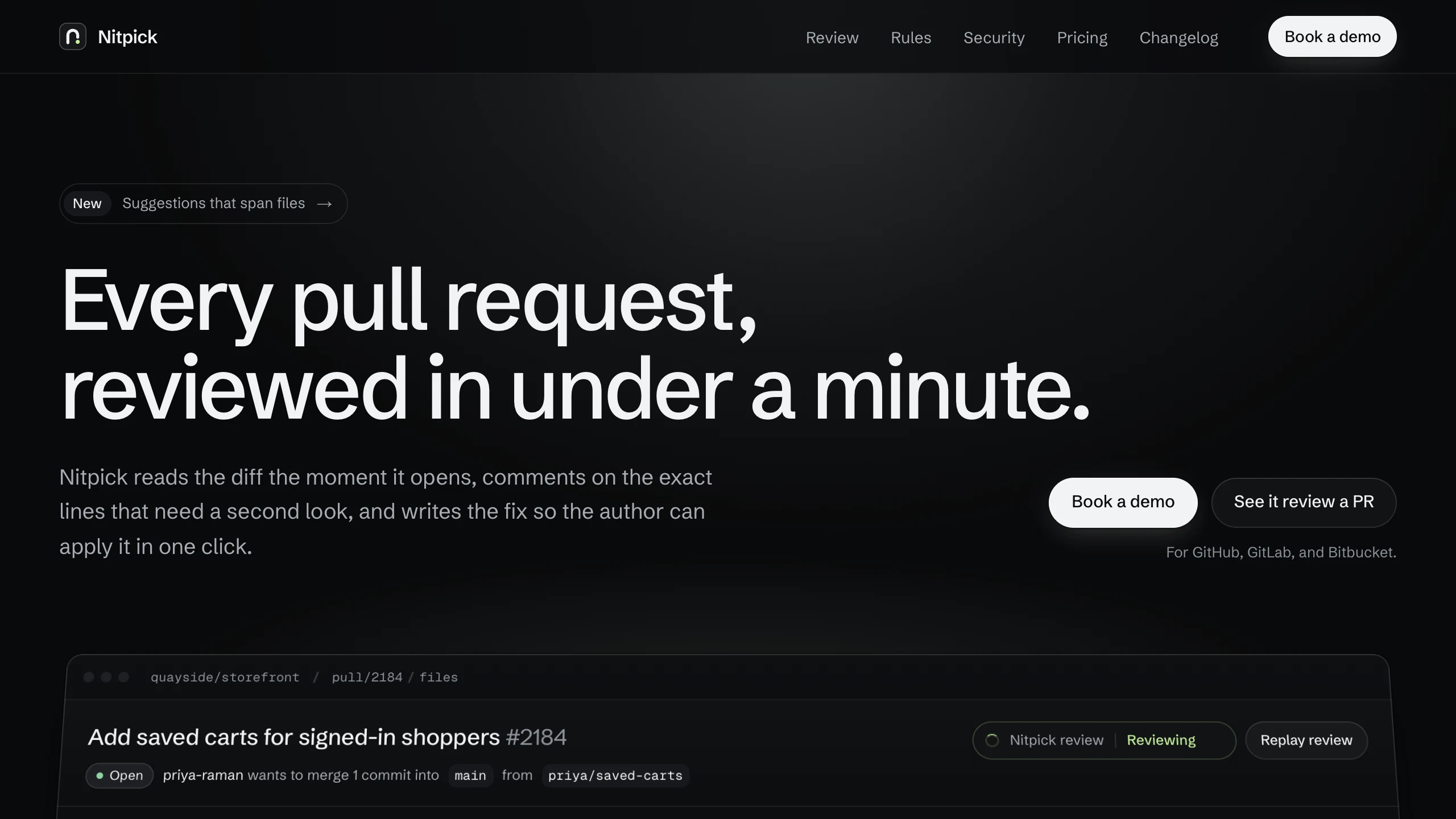
Nitpick
Landing PagesA dark landing page for an AI code review SaaS: a pull request reviewed live in the hero with one-click fixes, six rule switches that re-annotate a diff, and a merge timeline. No accounts. Ships with 6 fictional changelog entries.
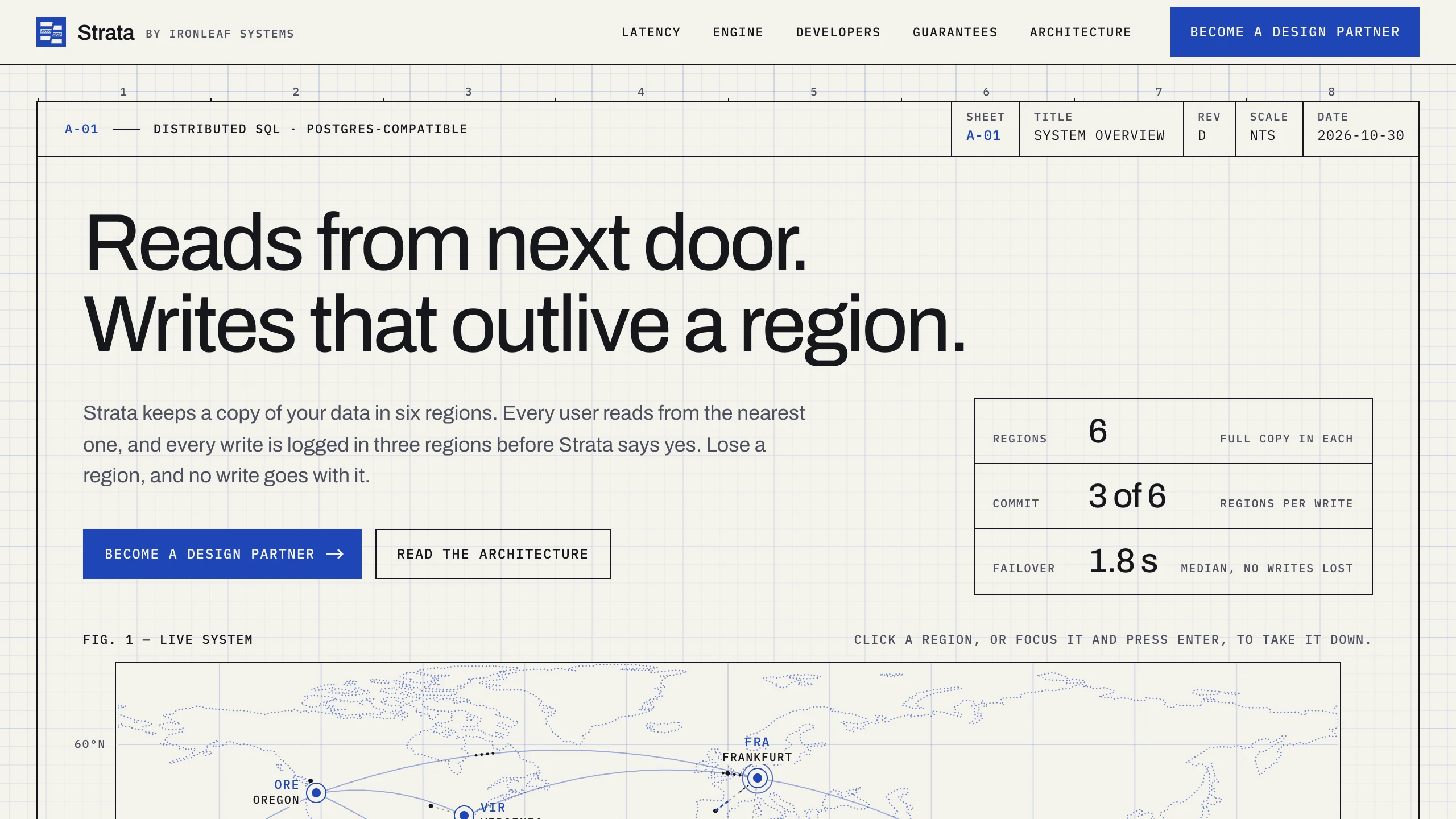
Strata
Landing PagesA blueprint-style landing page for a distributed database: take regions down on a live system map, pick a city to see its latency, and watch the engine come apart in layers. No accounts. Ships with fictional latency data for 12 cities.