Apogee Space Tech WebGL Globe Landing Page Template
A deep-tech landing page for a satellite company: a WebGL globe with 48 orbiting satellites, live telemetry, and a tasking demo that captures any place you pick. No accounts. Ships with 6 sample sites and 6 fictional launches.
Opens in Layerwise on your computer. New to Layerwise? Download the app first.
- Category
- Landing Pages
- Tags
- Landing Page, Deep Tech, WebGL, Space
- Updated
- Nov 7, 2026
- Requires
- Layerwise 0.10.7+
- Source
- layerwise-app/apogee
Build your own version of Apogee
A landing page for an Earth imaging company, styled like a mission control room: near-black pages, thin HUD linework, a condensed display face, mono readouts, and amber for live values. The hero is a WebGL Earth drawn from Natural Earth land dots with a day-night line, where 48 satellites in three planes follow their orbits with ground tracks, and a telemetry panel shows the selected satellite’s altitude, velocity, position, and next pass, all computed by a tested orbit model. Dragging turns the globe before it eases back into its spin. In Tasking, visitors pick one of six sites or click any point on land; a satellite is assigned, a sped-up countdown runs to its next daylight pass, the ground track sweeps over the site, and a capture opens, painted in code on a canvas with a before and after slider and a false-color view of vegetation health. A scroll-driven timeline follows one satellite from launch to first light, and becomes a list of stills on phones. The Imagery page has products, a specification table, and a gallery of the six captures, the Missions page lists every launch, and unknown addresses show Signal lost. The request form asks for a work email, organization, area of interest, and use case, saves each request to the database, has a honeypot and a rate limit, says when an email is already on the list, and emails you once you set your address, never the visitor. Sites and launches are one file each, so you add them by asking the agent. Apogee Orbital and its customers are fictional. Built with Layerwise, React, WebGL, and TanStack Start.
Use Apogee for a deep-tech, aerospace, or Earth observation company that sells to insurers, farms, governments, or relief groups. In the live demo, drag the globe, choose Okanagan Highlands under Tasking to watch a satellite take its picture, then drag the before and after slider. Apogee Orbital and every customer are fictional, so replace them before you publish.
What the template includes
- A WebGL Earth drawn from Natural Earth land dots with a day-night line, 48 satellites on a tested orbit model with ground tracks, and a telemetry panel whose altitude, velocity, position, and next pass tick from the simulation.
- A tasking demo for six preset sites or any point on land, with a sped-up countdown, a sweeping ground track, and a capture painted in code with a before and after slider and false color, plus a scroll-driven timeline from launch to first light.
- Who uses it, key numbers, and the next launch on Home, an Imagery page with products, specifications, and a gallery of the six captures, a Missions page with the launch history, Privacy, Terms, a Signal lost 404, and a request form with a honeypot and a rate limit.
The template opens as a local project you can change through the conversation or the code editor. You can inspect the source for this template version before choosing how to extend it.
Copy it and make one useful change
- Install Layerwise and sign in. Choose Use this template, select a team and project name in the app, then choose Copy to Layerwise. Wait for setup and the local preview to finish.
- Start in src/site.config.ts for the company name, navigation, button labels, colors, fonts, and ownerEmail. Home page copy is in src/content/home.ts, Imagery copy and specifications are in src/content/imagery.ts, and page titles and share text are in src/content/pages.ts; run pnpm build:share-images after changing share text. The orbit settings in src/content/constellation.ts drive every live readout. Each preset site is one file in src/content/sites, with a scene kind and a seed for its capture, and each launch is one file in src/content/missions, so the Missions table and Next launch update on their own. To show real imagery, run pnpm add-images and point a screen in src/content/screens.ts at it. You can do all of this by asking the agent.
- Ask for the change in the project conversation. This prompt is a starting point; adjust it to describe your intended result.
Starter prompt Make this site mine: we’re Fathom Marine, a startup in Halifax with 24 satellites that track ships for port authorities and insurers. Change the constellation to 24 satellites in two planes at 560 km and update the key numbers to match. Replace the six sites with ports and shipping lanes using the port and delta scenes, and replace the launches with our two, FM-1 and FM-2, from my notes below. Rewrite the hero, Who uses it, and the request form’s use cases for maritime buyers, and keep the globe, tasking, and the timeline. Check Home and Missions at 390 px.
Check the result before publishing
- Under Tasking, choose Okanagan Highlands. A satellite should be assigned, the next pass should count down in a few seconds, and the capture should open; drag the slider and switch to False color. Then click a point in the ocean on the tasking globe, and it should say Open water. Pick a point on land or a coastline.
- On a phone-width window, choose a preset site, and the page should scroll the globe into view and keep the live status on screen while the pass runs. The timeline should be a list of four stages with stills. With reduced motion turned on in your system settings, choosing a site should open its capture at once.
- Send the request form and confirm the row appears in the sample_requests table under Database in Local. Send the same email again, and it should say You are already on the list. Open /sign-in, and it should return a 404 with the Signal lost page.
New projects on paid plans start private, so turn off Private in the Publish menu before sharing your site. Local and published apps use separate databases, so requests sent to the preview won’t appear on the live site. Email only sends after the first publish and only once ownerEmail is set; until then, read requests under Database. Replace the fictional company, customers, figures, sites, and launches before you publish, and set site.url in src/lib/site.ts after you connect a custom domain. Captures are painted in code, so add your real imagery with pnpm add-images. Sample delivery, a customer portal, and payments are not included.
Use the local preview controls to test the affected path. When it works, publish a release and repeat the check at the live URL. For saved records or accounts, read about the separate Local and Online databases.
More landing page templates
See all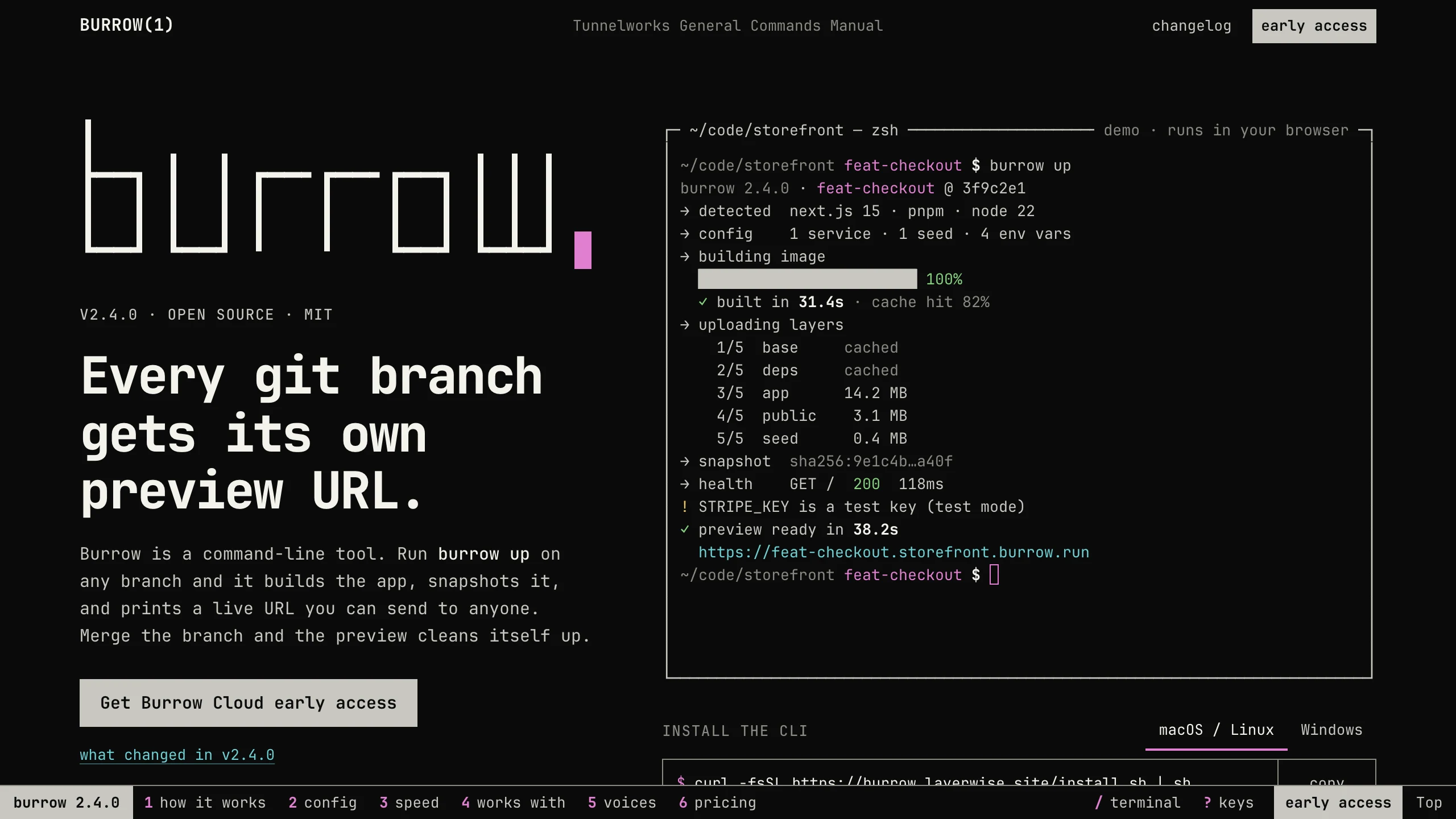
Burrow
Landing PagesA man-page style landing page for a developer CLI: a live terminal types its demo, then runs your commands, with install tabs, a box-drawn pipeline, and an ASCII benchmark. No accounts. Ships with 7 fictional releases.
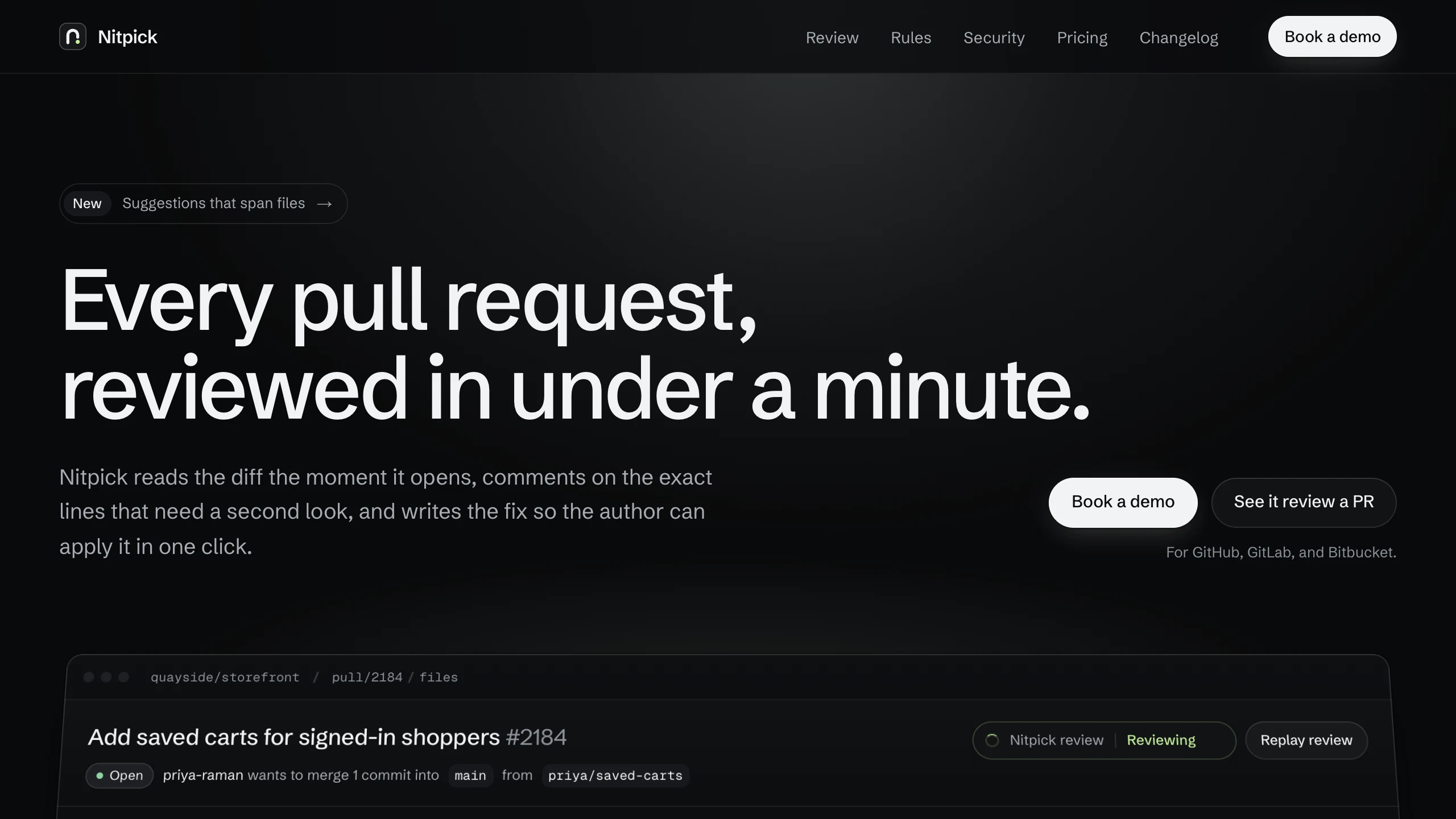
Nitpick
Landing PagesA dark landing page for an AI code review SaaS: a pull request reviewed live in the hero with one-click fixes, six rule switches that re-annotate a diff, and a merge timeline. No accounts. Ships with 6 fictional changelog entries.
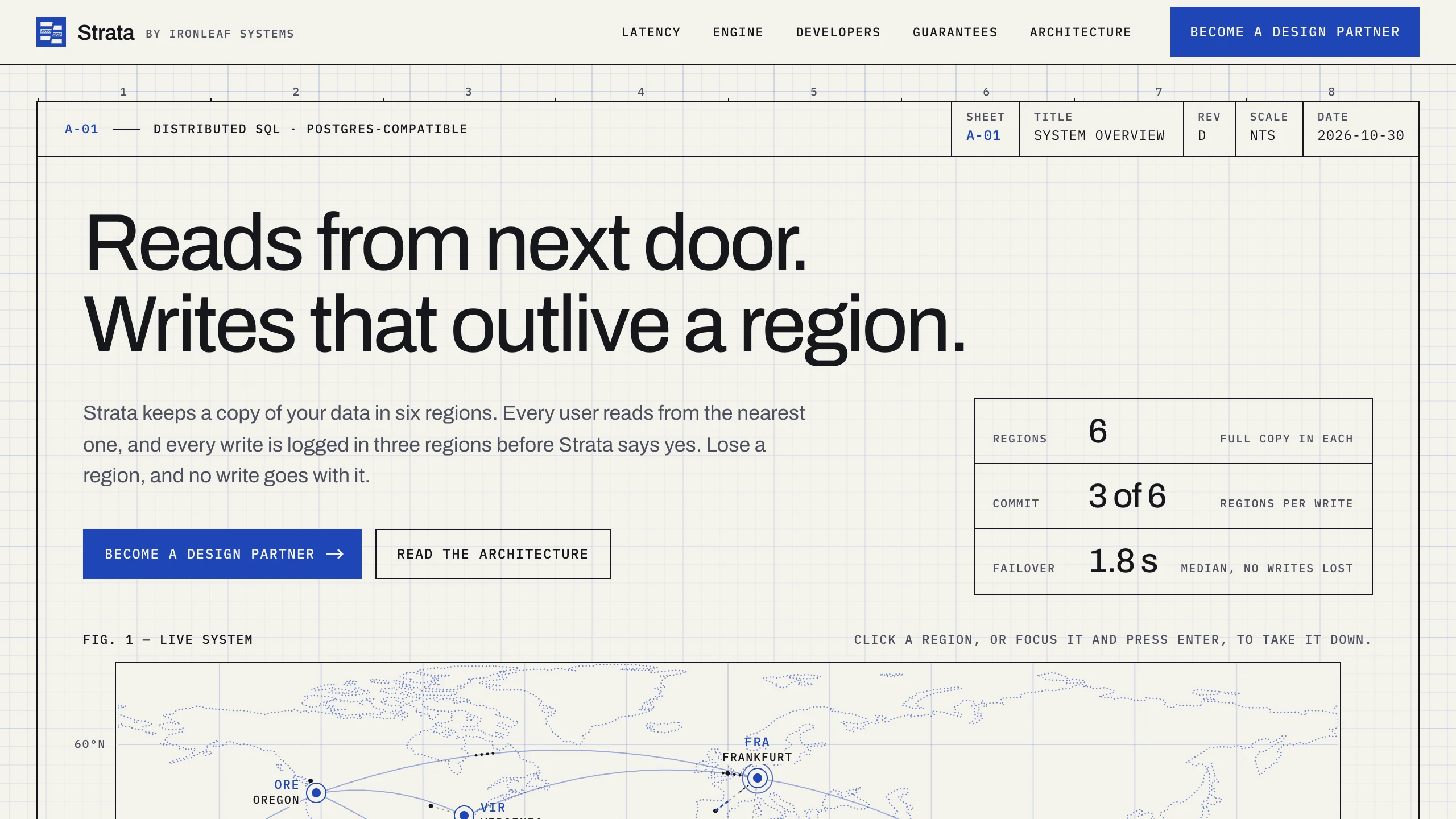
Strata
Landing PagesA blueprint-style landing page for a distributed database: take regions down on a live system map, pick a city to see its latency, and watch the engine come apart in layers. No accounts. Ships with fictional latency data for 12 cities.