Productivity
NoteNest Markdown Notes App Template
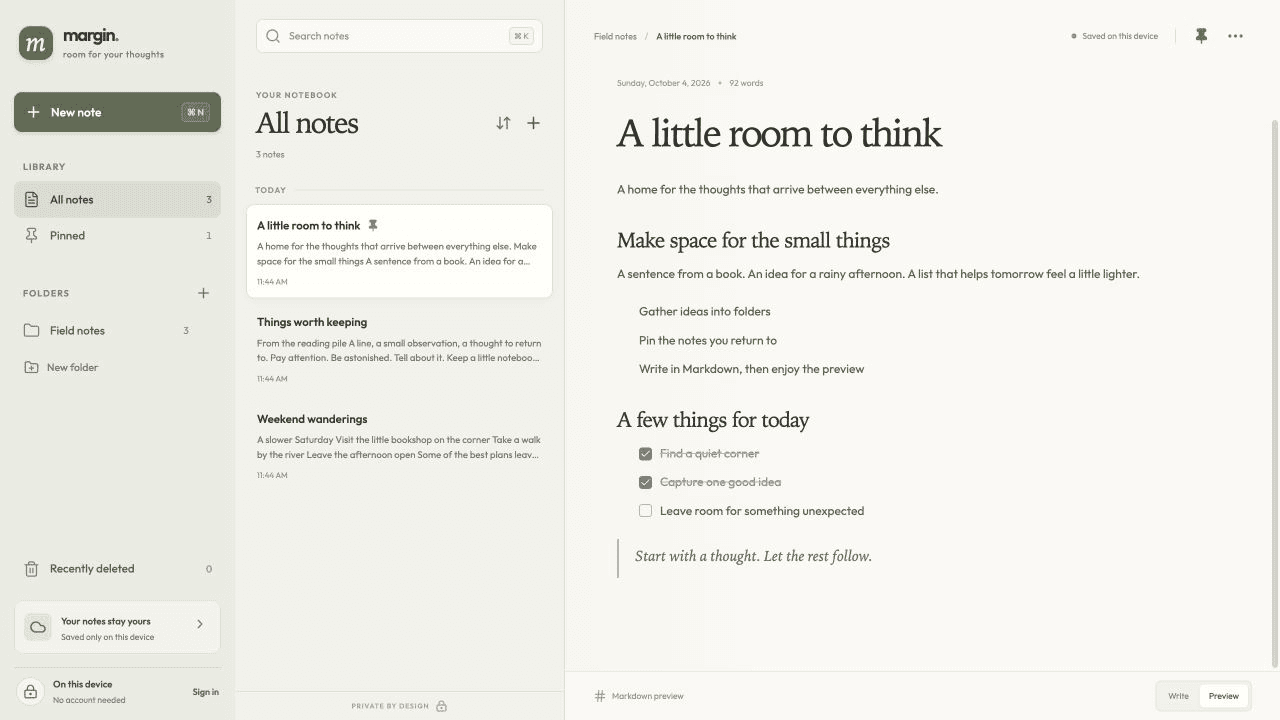
Write and organize notes in a quiet, three-pane workspace. NoteNest includes Markdown editing and preview, folders, pinned notes, search, and a recently deleted view. Notes are saved on your device automatically, with optional account sync across devices. Built with Layerwise, it is ready to customize into your own writing app.
The button opens Layerwise on your computer. If it does not open, download the app first and try again.
Open itBuild your own version of NoteNest
Use NoteNest to build a focused notes app for writing, research, or a personal knowledge collection. Notes save on the device automatically, with optional account sync across devices.
What the template includes
- A three-pane workspace with Markdown editing and preview.
- Folders, pinned notes, search, and a recently deleted view.
- Automatic local saving and optional account sync.
The template opens as a local project you can change through the conversation or the code editor. You can inspect the source for this template version before choosing how to extend it.
Copy it and make one useful change
- Install Layerwise and sign in. Choose Use this template, select a team and project name in the app, then choose Copy to Layerwise. Wait for setup and the local preview to finish.
- Choose the writing workflow first: a daily journal, meeting notes, or research folders. Preserve saving and recovery while you adjust the editor, navigation, and empty states.
- Ask for the change in the project conversation. This prompt is a starting point; adjust it to describe your intended result.
Adapt this notebook for meeting notes. Add a meeting-note template with date, attendees, decisions, and action items. Keep Markdown preview, folders, search, pinned notes, and recently deleted notes working. Make the editor comfortable at phone width.
Check the result before publishing
- Create and edit a note, refresh, and confirm the text remains saved on the device.
- Move a note between folders, pin it, search for it, and recover it from recently deleted.
- If you keep account sync, test the same account in a second browser or device and verify which changes are synchronized.
Decide whether your version is local-only or supports account sync. Make that behavior clear to users and test sign-in and sign-out before publishing.
Use the local preview controls to test the affected path. When it works, publish a release and repeat the check at the live URL. For saved records or accounts, read about the separate Local and Online databases.
Preview